Computer Screen Monitoring & Employee Monitoring Software
Computer screen monitoring software

See what’s happening on your team’s screens.

Review screenshots, view live screens, and replay captured activity alongside app usage and active or idle time—so managers can understand the workday and follow up with context.

Try Professional with up to 5 employees. No credit card. Includes Live Wall and full Work Replay.

Windows, macOS & Linux No keystroke logging 5.0/5 Capterra

On your phone? Create your account now and email yourself the computer setup link.

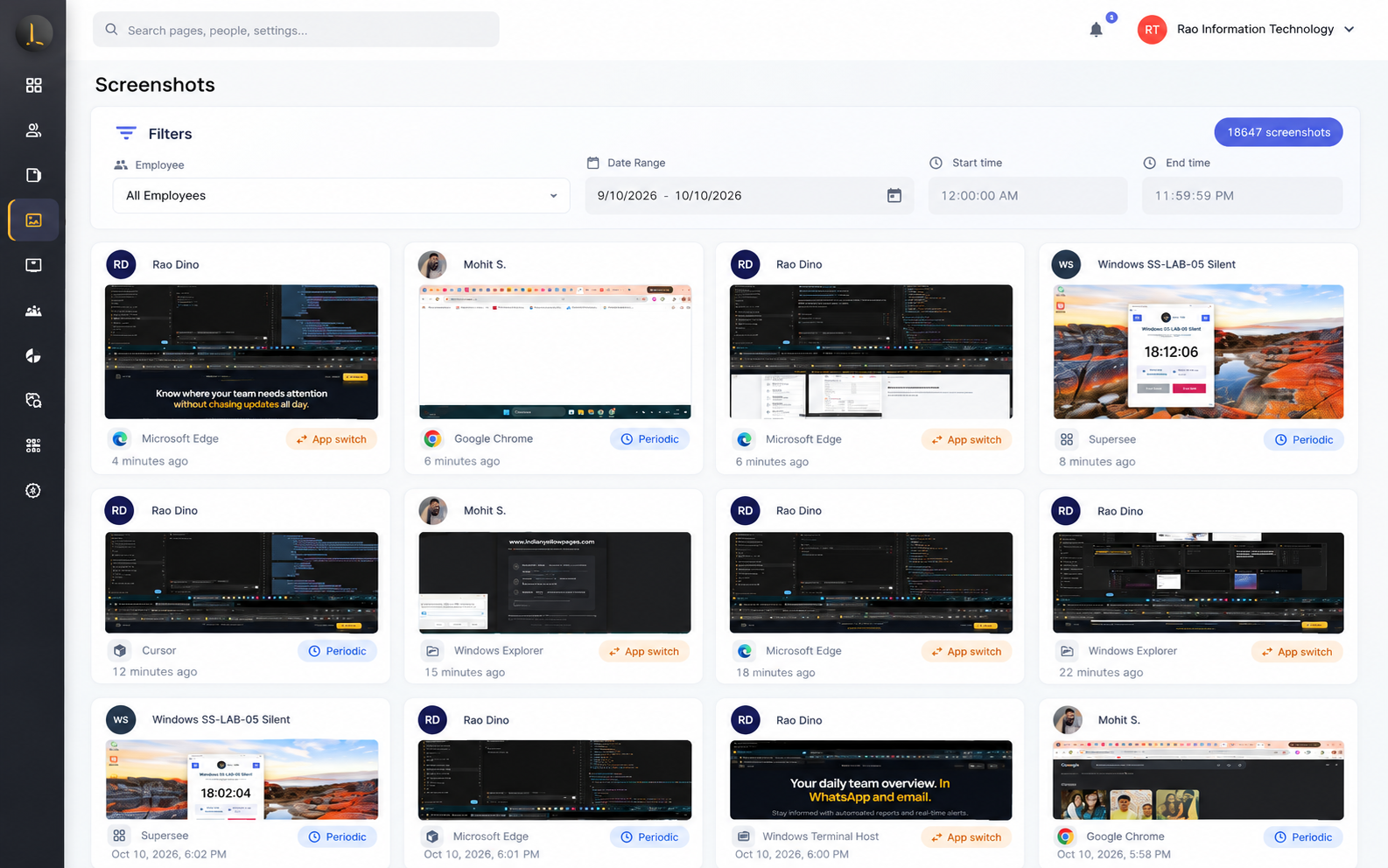
SuperSee screenshot gallery showing computer screen monitoring across employee desktops

Review captured screens across your team from one gallery.

Why teams search for this

See what happened between status updates

Work visibility should close the gap between chat updates and how the workday actually unfolded.

The problem

Blind spots between status updates

A task is still in progress, but the update doesn’t explain how the day was spent.

With SuperSee

Screenshots + activity context

Review captured screens, apps, and timelines in one place before you follow up.

The problem

Remote and hybrid distance

Harder to support, balance load, or follow up without check-ins.

With SuperSee

Live view when you need it

Open one authorised screen—or a Live Wall—with logged access when an issue needs attention.

The problem

Hours without screen context

Timesheets alone don’t explain tools, idle stretches, or blockers.

With SuperSee

Usage + automated time records

Pair apps and sites with automatically recorded timesheets to ask better questions about blockers.

What you can see

Computer screen monitoring, end to end

Screenshots, live view, Work Replay, and app usage—connected, not four separate tools.

01 · SCREENSHOTS

How screenshot monitoring works

Automatic captures at intervals you set—or when apps change—so progress is reviewable without constant check-ins.

Intervals such as every 5, 10, or 15 minutes · optional app-switch capture · pause/delete where policy allows.

More on capture controls

Customize intervals by team policy. Where you allow it, employees can pause tracking or delete screenshots that contain personal data. Introduce screenshot monitoring under clear company policy on work devices.
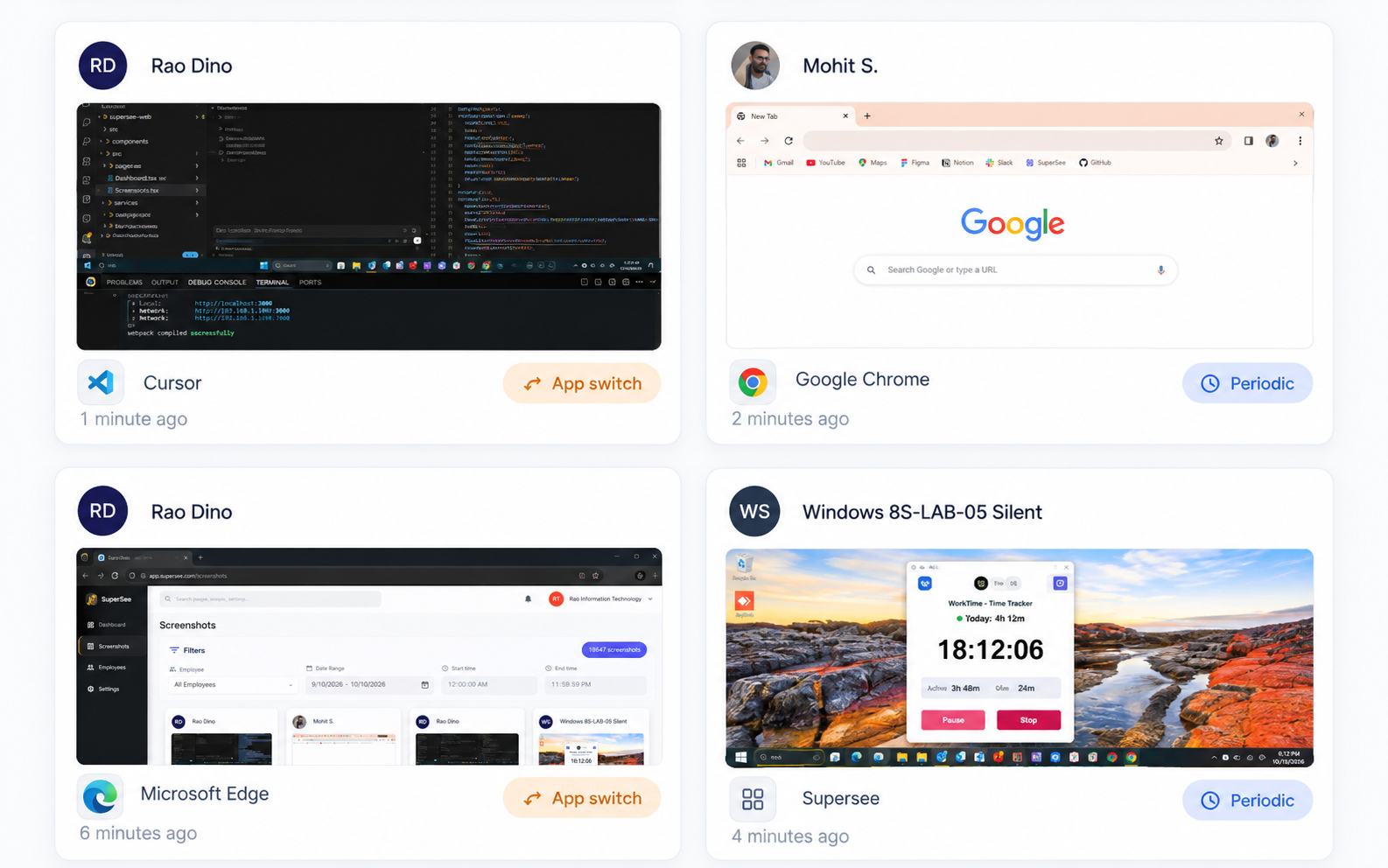
SuperSee screenshot cards showing periodic and app-switch capture triggers

Periodic and app-switch captures — how screenshots are triggered.
02 · LIVE VIEW

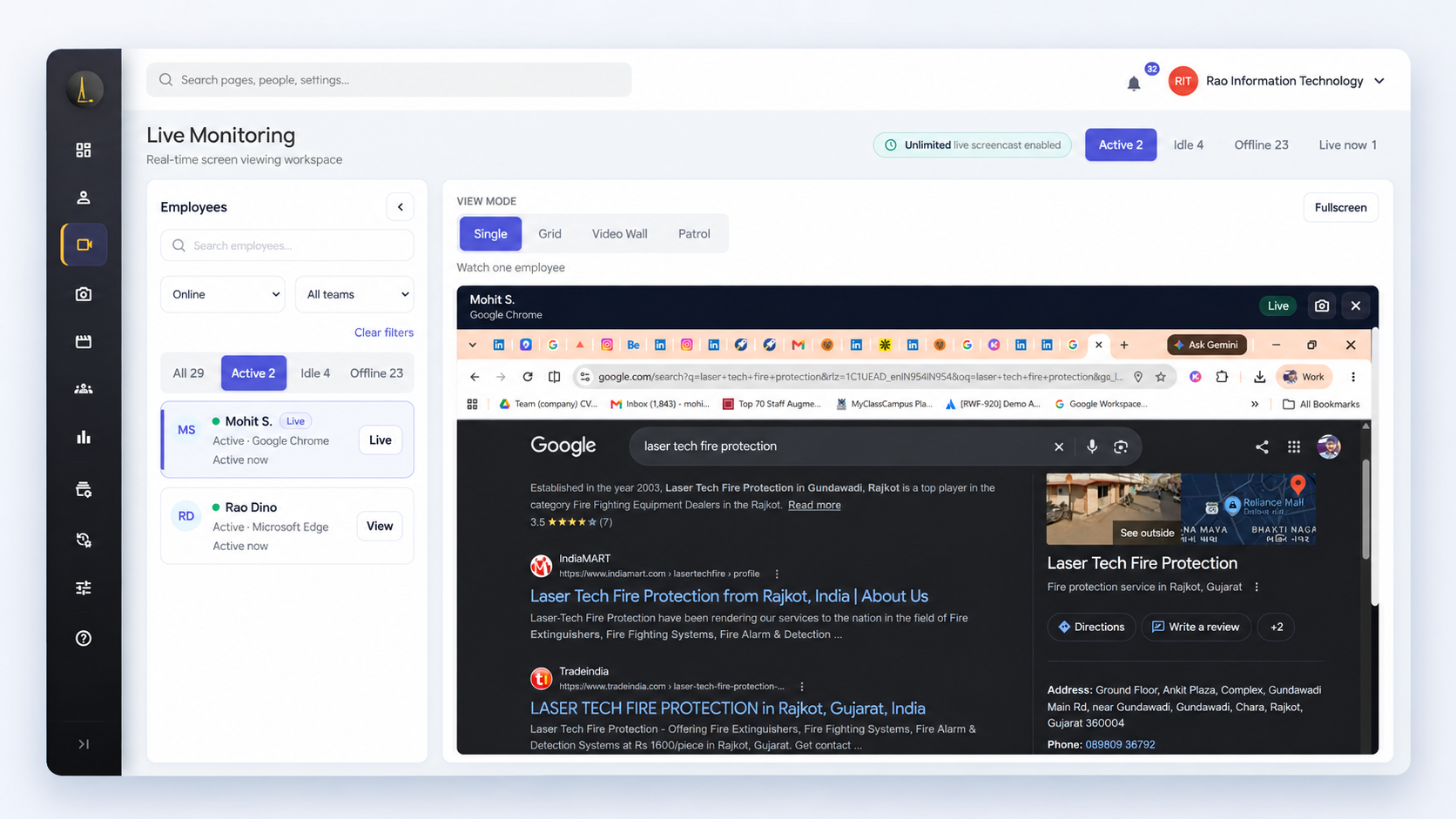
Live monitoring when you need a real-time screen

Open one workstation live—or a Live Wall of several—for remote support and presence checks without interrupting the team.

Authorised managers only · on Professional, live views can be logged with who looked and for how long.

Permissions & accountability

Limit live views to authorised roles. Use live monitoring as coaching and support—not always-on surveillance. The Professional audit log can record which manager viewed a screen, when, and for how long.

SuperSee live screen monitoring single view of one employee desktop

One authorised live screen — readable when you need to step in.

03 · WORK REPLAY

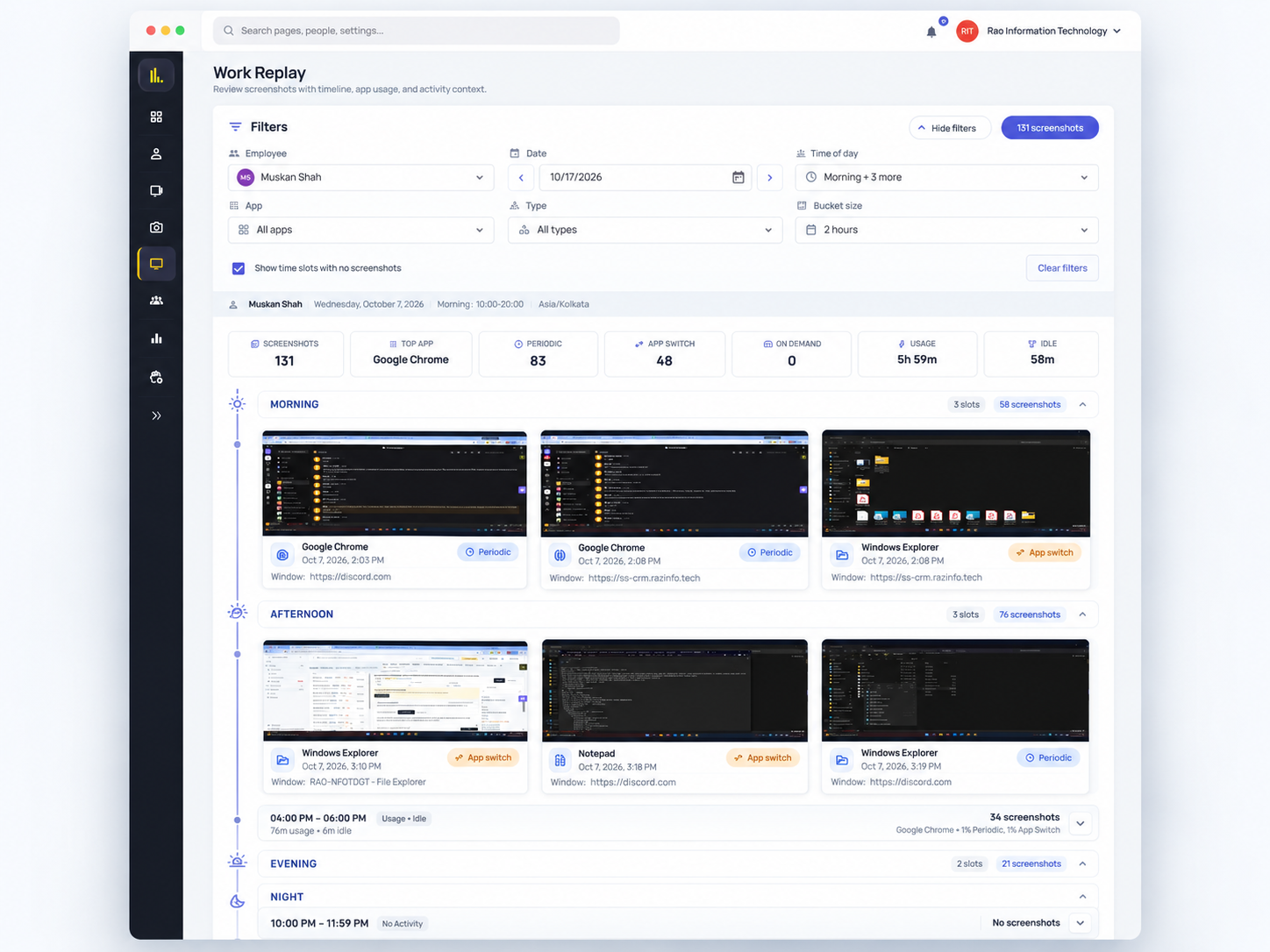
Work Replay for the recorded workday

When a concern appears, step through the recorded stretch—screenshots in sequence with person and date filters—so reviews start from evidence.

Morning/afternoon strips · filters · screen context for delivery conversations.

When teams use Work Replay

Use it when a milestone slipped, a client asked what happened, or a pattern looks uneven. Pair frames with app usage. Activity is not output—role context still matters.

SuperSee Work Replay day grid with filters and morning afternoon screenshot strips

Replay a workday strip — screens in sequence with filters.

04 · APPS & SITES

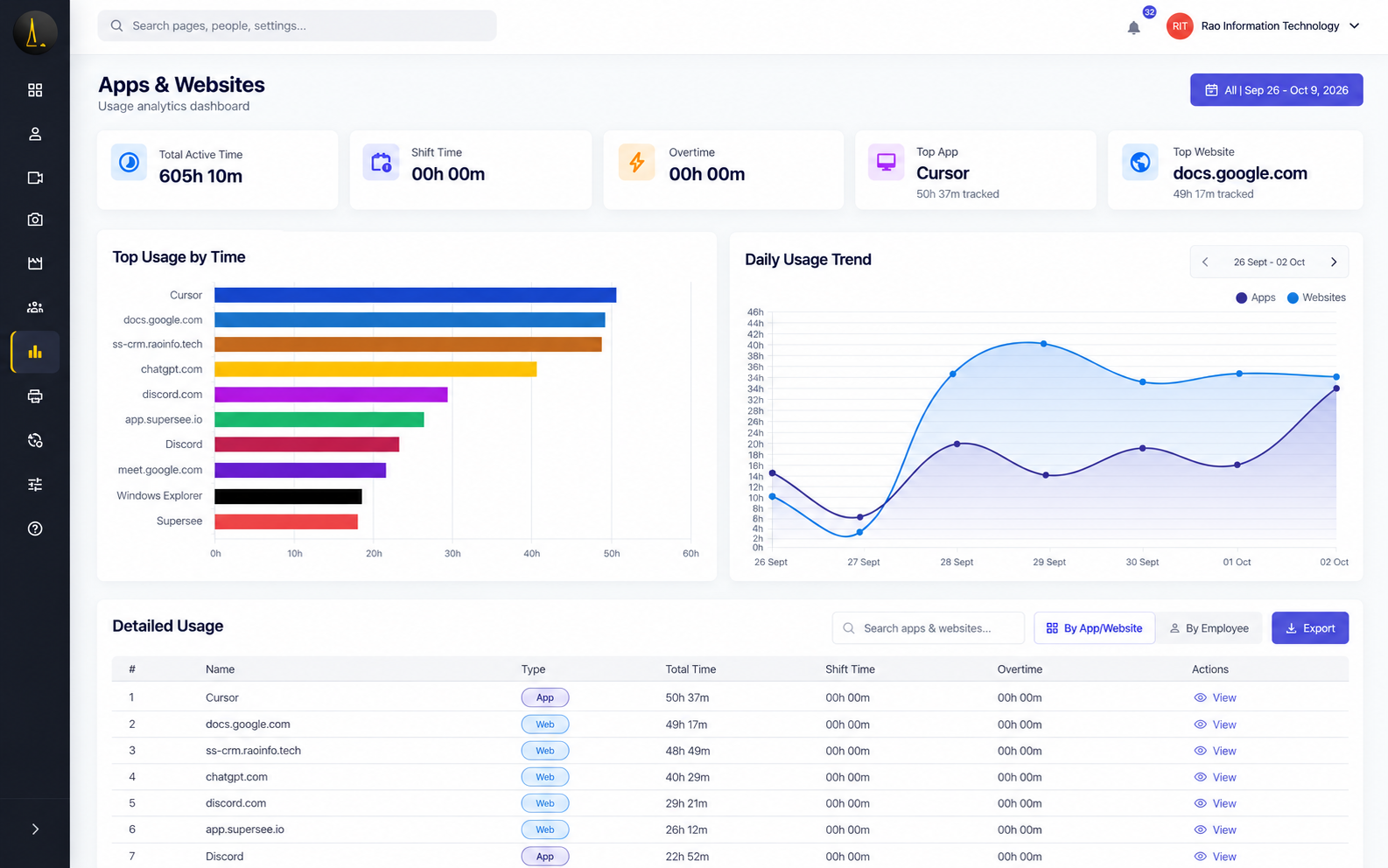
App & website usage tracking

Desktop monitoring is incomplete without knowing where time went. Pair screens with apps, sites, active vs idle, and automated timesheets.

Idle can include meetings and thinking time—interpret with role context. Activity is not output.

Screenshots optional

You can turn screenshots off and still keep productivity trends, app and website reports, and daily summaries.

SuperSee full app and website usage report for desktop monitoring

Review time spent across applications and websites.

Evaluate computer screen monitoring on your own team—Live Wall and Work Replay included.

Start 14-Day Free Trial

No credit card · Up to 5 employees · Professional trial

Onboarding

Install and get the first screenshot

Create your workspace

Sign up, set monitoring policy, and invite up to five people for the trial.

Install the desktop agent

Each person installs SuperSee on the Windows, macOS, or Linux computer they work from. If the connection drops, supported activity can sync when connectivity returns.

Review first captured screens

Screenshots, live views, app usage, and timesheets start flowing into one dashboard.

Customer story

How Capital Advisors used SuperSee

“SuperSee helped us uncover the real problem: uneven work allocation. Now the team works more efficiently, and we’ve grown without overburdening anyone.”
Ronak ModiFounder, Capital Advisors

Workday visibility—including screen and activity context—helped them redistribute work fairly as the firm grew.

Access & policy

Who can access captured screens

Limit visibility to the right managers. Choose a monitoring mode that fits your workplace policy.

AES-256 encrypted storage Role-based access Team-level controls Professional audit logs Tray icon on by default No keystroke logging

No password scraping, microphone audio, continuous video, or webcam recording by default.

Recommended

Employee Controlled

Employees can start and stop monitoring and keep daily analytics.

  • Best for transparent teams
  • Tray typically visible
Managed

Admin Controlled

Administrators control monitoring; employees can still see analytics.

  • Managed rollout with employee insights
  • Tray visibility configurable
Policy-led

Hidden Mode

Administrator-managed background monitoring for specific compliance cases.

  • Not the default for every team
  • Introduce under clear policy

Pick the mode that matches your policy—then communicate it clearly.

FAQ

Common questions about computer screen monitoring

Including legality, remote teams, and what SuperSee captures. For jurisdiction detail, read the laws guide.

Screenshots, live screen views when you use them, app and website usage, active and idle time, automated timesheets, and Work Replay based on configuration. No keystrokes, no passwords, no mic. Idle can include calls, meetings, and thinking time—interpret with role context. Activity is not output.

With the tray indicator on, people see the agent in the system tray. You can turn the icon off where company policy allows it. Employee Controlled and Admin Controlled modes can give employees daily analytics; Hidden Mode is for administrator-managed use cases. Communicate clearly and follow applicable laws.

Yes. The same desktop agent supports computer-based work in the office, hybrid, and remote. On a personal computer, create a separate user account for work so SuperSee runs there.

Laws vary by jurisdiction. Define a legitimate purpose, communicate a clear policy, limit access, collect relevant data, and obtain qualified legal advice for your locations and workforce.

Desktop agents support Windows 10/11, macOS, and Linux. If the connection drops, supported activity can sync when it returns.

AES-256 encrypted storage, role-based permissions, team-level access controls, audit logs, secure backups, and controlled data export for authorized roles.

Start your evaluation

Try SuperSee with up to five employees.

14-day Professional trial. No credit card. Includes Live Wall and full Work Replay.

See plans and pricing · Rollout under clear company policy on work devices · Windows, macOS and Linux