
Know your team’s working hours. Without chasing updates.
SuperSee records working time on every computer, split into active and idle. It keeps recording when the internet drops, then syncs.
14-day Professional trial · Up to 5 employees · No credit card
Windows · macOS · Linux
On your phone? Create your account now and email yourself the computer setup link.
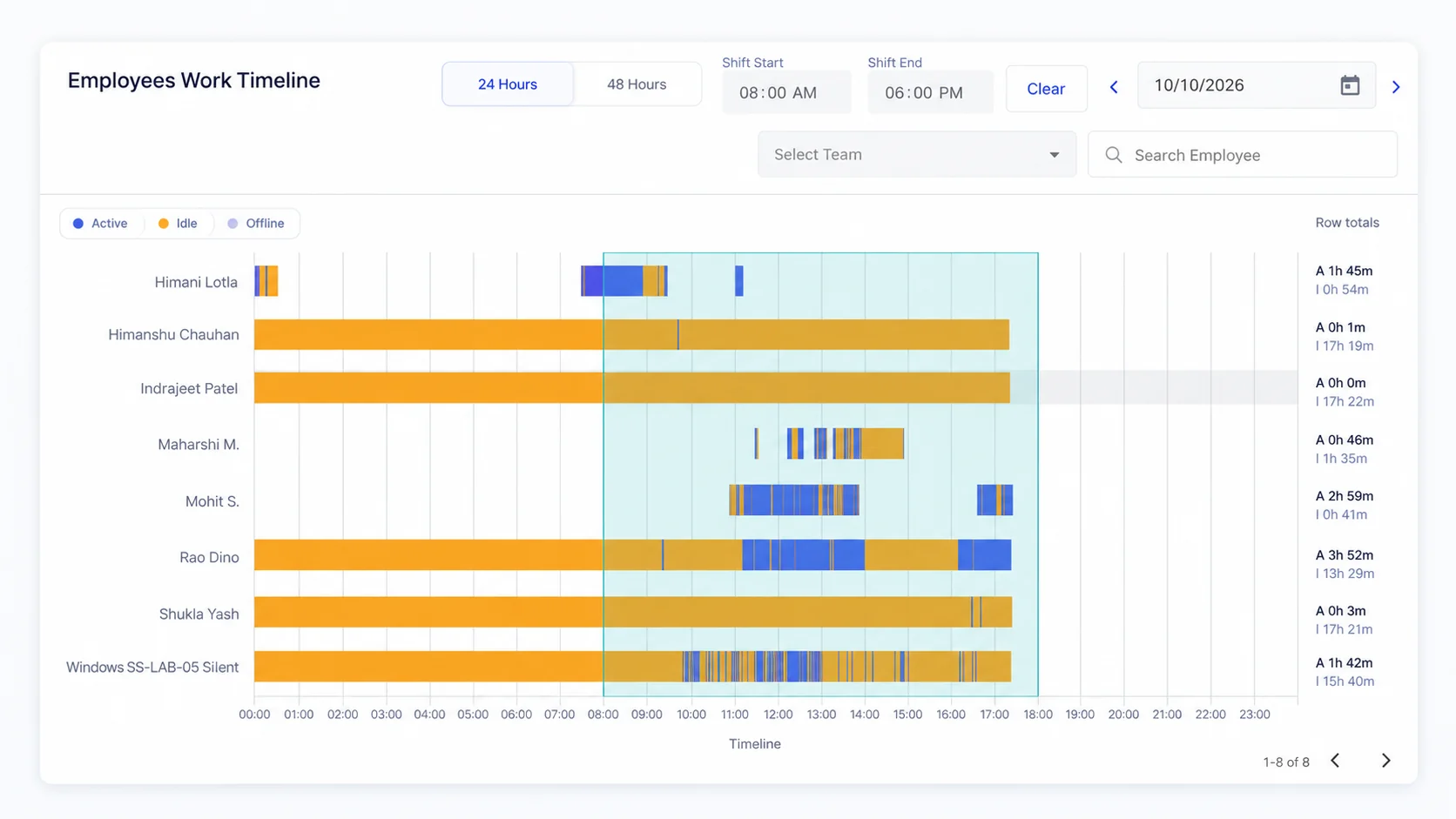
Example: every employee’s day on one timeline. Blue is active, orange is idle.
One place for the hours behind the workday.
Employee time tracking software records when people work, how much of it is active or idle, and which apps they used. SuperSee does this on each computer and shows it in one dashboard.
- Hours at a glance
Each employee’s recorded time for the day.
- Active vs idle
How that time splits between activity and quiet periods.
- What filled the hours
The apps and websites in use.
Select a day. See the detail.
Click anyone on the timeline. One card shows:
- First and last activity
- Active, idle and offline time
- The most-used application
- Hours inside and outside their shift
Offline means no logs for that time, for example the computer was off.
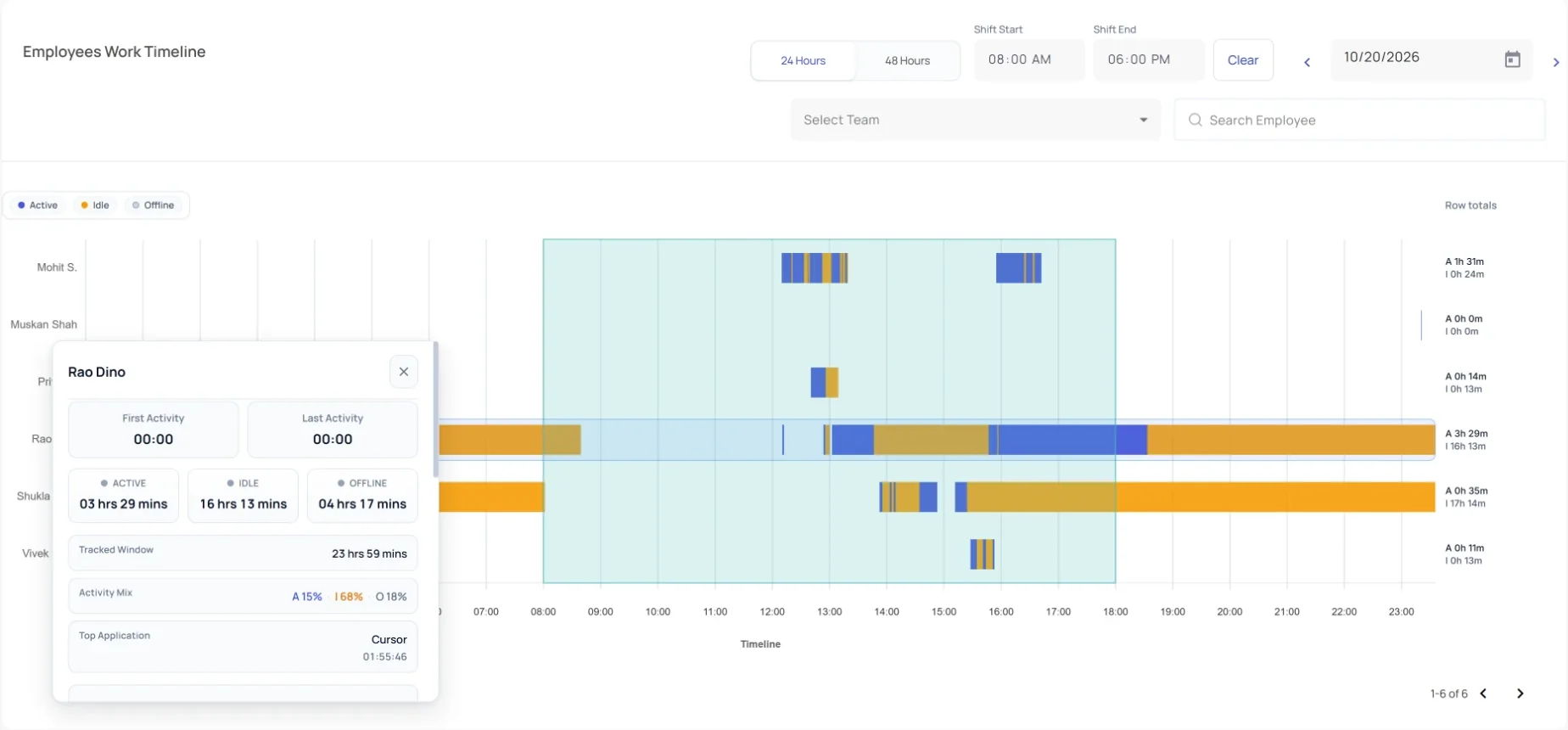
Example: detail card for one employee
Internet drops. The record doesn’t.
While tracking is running, SuperSee keeps saving activity data on the computer, plus screenshots if you use them. When the connection returns, it all syncs to your admin panel.
- Keep working
No internet? Activity is saved on the computer, with screenshots if they’re on.
- Reconnect
The computer comes back online.
- Review
The saved data appears in your admin panel.
This is about the internet connection, not work away from the computer. All plans
Watch: how offline tracking works (40 seconds, no sound)
Check one person’s whole week.
Open an employee and pick a week. Each day is its own row, showing when they started, when they finished and how much of it was active or idle. A chart beside it totals the hours per day, and a typical-day summary shows when they usually start and finish.
Handy before a one-to-one, or when a day’s hours look off.
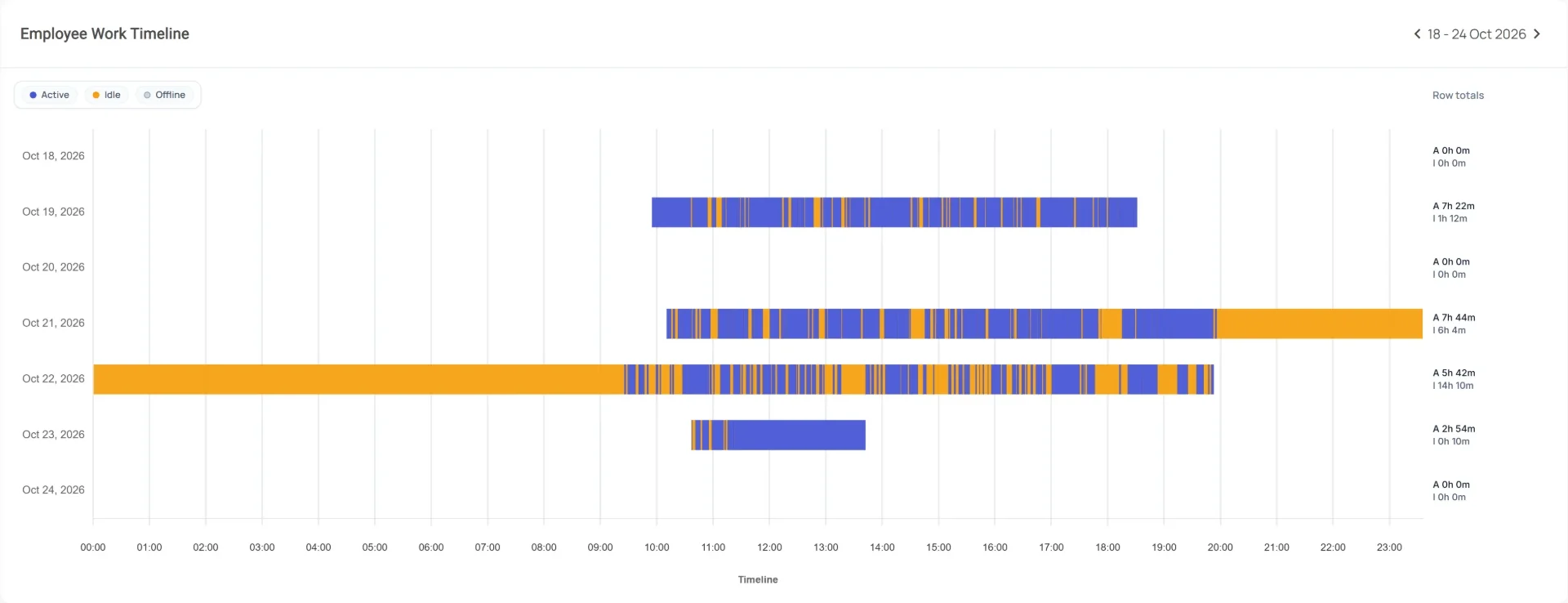
Example: one employee’s week, a row per day
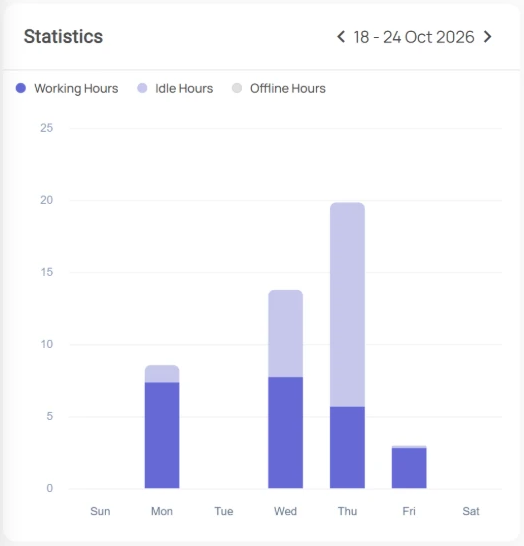
Example: hours per day, working and idle
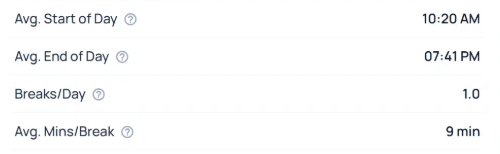
Example: a typical day for one employee
You choose who starts tracking.
Employees start and stop tracking themselves.
All plansTracking starts by itself. Employees can’t start or stop it, so nobody has to remember.
Professional & Business · Basic add-onStrict time tracking keeps records consistent. It signs an employee out if the computer’s time or timezone is changed. All plans
See what filled the hours.
A total says how long. Apps and websites say on what, such as Cursor or docs.google.com.
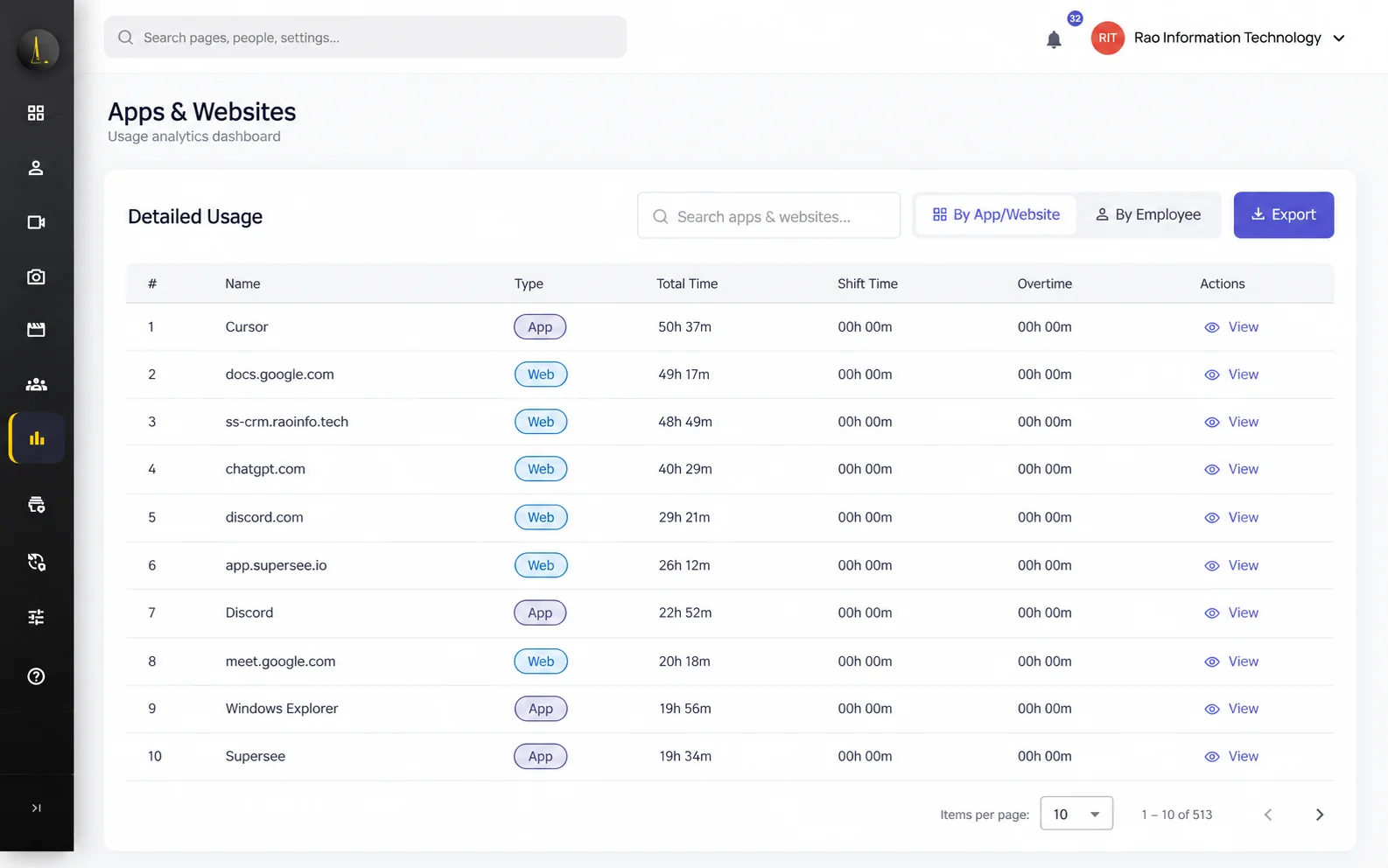
Example: time per app and website
Try it on your own computer first.
- Install
Set up SuperSee on your computer.
- Pick a tracking mode
Try Manual or Automatic in your trial.
- Review your day
Check hours, active vs idle and apps. Then add teammates.
Questions before you try it
Yes, on every plan. While tracking is running, SuperSee saves activity data on the computer during an internet interruption, plus screenshots if you use them, and syncs it all to your admin panel once it reconnects. This is about the internet connection, not work away from the computer.
No logs for that time: neither active nor idle, for example the computer was switched off. Time used without internet isn’t Offline. It syncs later and appears as active or idle.
In Manual, yes. In Automatic, tracking starts by itself and employees can’t start or stop it. Automatic is included on Professional and Business and is a Basic add-on. The 14-day trial includes Professional features.
No. Meetings, calls and thinking time can look quiet on a computer. Use idle time to start a conversation, not to reach a verdict.
Working time, active and idle periods, and the app or website in use. It does not log keystrokes.
Yes. Timesheets have day, employee and period views. Period views are on Professional and Business.
Work stays in the work account. Personal stays personal. On a personal computer, the employee creates a separate user account for work, and SuperSee runs only there. Locking the screen or stopping the work clock stops capture.
Windows, macOS and Linux. Check current system requirements before rollout.
See your team’s working hours in one place.
Start with your own computer. Review a day’s time and activity, then bring a few team members into the trial.
14-day Professional trial · Up to 5 employees · No credit card