01
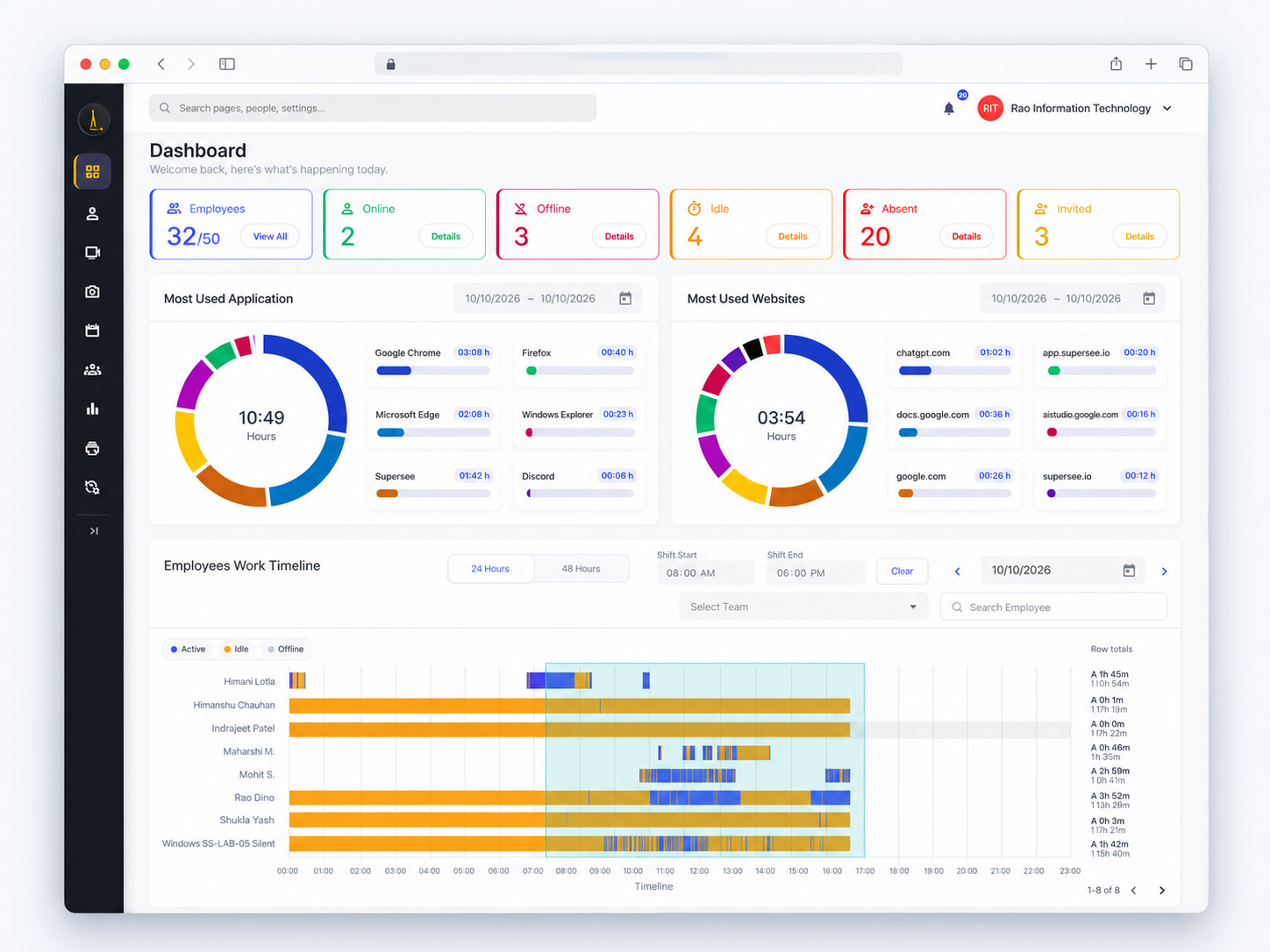
Who is active, idle, or offline, and when were they last active?
See the work computer’s status without a string of “are you online?” messages.
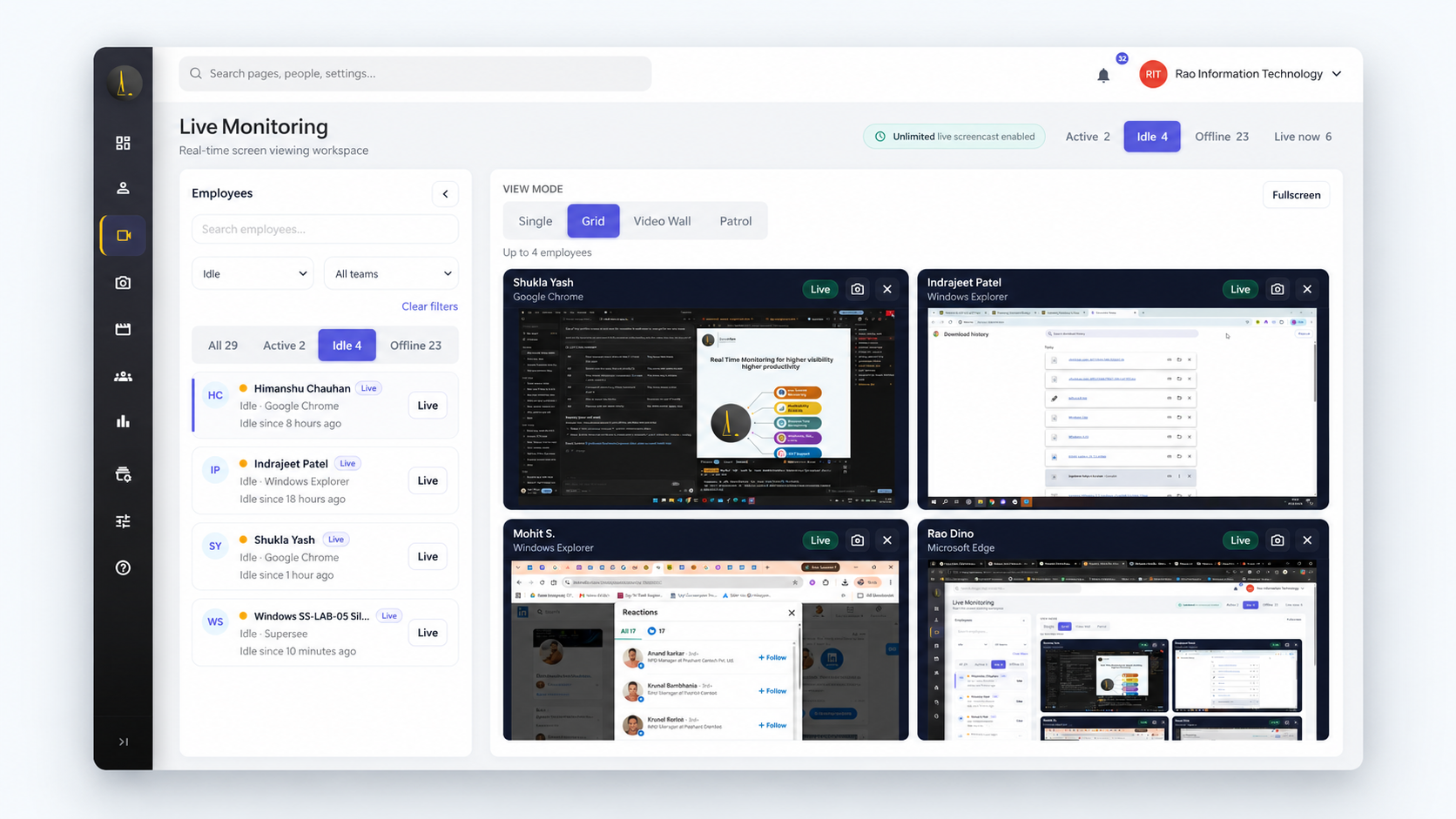

For founders and managers of 15–100 person teams. The daily summary shows whether the workday happened. Open Work Replay only for the exceptions.
No credit card required · Up to 5 trial employees, not a company-size limit · Windows, macOS & Linux
Teams already using SuperSee



01
See the work computer’s status without a string of “are you online?” messages.
02
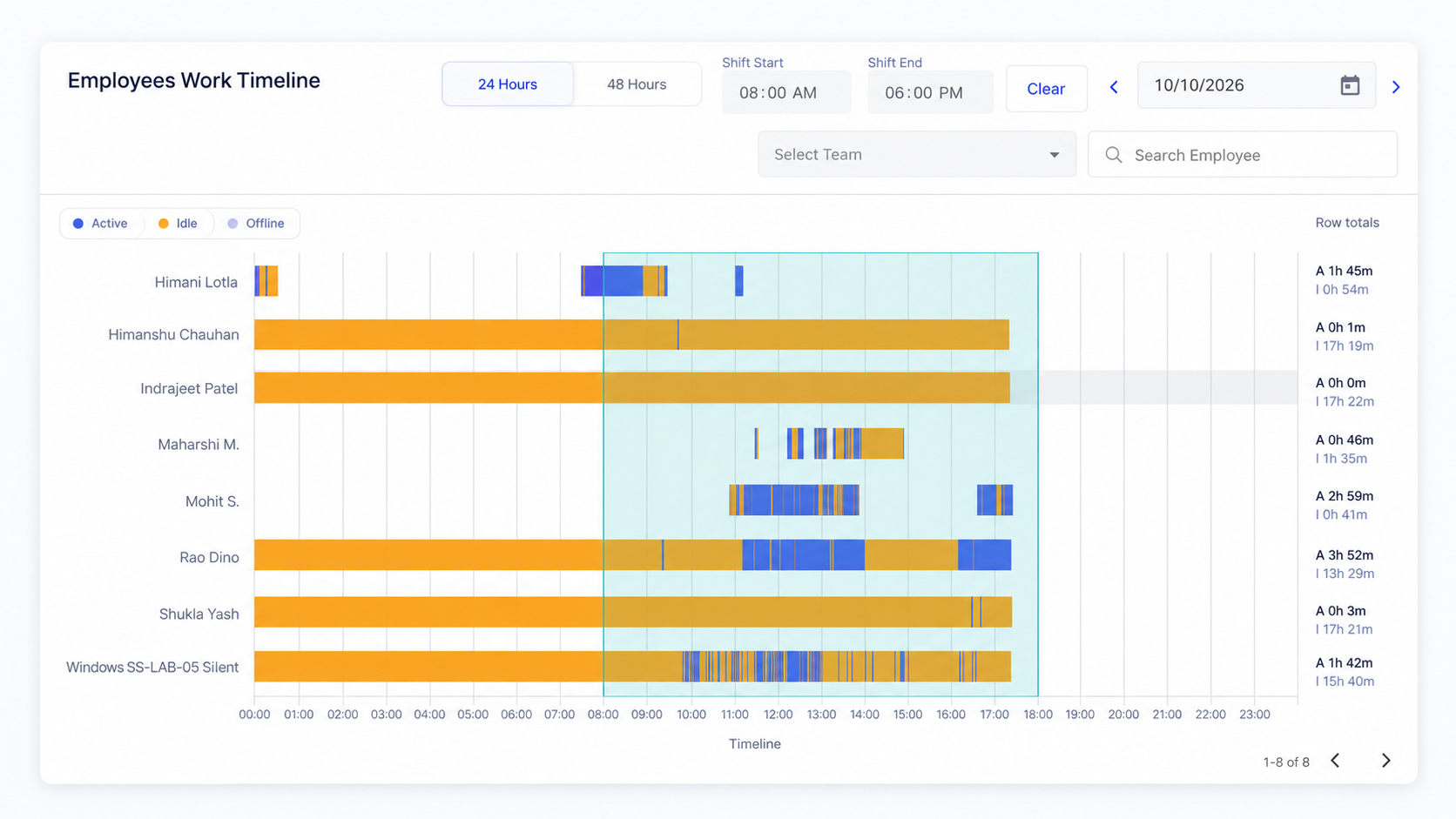
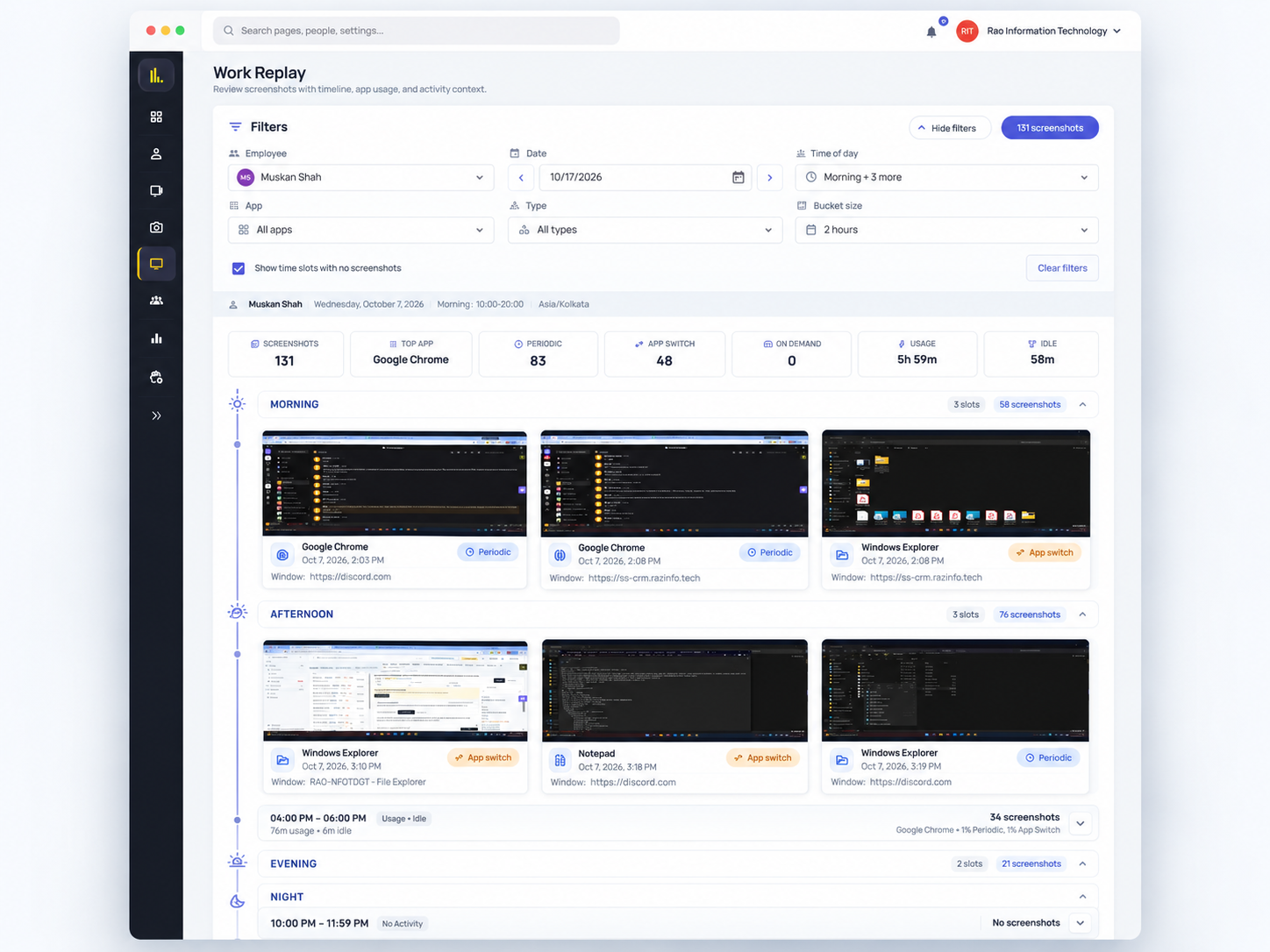
Open one person’s timeline when you need the shape of the day: active time, idle time, and last activity.
03
The daily summary lists absences and the people to review. Open SuperSee only for those.
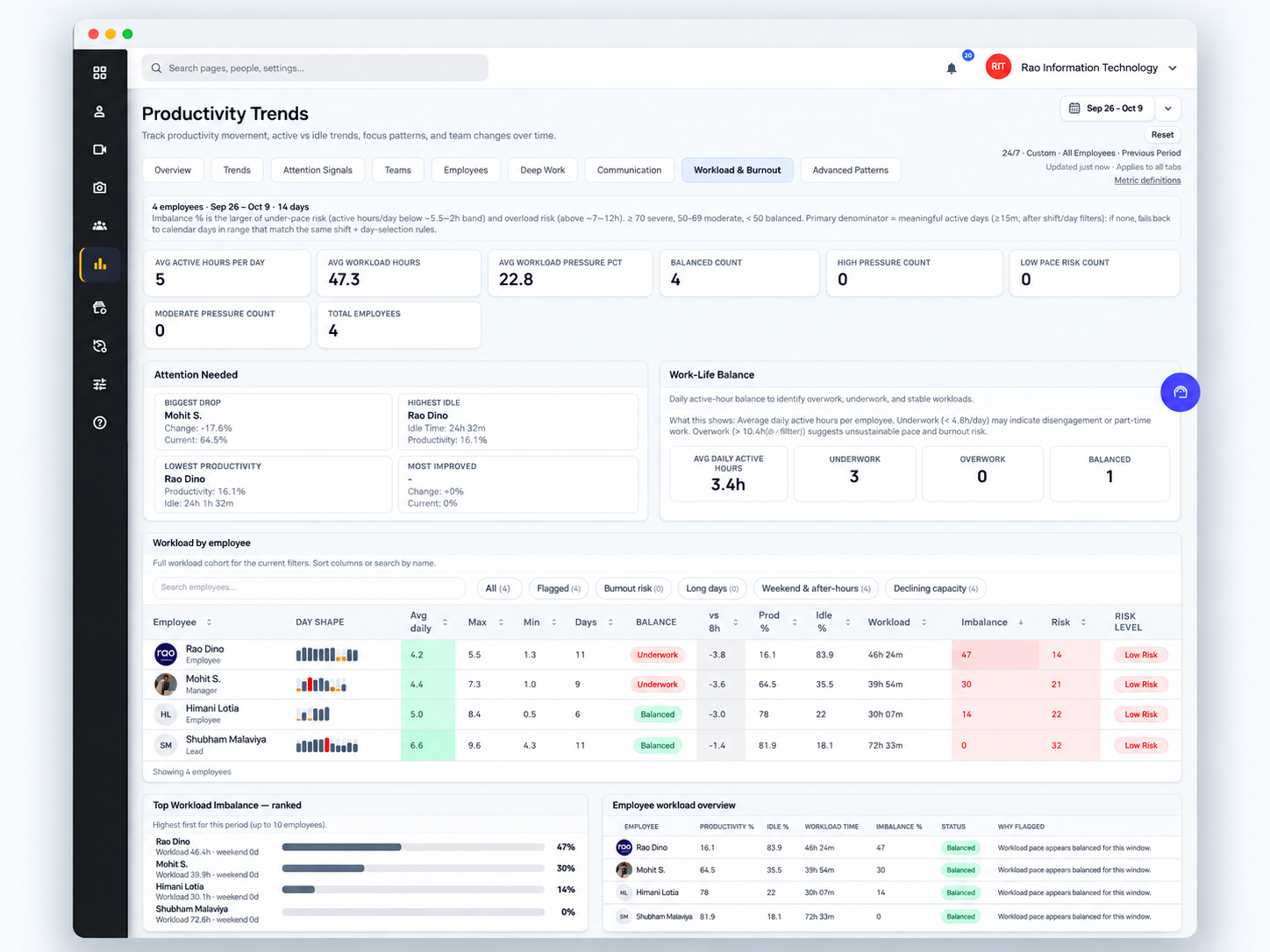
Review the daily summary. Open SuperSee when you need a closer look.
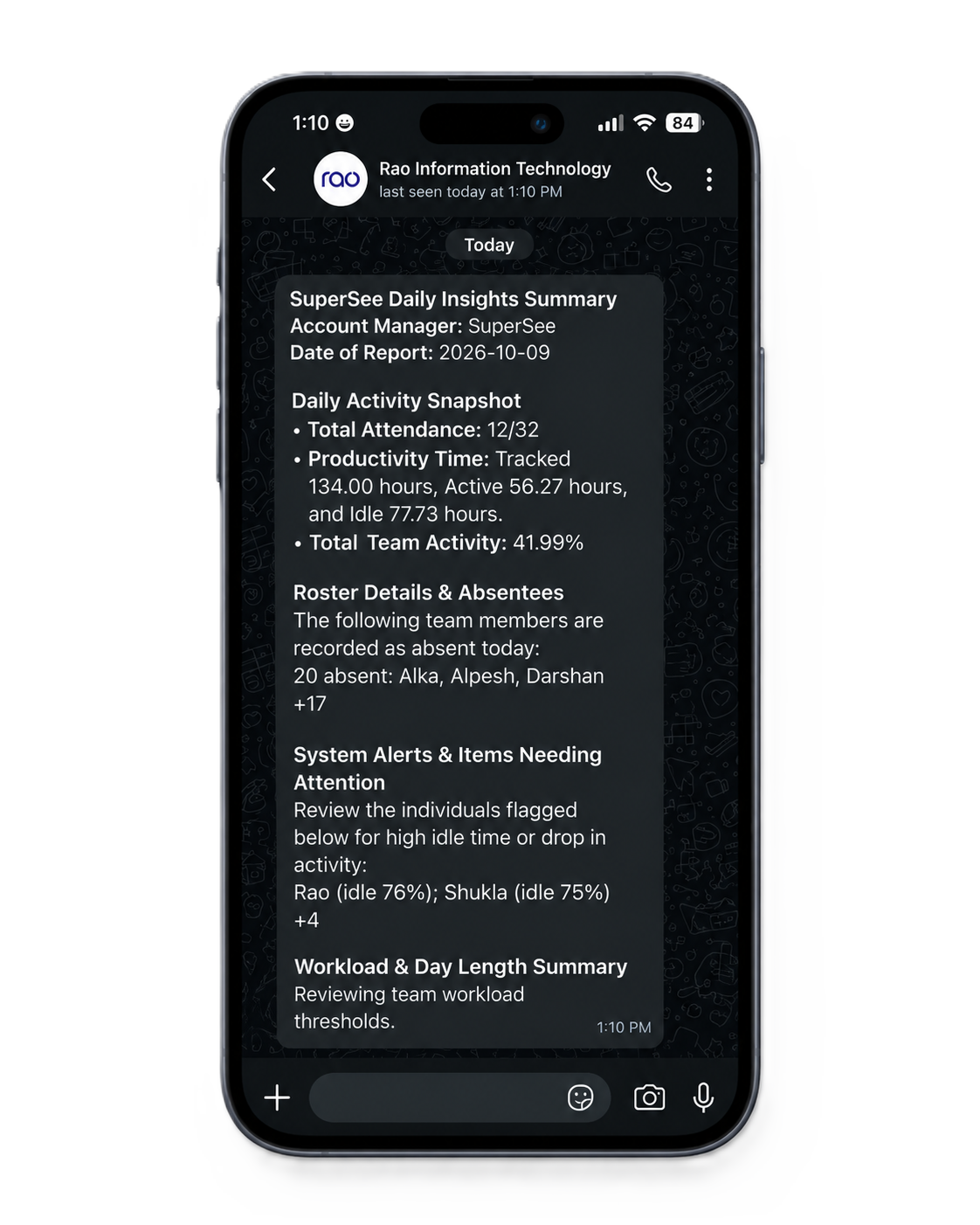
Email and WhatsApp deliver attendance, activity, and alerts without opening the dashboard.
Notice unusual idle time, absences, late hours, or patterns that look off for the role.
Go to timelines, apps, screenshots, or Work Replay for the questions that deserve a closer look.
An update doesn’t explain a delay. Review recorded activity and screenshots before following up.
Open one employee and one day. The follow-up starts from what was on screen.
“SuperSee helped us uncover the real problem: uneven work allocation. Now the team works more efficiently, and we’ve grown without overburdening anyone.”
Problem Uneven work allocation.
Result More efficient work, and growth without overburdening the team.
Sign up, set the tracking policy and shift schedules, and decide which manager sees which people.
Send an invite link. Each person installs the desktop agent on the computer they work from.
Activity, timesheets, and screenshots start coming in. Summaries follow on the channels you turn on.
Windows 10/11, macOS, and Linux. Offline activity syncs when connectivity returns.
Screenshots show whatever is on the work screen. No keystrokes, no passwords, no mic. Rollout stays under company policy on work devices.
Need help with rollout, policy, or remote deployment? Book a 15-min demo and we’ll work through your setup.
Book a 15-min demoYes. The desktop agent runs on Windows 10/11, macOS, and Linux. If the connection drops, supported activity stays on the computer and syncs when it returns.
The desktop agent. You send an invite link, and the person installs it on the work computer. What it records follows the policy and shift schedule you set.
Active is time the work computer shows activity during the shift. Idle is time without that activity. Offline means the computer is not currently connected. These describe the device during working hours, not whether a task was finished.
Attendance, tracked time, absences, and the people to review, such as high idle or a sharp change from the day before. Open SuperSee when one of those needs the timeline or Work Replay.
Yes. The trial is Professional for 14 days, with up to five seats and no credit card. Those five seats are the evaluation, not a cap on the team you can add later.
Plans start at ₹249 per user/month, or $2.99. Basic is the starting plan. Keep Professional if you want Work Replay. Add seats as you roll the rest of the team out.
No credit card. Add seats when you roll the remote team out.
14-day free trial · No credit card · Evaluate with up to 5 seats, not a team-size cap
Rollout under clear company policy on work devices. No keystrokes, no passwords, no mic.