
A practical buyer’s guide for founders and operations managers.
Your project board says the work is moving. The timesheet shows a full day. Yet a client delivery is slipping, and you still need several conversations to understand why.
What is staff monitoring software?
Staff monitoring software records selected activity on a work computer so you can review how a workday was spent. A typical record shows when the computer was active, idle, or offline, which applications and websites were used, and screenshots from chosen moments.
Monitoring software of this kind sits beside the tools you already use. A project board still shows task status and a manual timesheet or timelog still shows hours. The monitoring record shows the real computer activity behind those summaries for the period you need to understand.
Use it as context for a management question: what was recorded, which tools were open, and how that period unfolded. Output quality, goals, and the employee’s explanation still belong in the review. The useful next step is choosing features that answer one real question, then testing them on a workday you already understand.
For founders and operations managers, the essentials are clear time records, app and website usage, screenshot context, productivity trends, useful reports and appropriate access controls. Deployment reliability and plan limits matter just as much when you start using the software every day.
This guide explains what to look for, where SuperSee fits and what to test before rolling it out to a team. The 14-day trial includes the Professional plan, so you can evaluate that set of features. A lower plan does not include everything you can open during the trial. A view that stays locked in the trial is included only on a plan above Professional.
Start with the question you need answered
Choose a recent situation you struggled to understand. Perhaps an agency project needed repeated revisions, a development team kept working late, or a support supervisor could not confirm which workstations were available.
Write down what you needed to know at that moment. That question should shape your shortlist and your trial.
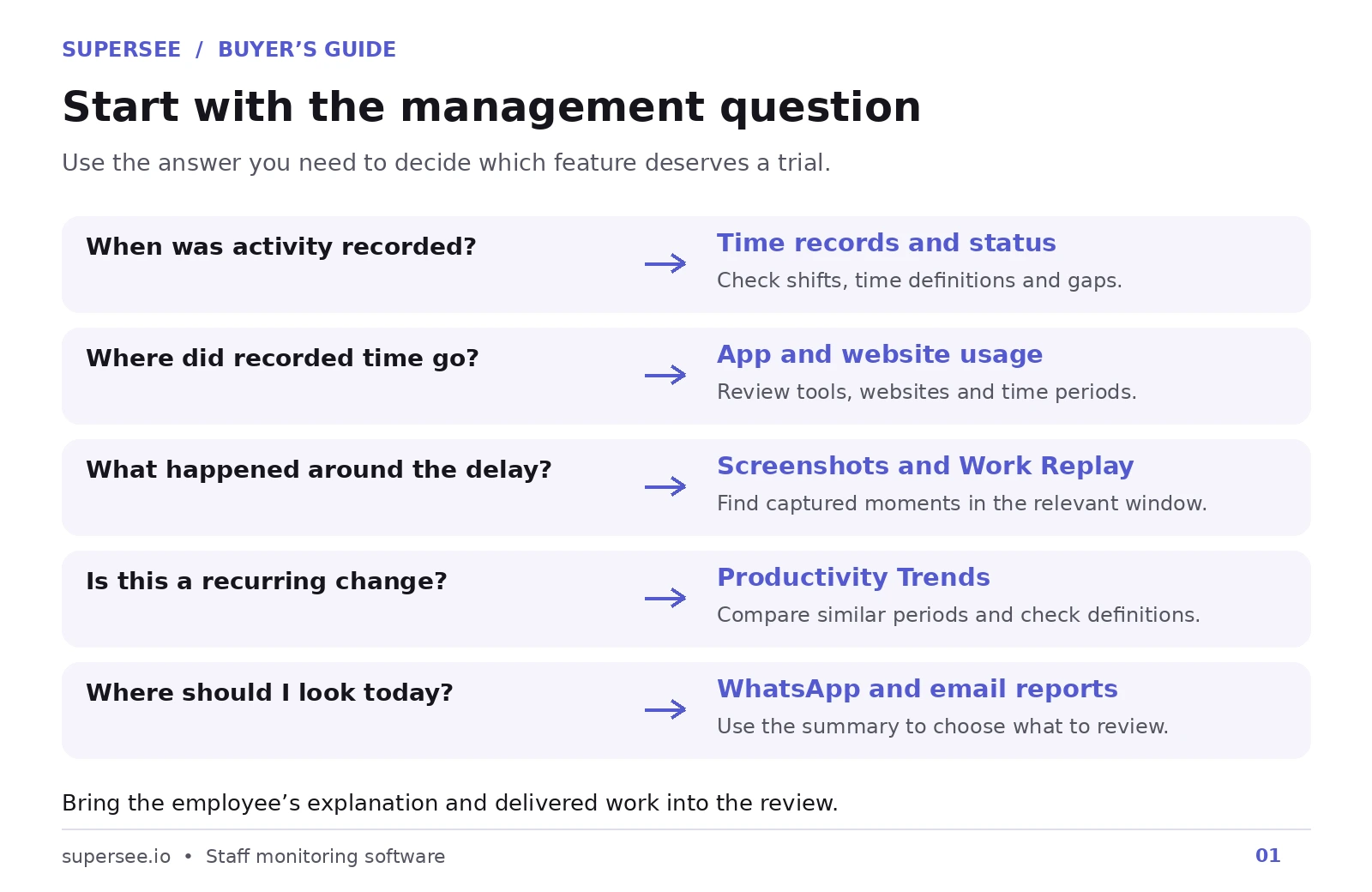
For example, website usage can show time recorded on a research site. It cannot establish whether the research produced a useful recommendation. You still need the deliverable and the employee’s explanation to assess that.
The same distinction applies to employee performance management. Monitoring supplies activity evidence. Goals, feedback and output quality need their own review process.
1. Clear time records and employee status
Look for a dashboard that distinguishes online, idle and offline status, plus historical timesheets that explain what each time category means. A single total is difficult to interpret if you cannot see how it was calculated.
SuperSee shows Online, Idle, Offline and Absent on the dashboard, with a work timeline and day-wise and user-wise timesheets. Period-wise timesheets, including absence insight, are included on higher plans. A period view covers up to 31 days. User-wise history can cover a longer range, up to 90 days.
Tracked time is usage time plus idle time. Offline time is separate: it is the gap between the first and last recorded activity that is not counted as usage or idle. App and website reports show usage time only, so they should not be added on top of the timesheet total.
Shifts and working hours give that record a schedule. When a shift is configured, overtime is tracked time above the scheduled shift on an active day. That figure is an input to a payroll review. SuperSee does not calculate pay. Multiple shifts are included on higher plans. Absence insight counts days in the selected range with no activity logs, and it can take the shift into account.
For an operations manager, this helps frame questions about recorded working patterns and shift coverage. A status label alone does not establish that someone was absent or unavailable. Offline can also mean the agent is disconnected, paused or not yet connected.
Trial check: Compare a known work session with its timeline and timesheet. Check the shift, timezone and treatment of work outside scheduled hours. Include a meeting or call to see how the recorded categories need to be interpreted. Period-wise timesheets and absence insight are included in the trial. Confirm that they are included on the plan you will buy if you choose a plan below Professional.
2. Application and website usage with context
Employee internet monitoring is more useful when you can see which websites were used, for how long and during which period. Application reports should provide a similar breakdown for desktop tools, with filters for the relevant employee or team.
SuperSee includes app and website usage views and employee-level breakdowns. Advanced report filters are included on higher plans. These views help you investigate tool adoption, understand where recorded activity clustered and prepare more specific follow-up questions.
Imagine an agency introduces a new project tool, but recorded usage falls after the first week. That is a reason to ask whether the team adopted it, found a workflow problem or continued using another tool. It is not enough to conclude that people stopped doing the work.
Trial check: Use a desktop application and a browser during a known session, then inspect both reports. Check their definitions before adding totals together. Website activity can overlap with browser application time. Usage does not automatically assign time to a client or project.
3. Screenshots and Work Replay for reviewing a specific period
Screenshot features should make relevant moments easy to find. Evaluate employee, date and time filters, capture settings and the information shown beside each image.
SuperSee supports periodic screenshots. The shortest interval you can set depends on the plan. App-switch screenshots, taken when the active application changes, are included on higher plans. A manager can also request an on-demand screenshot from a connected computer.
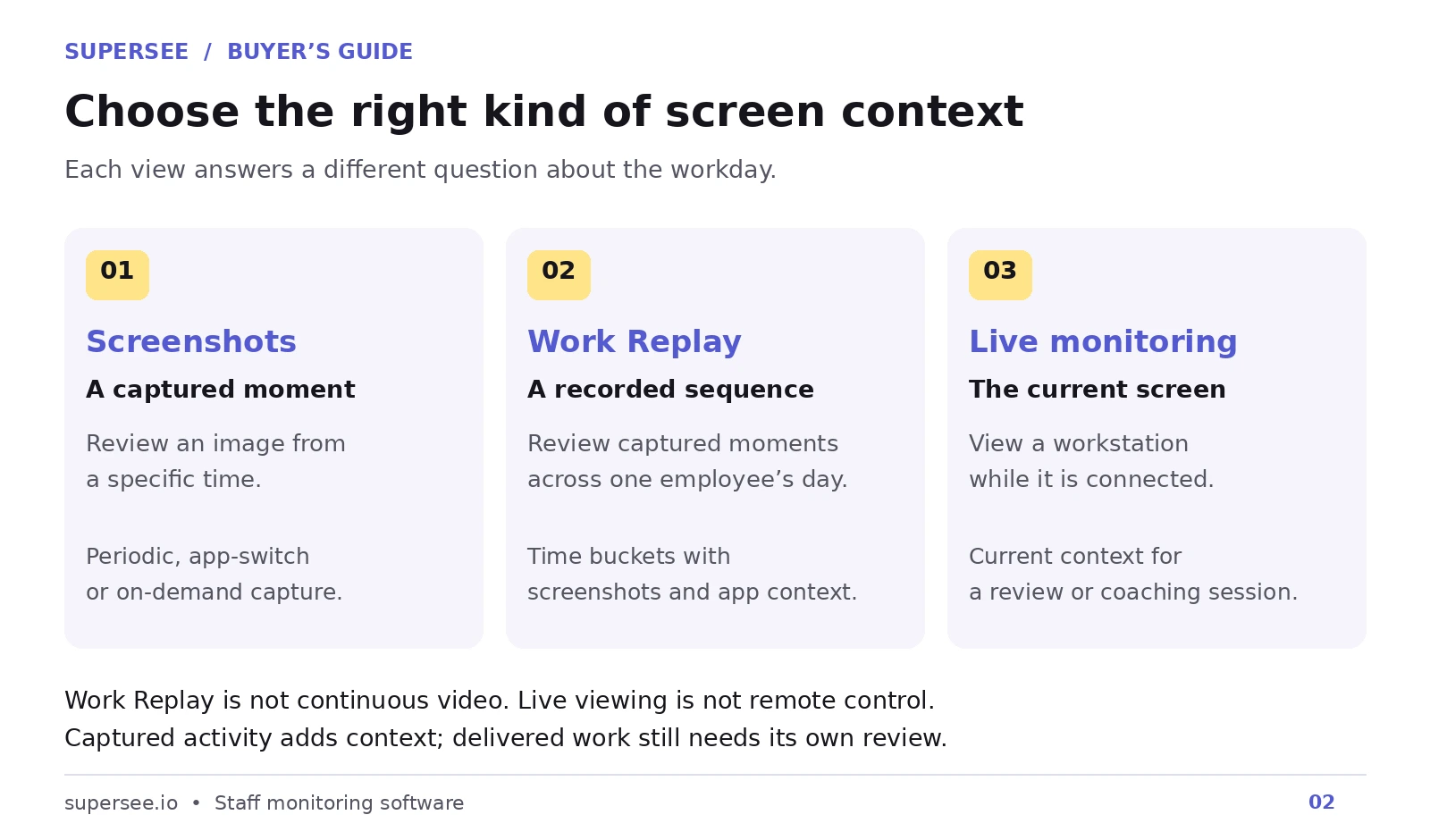
Work Replay brings captured screenshots and app context into time buckets for one employee on one selected day. Entry plans include a preview. The full Work Replay review is on higher plans. It helps a manager look at the sequence around a question. It is not a continuous video of the day.
For example, an operations manager can review the captured period before a delayed handoff, then ask whether requirements changed or an approval was missing. The images may supply context, but they cannot independently explain every interruption or decision.
Trial check: Find a known moment without browsing an entire gallery. Confirm how missing captures appear. The trial includes the full Work Replay review. A lower plan may include a preview only, so confirm the history on the plan you intend to buy.
4. Live monitoring for situations that need current context
Live screen viewing is useful when a manager needs to understand what is happening on a workstation now. A support supervisor might use it to review a workflow, while a team lead might use it during a coaching conversation.
SuperSee provides a Live Monitoring workspace. Single view is the baseline. Grid, Video Wall and Patrol are additional layouts for looking across more than one screen, and they are included on higher plans. Live viewing time is capped each day, and that cap depends on the plan. The live view does not take over the mouse or keyboard.
Access should be limited to the people responsible for the relevant team. Plans that include the multi-screen layouts can also keep an audit log of live viewing sessions. Confirm the log if a record of who opened a screen matters to you.
Trial check: Test the live view with the devices and network your team actually uses. Check permissions, connection behaviour and the daily viewing cap. The trial includes Grid, Video Wall, Patrol and the live-view audit log. Confirm that they are included on the plan you will buy if you choose a plan below Professional.
5. Productivity trends that help you investigate change
A useful trend view helps you notice changes over time. Look for comparable date ranges, employee and team filters, understandable metric definitions and an indication of whether there is enough data to interpret the result.
SuperSee’s Productivity Trends opens with Overview and Trends. Higher plans add Attention Signals, Teams and Employees. The fullest set also includes Deep Work, Communication, Workload and Burnout, and Advanced Patterns. The product includes metric definitions. Use those definitions before you describe a score to anyone else.
These views can help a founder identify a person or team that deserves a closer conversation. Repeated late working hours could prompt a discussion about workload, handoffs or scheduling. Activity data alone cannot determine which explanation is correct. Low keyboard activity can also occur during meetings, reading and work away from the computer.
Trial check: Compare similar working periods and explain a signal in plain language. If you cannot describe how a score is calculated or what data it excludes, avoid using it as a performance verdict. The trial includes Overview, Trends, Attention Signals, Teams and Employees. Deep Work, Communication, and Workload and Burnout stay locked because they are included only on a plan above Professional.
6. Daily WhatsApp and email reports that guide your attention
A reporting feature should fit the way you manage. Founders may need a daily overview, while operations managers need enough detail to decide which team or employee to review.
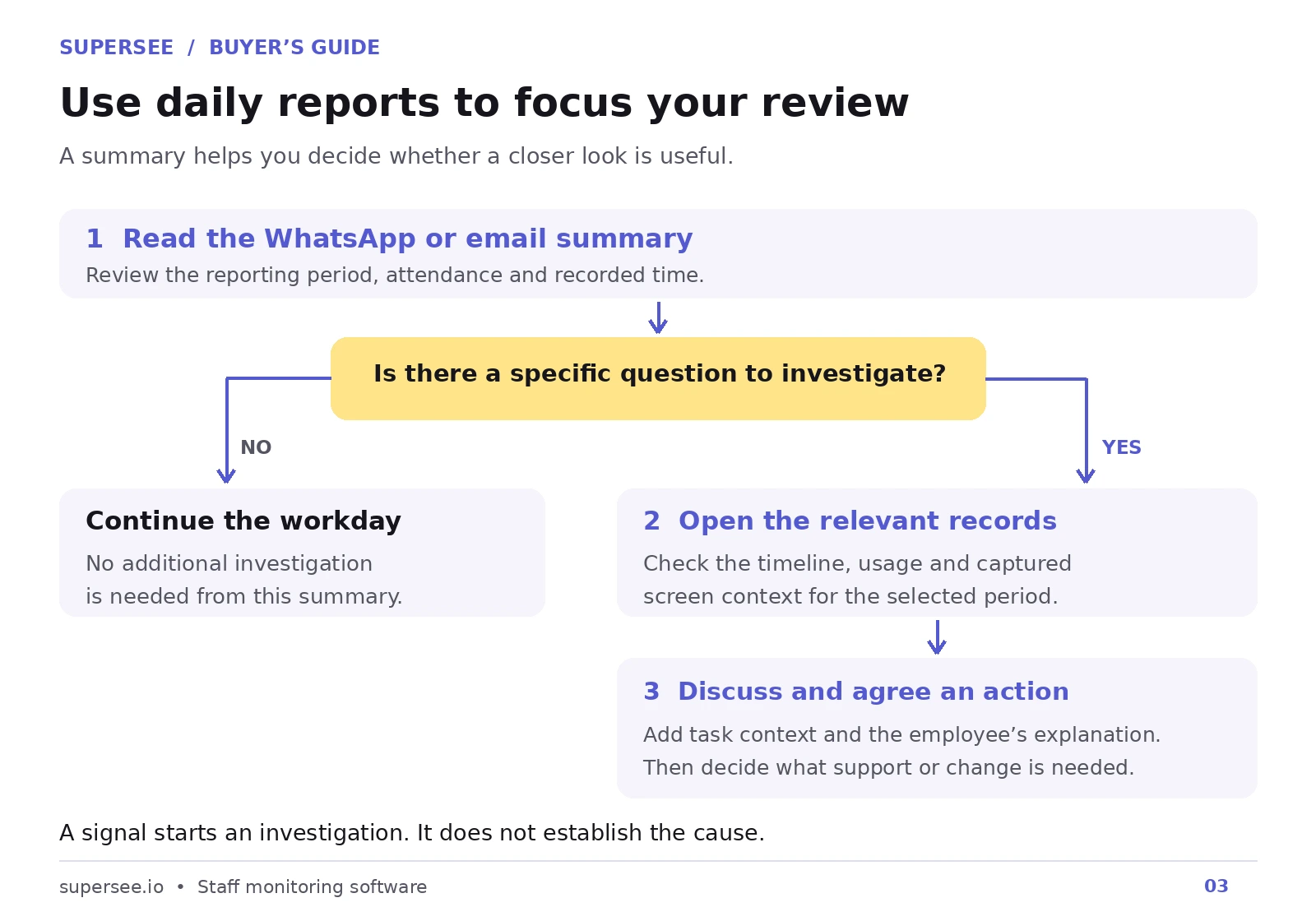
SuperSee sends Daily Insights by email and, when you opt in, a shorter overview on WhatsApp. The email carries the fuller day: hours, absentees and people who may need a second look. WhatsApp can be sent to as many as three numbers. The shifts you configure feed attendance and these summaries. The message is a starting point before you open the relevant record.
Trial check: Receive a report through the channel you will actually use. Check the reporting period, recipients and level of detail. Ask whether the summary helped you decide what needed attention, then locate the underlying record in SuperSee.
Want to see this with familiar work? Start a free trial and test the first recorded workday on your own computer.
7. Monitoring controls and access matched to responsibility
Before choosing employee monitoring software, understand what it captures, when tracking runs and who can access the records. Look for settings that let you apply the intended policy without giving every manager company-wide visibility.
SuperSee supports company settings and employee-specific overrides. On higher plans you can also apply settings in bulk to people or teams, and you can assign manager and team-lead roles that stay scoped to their teams. The account owner keeps company-wide administration.
There are three desktop modes.
- Employee Controlled. The employee starts and stops the monitored session and can see their own daily analytics. This is the usual starting point for a transparent team.
- Admin Controlled. An administrator manages tracking. The employee cannot start or stop it, and can still see daily analytics. On the entry plan this can be added for the company or selected people. Higher plans include it.
- Hidden Mode. Monitoring runs in the background and is managed by an administrator. It is a separate per-seat option. Use it only with a lawful basis, a written workplace policy and local legal advice.
Explain the selected configuration to employees before rollout. Set expectations about capture, working hours, access and the purpose of review. A feature list does not establish whether a particular deployment meets your organization’s obligations.
Trial check: Use a manager account assigned to one team and verify its scope. Check tracking controls, screenshot settings and what the employee can see or control. Ask about retention, deletion and any data-handling requirements your organization has.
8. Reliable installation and offline syncing
Remote work monitoring software needs to work with your actual device mix. Evaluate installation, required permissions, agent status and behaviour when connectivity changes.
SuperSee has agents for Windows, macOS and Linux. Employees can install from an email invite on each of those systems. Preparing a work computer for someone else is available for Windows. Mac and Linux employees use the invite. The agent can keep tracking without a connection and sync after connectivity returns. On higher plans, Device Management shows connected devices and agent details.
These capabilities matter when a dashboard gap might reflect a device issue. Managers need a way to investigate the missing data before drawing conclusions about the employee’s workday. A gap can also mean the agent is offline, paused or not yet connected.
Trial check: With your IT team, test a restart, a temporary internet interruption and reconnection. Confirm what arrives after syncing and how the system displays the gap. Check the operating system and the install path you plan to use, including Windows computer setup if an administrator will prepare the machine.
9. Reports and exports that fit your operational workflow
A report can look suitable on screen and still fail to fit the process you need. Check filters, column definitions, date ranges and the exported file before relying on it for regular administration.
Day-wise and user-wise timesheets download as an Excel spreadsheet. SuperSee also provides a CSV timesheet export, and app and website usage reports can be exported as CSV. Period-wise reports have their own export. A separate Data Management workflow handles requests to download or delete logs and screenshots. How many days one request can cover, and how long screenshots and logs are kept, depends on the plan.
None of these files calculates payroll or posts time into an HRMS. If your HRMS expects a particular format, verify the mapping yourself.
- Included in the 14-day trial, on the Professional plan: day-wise, user-wise and period-wise timesheets, absence insight, app and website usage, periodic and app-switch screenshots, full Work Replay, single-screen live view, Grid, Video Wall, Patrol, the live-view audit log, Overview, Trends, Attention Signals, Teams, Employees, Daily Insights, manager and lead roles, multiple shifts, bulk settings and Device Management.
- Entry plan: day-wise and user-wise timesheets, app and website usage, periodic screenshots, single-screen live view, a Work Replay preview, and Overview and Trends. It does not include the other Professional features listed above.
- Above the trial: Deep Work, Communication, Workload and Burnout, and Advanced Patterns.
- Admin Controlled mode is included on higher plans. On the entry plan it can be added.
- Hidden Mode and webcam capture are separate options. Webcam capture is not required to evaluate the core workflow.
- Retention: screenshot history, log history, and the length of a download or delete request differ by plan. Check the current limits before you rely on history.
Review the current plans against your shortlist. Check availability and limits for Work Replay history, live viewing, exports and audit logs before choosing.
Run a trial around one real management question
Start with your own computer so you understand the capture experience. Review your first screenshot and activity record before inviting anyone else.
Then choose one team member or a small pilot group, explain the configuration and test a situation that resembles normal work. Include the relevant devices, shifts and reporting needs.
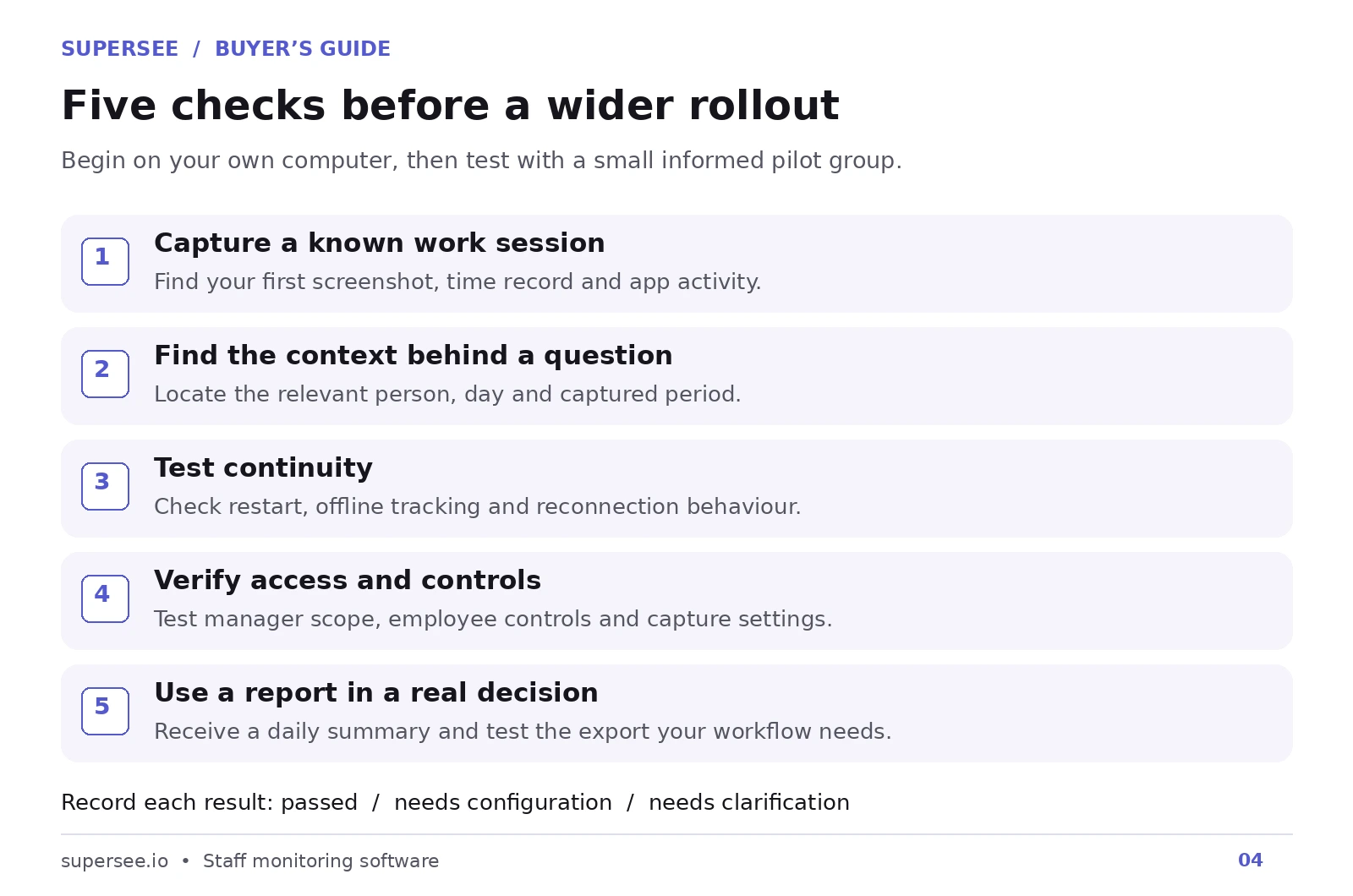
Keep a simple record of what passed, what needs configuration and what needs clarification. The checklist below repeats this list in a file you can print or save.
Judge the trial by whether you can answer a useful question with less reconstruction, while understanding the limits of the evidence.
For an agency, that might mean preparing for a conversation about a delayed client handoff. For an IT team, it might mean investigating repeated late work. For a BPO supervisor, it might mean checking current workstation context and shift coverage.
Keep the outcome specific: which question became easier to answer, and what did you do differently as a result?
How is staff monitoring useful?
Staff monitoring is useful when a status update, a timesheet, or a project board leaves the workday unclear. It shortens the path from “something looks off” to a question you can discuss with the person who did the work.
- A slipping delivery. Time records, app usage, and screenshots show what was recorded before a handoff, so the follow-up can start from that period.
- A schedule question. Shift hours, idle time, and absence insight show whether recorded activity matches the working pattern you expected. Confirm the reason with the employee.
- A tool or process question. Application and website reports show where recorded time clustered. That gives you a concrete question about adoption, workflow, or a tool the team kept using instead.
- A live operations question. Live monitoring shows the current screen when a supervisor needs present context, such as which workstations are available on a support floor.
- A change over days or weeks. Productivity trends and daily reports point to a person, team, or day that deserves a closer look before you open the underlying record.
The result is a clearer conversation and fewer reconstructed timelines. Activity on a screen still needs the deliverable and the employee’s account before you treat it as a conclusion. Choose the features that match the question you actually have, then test them on work you already know.
FAQ
Which employee monitoring software features should I prioritize?
Start with time records, app and website usage, relevant screen context, reporting and access controls. Add live monitoring when your operations need current screen visibility. Confirm deployment reliability and plan limits before purchase.
What do usage, idle, tracked and offline time mean?
Tracked time is usage time plus idle time. Offline time is the gap between the first and last recorded activity that is not counted as usage or idle, and it is shown separately. App and website reports show usage time only. Do not add those reports to the timesheet total, because website time can already sit inside browser application time.
How should I compare reporting features?
Use the same date range and business question in each trial. Compare filters, time definitions, export usability, daily report delivery and how easily you can locate the records behind a summary. Check what the intended paid plan includes, including period-wise timesheets if you need more than one day at a time.
Does more active time mean better performance?
Active time describes recorded computer activity. Performance also depends on output quality, customer outcomes, problem-solving and the role itself. Use activity signals alongside those factors and a conversation with the employee.
Can I control someone’s computer from the live view?
No. SuperSee’s live view shows the current screen. It does not take over the mouse or keyboard. Viewing time is also capped each day, and the cap depends on the plan.
Can monitoring software replace project management or an HRMS?
SuperSee adds workday context to the systems you already use. App usage and screenshots do not automatically become task status, approved billable hours or project-level time allocation. A timesheet export does not calculate payroll. Confirm any integration you need separately.
Does Work Replay record the whole day as video?
No. SuperSee Work Replay organizes captured screenshots and related app context for one selected employee and one selected day. What you can review depends on capture settings, available records and whether the plan includes the full review or a preview.
Are these features on every plan?
No. The 14-day trial includes the Professional plan, so a view that stays locked during the trial is included only on a plan above Professional. That lock is not a setup problem, and it does not show the limits of a lower plan. If you later choose a lower plan, you will not keep every feature you used in the trial. Check the current plans before you buy.
Evaluate SuperSee with your own workday
Choose one question you currently need several updates to answer. Test whether the recorded timeline, app usage, screenshots and daily summary give you enough context for a better follow-up.
Start your 14-day free trial. Install SuperSee on your own computer first and review your first captured work session.
Need help checking team permissions, device support or reporting requirements? Book a demo with your use case.
For more context, explore workforce visibility for founders and delivery leaders and why more reports do not always mean more visibility.