
Key Takeaways
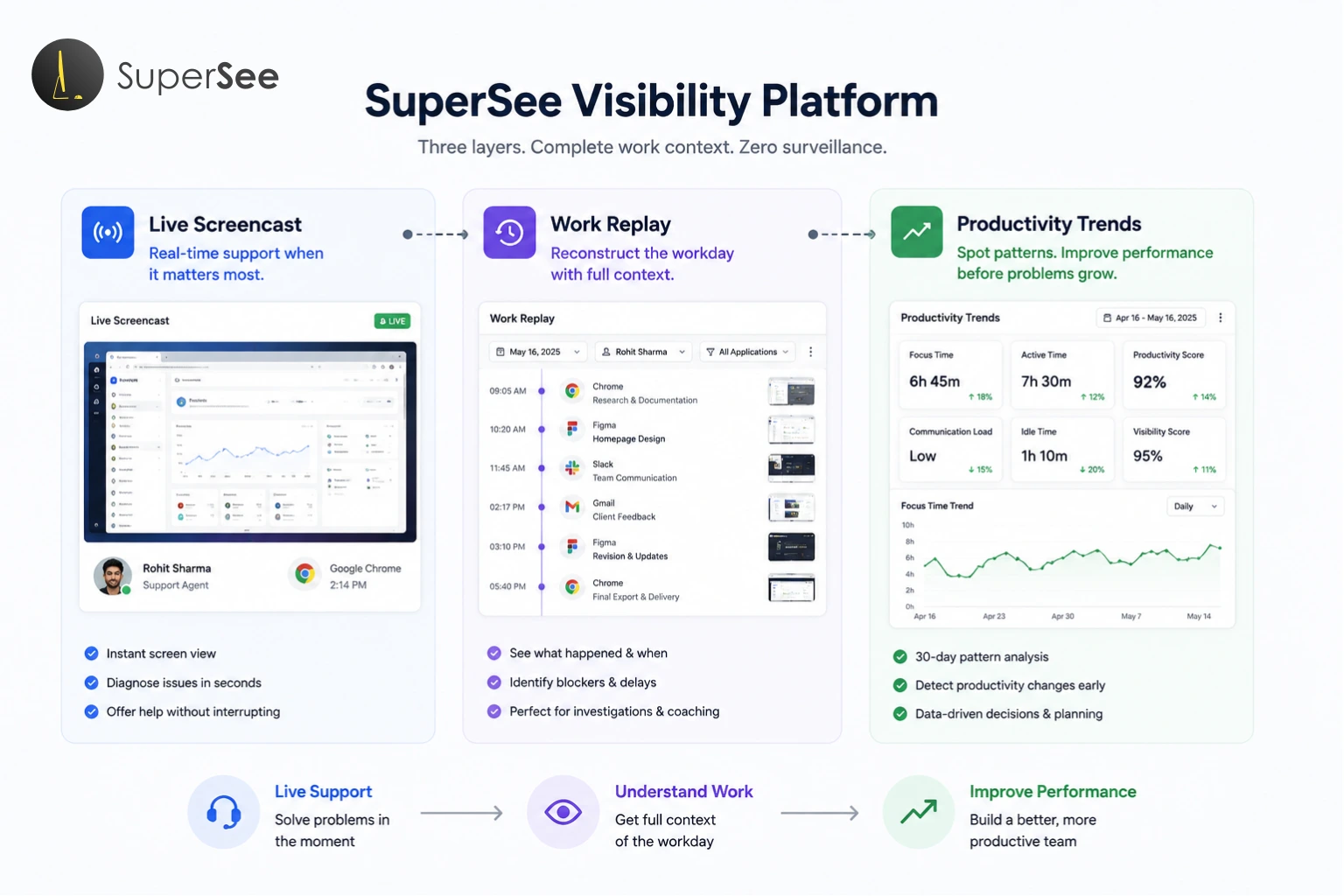
Visibility without surveillance requires three layers: real-time support, historical investigation, and pattern recognition.
Live Screencast is for critical moments, SLA at risk, system outage, agent stuck.
Work Replay reconstructs the entire workday, so you never have to ask “What happened yesterday?”
Productivity Trends show what’s changing over time, so you spot leakage before deadlines slip.
Together, they answer every question a manager needs to ask, without keystroke logging, audio recording, or webcam video.
Serious buyers don’t choose between features. They choose a complete framework for ethical visibility.
The Hook: You’re Past “Should We?”
You’re not here for a demo.
You’re here because you’ve already tried the usual tools. Attendance. Timesheets. Jira. Screenshots. Maybe even basic monitoring software.
And you still have the same problem:
“I can see what my team did. I still don’t know what’s actually happening.”
You’re past the “should we use visibility tools?” question.
You’re now asking: “Which features do we actually need, and how do we use them without destroying trust?”
This is the consideration stage. You’re comparing. You’re evaluating. You’re looking for a complete framework, not just a feature list.
Here’s what serious buyers need to know about SuperSee’s three core visibility layers, and how they work together to give you complete work context without surveillance.
The Key Message: Three Layers, One Purpose
Visibility without surveillance requires three layers:
| Layer | Feature | Answers |
|---|---|---|
| Real Time | Live Screencast | Is my agent stuck right now? |
| Historical | Work Replay | Why did this task take six hours? |
| Pattern | Productivity Trends | Is my team getting more productive or less? |
One tool for real-time support. One for historical investigation. One for pattern recognition.
Together, they answer every question a manager needs to ask, without surveillance.
| Category | Live Screencast | Work Replay | Productivity Trends |
|---|---|---|---|
| What You See | Real time screen view | Chronological workday timeline | 30 day pattern dashboard |
| Example Insight | “The agent is staring at a frozen login screen.” | “Work slowed after a client revision request at 2:17 PM.” | “Focus time dropped 22% over 4 weeks.” |
| Purpose | Immediate assistance | Investigation and coaching | Early warning and strategy |
| When to Use | SLA at risk, system outage, agent stuck | Project delays, client escalations, coaching | Monthly reviews, team health checks, planning |
| Manager Action | View screen → Offer help → Save SLA | Reconstruct timeline → Identify blocker → Coach with evidence | Review pattern → Spot leakage → Fix before deadlines slip |
1. Live Screencast: Real-Time Support, Not Surveillance
What It Does
Live Screencast gives you instant, real-time visibility into an agent’s screen, without interrupting their flow.
You open a view. You see exactly what they see. You diagnose the problem in seconds. You offer help without a single “Status?” ping.
When to Use Live Screencast
Use it for:
SLA at risk, A ticket is minutes from breaching. See if the agent is stuck, waiting, or actively working.
System outage, VPN crashed. CRM is offline. View screens to see who’s affected and escalate to IT.
Agent stuck, A new hire is drowning but too embarrassed to ask. Silently view, diagnose, guide.
Agent requests help, Instead of a 30-second screen-share setup, you already have visibility.
Training & coaching, Watch a new agent’s screen in real-time to see where they get confused.
Never use it for:
- All-day watching
- Catching mistakes
- Replacing management
The Guardrails That Keep It Ethical
SuperSee’s built-in guardrails ensure Live Screencast stays support-focused:
- “Live now 0” default, No one is watched unless a session is explicitly started
- 1000-minute daily cap, Hard limit prevents all-day surveillance
- Audit logging, Every view is tracked and accountable
- Transparency-first design, Agents know when and why they are being viewed
The difference between visibility and surveillance is intent.
Visibility says: “I need to see your screen so I can unblock you faster.”
Surveillance says: “I need to watch you to catch you being slow.”
4 View Modes for Different Management Scenarios
| Mode | What It Does | When to Use |
|---|---|---|
| Single View | View one agent’s screen silently | SLA at risk, complex escalation, unusual idle time |
| Grid View | View up to 4 agents simultaneously | Queue spike, shift handover, random spot checking |
| Video Wall | View 6, 8, or 12 agents at once | System wide outage, peak hours, real time floor health |
| Patrol Mode | Auto rotates through active screens | Back to back meetings, shift supervision, passive scanning |
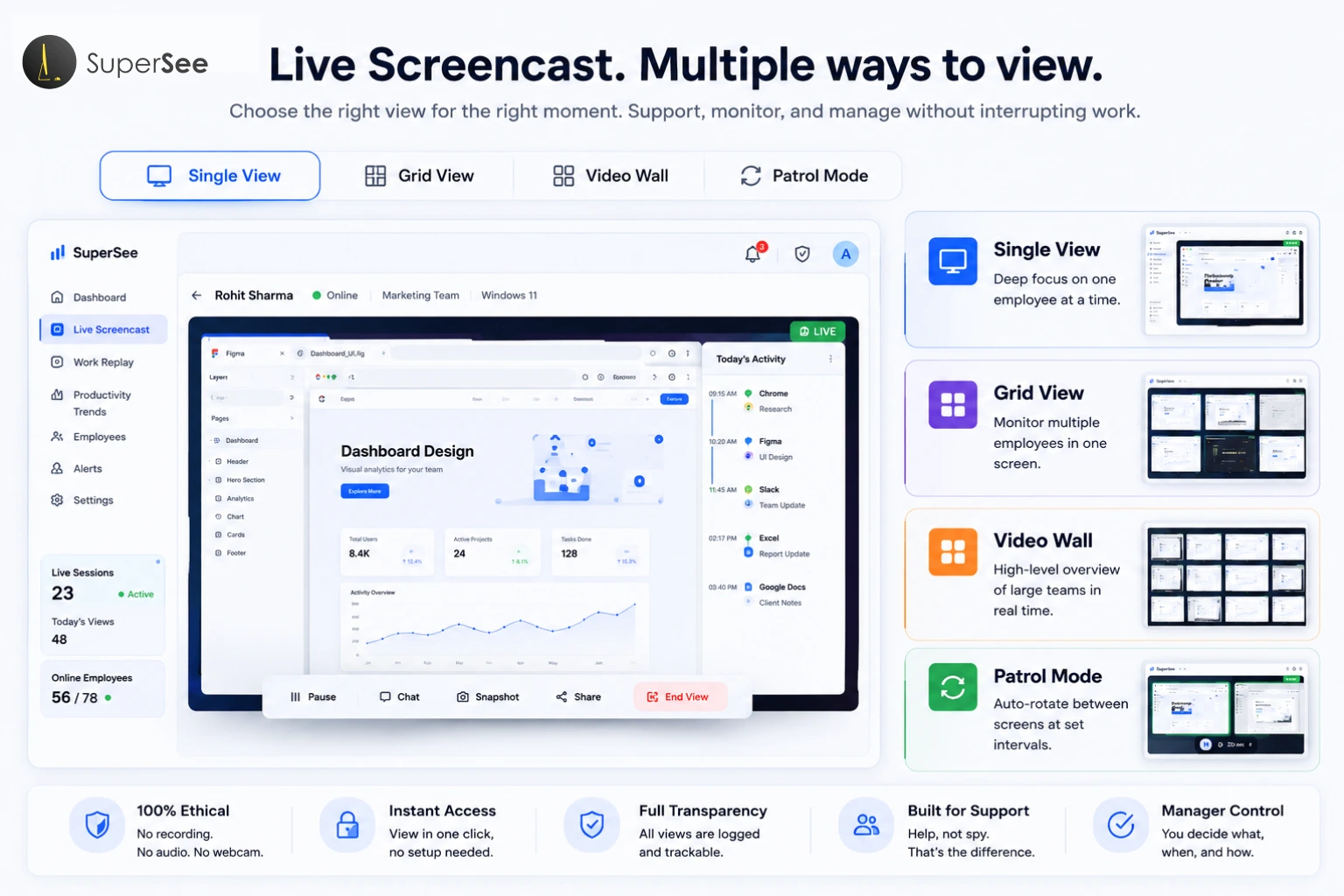
Patrol Mode is the distinct differentiator. You set it to 10, 20, 30, or 60 seconds. It auto-rotates through all active screens. You never fixate on one person. You’re scanning for system failures, not watching individuals.
The Psychology: Patrol Mode is the difference between “I am watching you” and “I am watching the work system.” Agents feel supported, not surveilled.
2. Work Replay: Reconstruct the Workday Without Endless Follow-Up Questions
What It Does
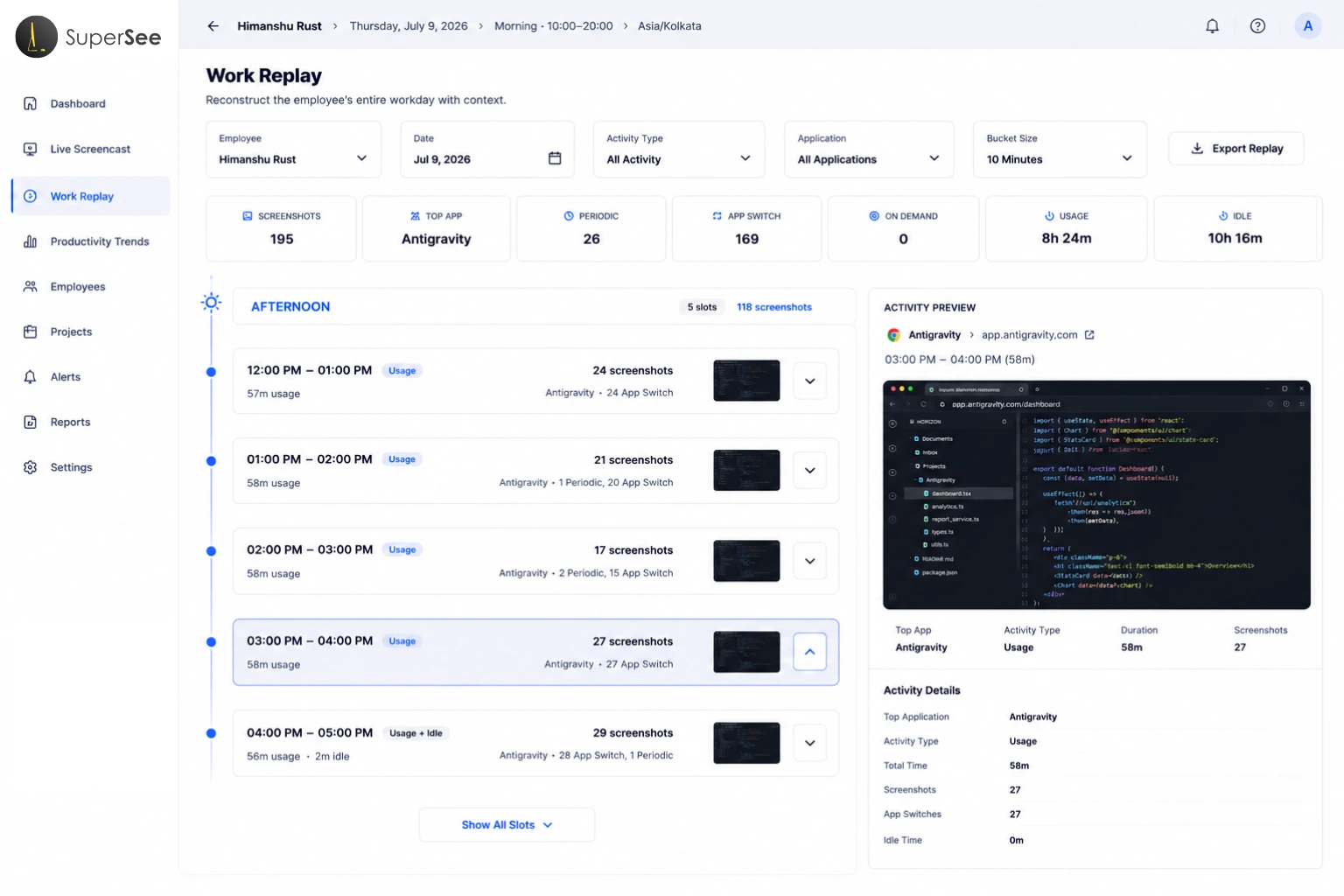
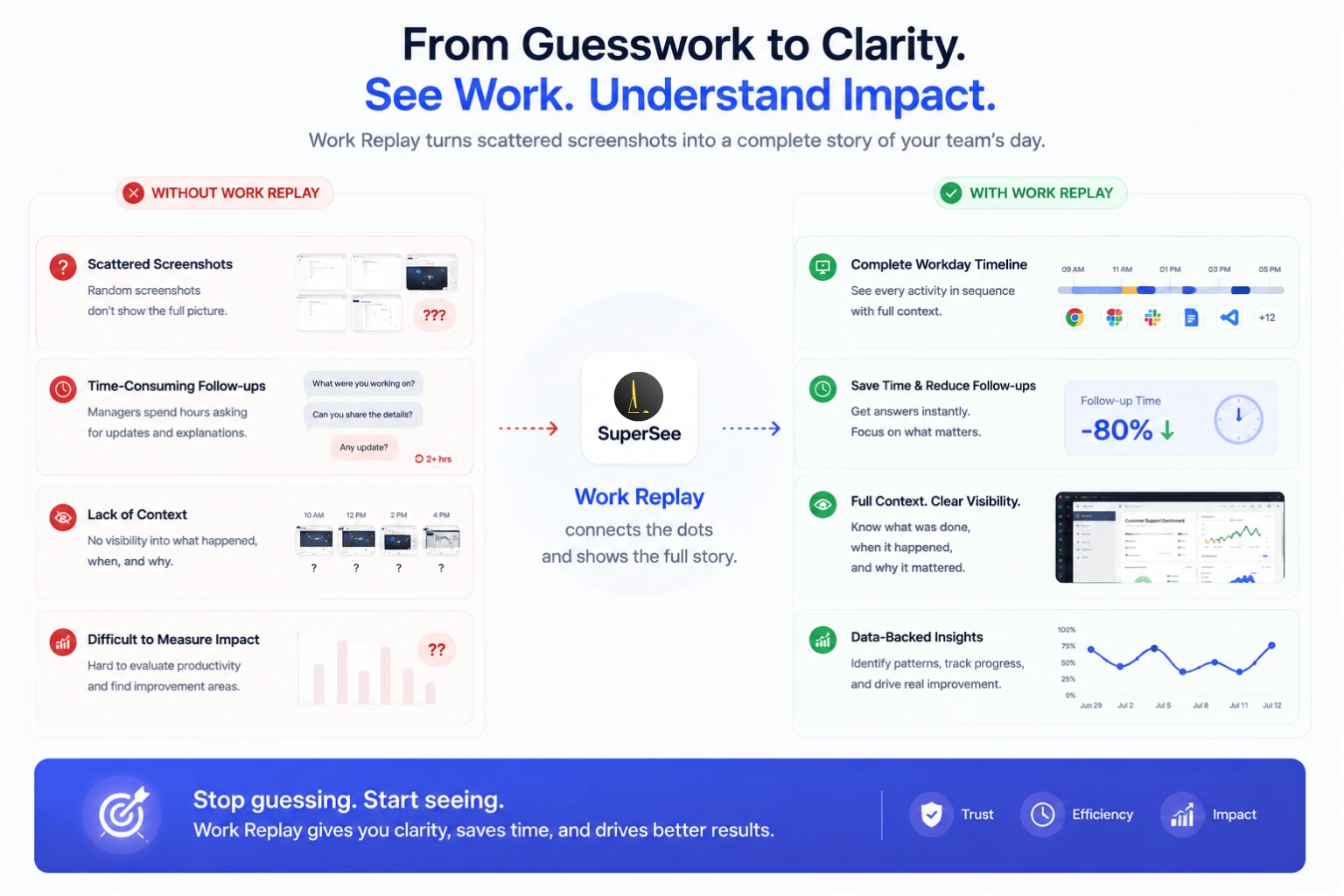
Screenshots capture moments. Work Replay reconstructs the entire workday.
Instead of scrolling through hundreds of disconnected screenshots, you see a chronological timeline of how the workday unfolded.
Think of it like this:
Traditional screenshots = Random photos from a vacation
Work Replay = A chronological video of the entire trip
How Work Replay Works
Select an employee, a date, and filters:
Time of Day — Morning, Afternoon, Evening, Night, Late Night
Application — Chrome, Figma, VS Code, Excel, etc.
Activity Type — Periodic screenshots, App Switches, On-Demand captures
Bucket Size — 15 min, 30 min, 1 hour, 2 hours, 4 hours
The timeline reconstructs the day:
Morning: Research → Late Morning: Figma wireframes → Afternoon: Client revision request → Evening: Final export
When to Use Work Replay
- Investigate delayed projects — Pinpoint exactly where work slowed
- Review client escalations — Reconstruct the timeline before responding
- Coaching conversations — Use actual work examples instead of assumptions
- Sprint retrospectives — Review progress objectively
- Context switching analysis — Understand if interruptions are killing focus
- Process improvement — Find repetitive workflows to simplify
- Client dispute resolution — Review work history with evidence
Real-World Scenarios
Scenario 1: Digital Agency
A client calls at 5:30 PM: “The homepage still isn’t ready.”
The delivery manager opens Work Replay:
Morning: Research
Late Morning: Figma wireframes
Afternoon: Client revision request arrives. Design updated.
Evening: Final export.
Within five minutes, the manager understands the timeline. The delay wasn’t inactivity—it was additional client feedback.
The conversation changes from “Why are you late?” to “How do we manage revisions better next time?”
Scenario 2: IT Services
A bug fix estimated at 2 hours required almost 7 hours.
Work Replay reveals:
Research → IDE Debugging → Database Testing → Browser Validation → Multiple App Switches
The issue wasn’t productivity, it was technical complexity. Without Work Replay, this distinction is impossible to prove.
Scenario 3: Back Office Operations
Invoice processing suddenly slows. Managers assume inefficiency.
Work Replay reveals:
Morning: ERP normal → Afternoon: Repeated login failures, app reloads, idle periods
The bottleneck wasn’t employee performance—it was software reliability.
Work Replay says: “Let me understand what actually happened.”
Surveillance says: “Let me see if you were working.”
Why Work Replay Builds Trust Instead of Micromanagement
Employee monitoring often creates one immediate concern: “Will managers use this to watch people?”
Work Replay is designed differently. It doesn’t encourage constant observation—it helps understand work after something important happens.
| Manager A (Accusatory) | Manager B (Coaching) |
|---|---|
| “Why were you on Chrome for two hours?” | “I noticed you spent two hours researching before development started. Was the client requirement unclear?” |
| Both looked at the same day. Only Manager B understood the context. |
3. Productivity Trends: Spot the Leak Before the Deadline Slips
What It Does
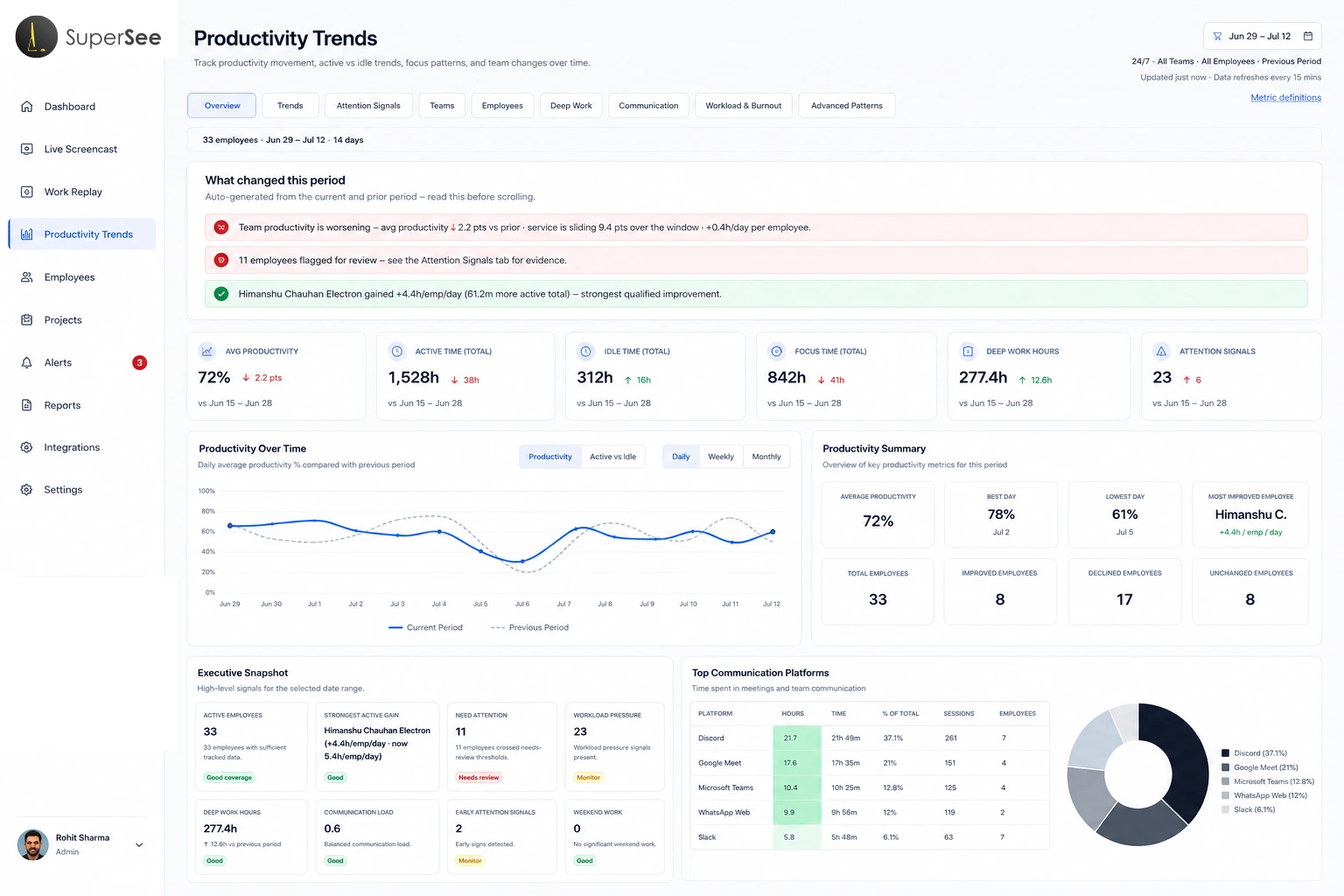
Daily reports show what happened today. Productivity Trends show what is changing over time.
A team can look active every day while gradually losing focus blocks, increasing communication overhead, and creating workload pressure around a few people.
Daily reports show the frame.
Productivity Trends show the movie.
What Productivity Trends Reveals
| Pattern | What It Shows | Why It Matters |
|---|---|---|
| Team Movement | Which teams are improving, stable, or declining | Don’t wait for missed deadlines. See momentum early. |
| Deep Work Health | Are focus blocks shrinking or growing? | For developers, designers, and analysts, deep work is where serious output happens. |
| Communication Load | Is collaboration healthy, or is it consuming the workday? | Rising communication without better output signals a process problem. |
| Workload Pressure | Is work becoming concentrated around a few people? | Prevent burnout before high performers become bottlenecks. |
| Rhythm Drift | Are start patterns, idle patterns, and consistency changing? | Rhythm shifts often appear before missed deadlines. |
The 30-Day Pattern
A single slow day means nothing. A pattern over 30 days means everything.
Look for these four movements:
Active time movement — Stable, rising, or falling?
Focus movement — Are deep work blocks increasing or reducing?
Communication movement — Healthy collaboration or repeated clarification?
Workload movement — Spread evenly or concentrated on a few?
Productivity Trends says: “Is the team getting healthier or weaker over time?”
Surveillance says: “Was everyone active today?”
Practical Founder Example: The 40-Person Service Team
The Situation:
- Attendance is normal
- Timesheets are filled
- The task board is active
- Managers are sending updates
On paper, the company looks disciplined. But delivery is getting harder.
Without Productivity Trends: The founder may only discover the real issue after a client escalates.
With Productivity Trends: The founder can look at the pattern:
Did focus time drop over the last 30 days?
Did the communication load rise before delivery slowed?
Did one team show increasing idle drift?
Did workload pressure concentrate around a few employees?
This changes the management conversation.
Instead of saying, “Why is the team slow?” the founder can ask, “Which part of the work system is slowing the team down?”
That is a more useful question. It leads to better decisions.
How the Three Features Work Together
| Question | Feature | Action |
|---|---|---|
| Is my agent stuck right now? | Live Screencast | View screen instantly → Offer help → Save SLA |
| Why did this task take so long? | Work Replay | Reconstruct timeline → Identify blocker → Coach with evidence |
| Is my team improving or declining? | Productivity Trends | Review 30 day patterns → Spot productivity leakage early → Fix issues before deadlines slip |
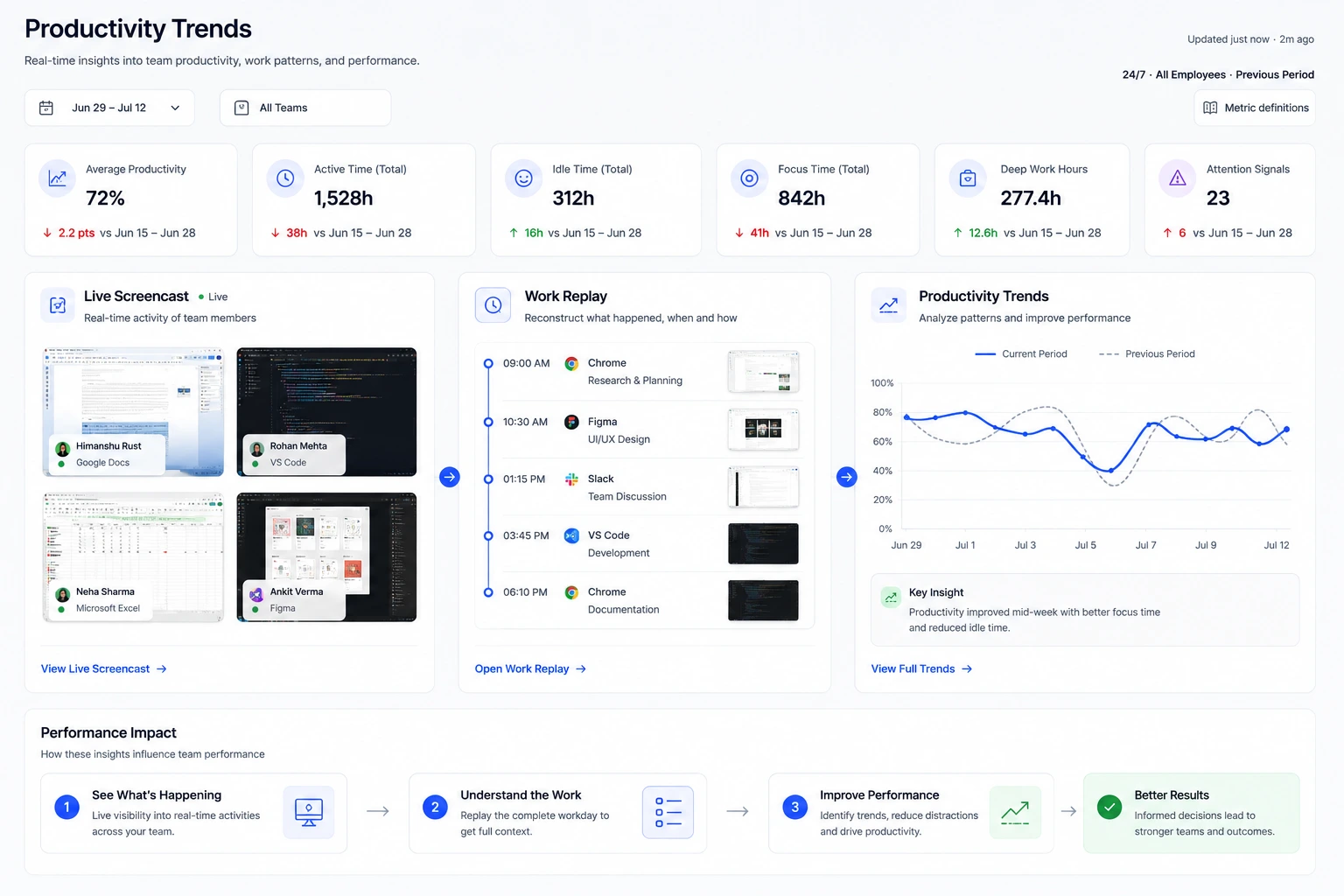
Live Screencast is for right now.
Work Replay is for yesterday.
Productivity Trends are for next month.
Together, they give you complete work context, not surveillance, not guesswork, not endless follow-up questions.
The Framework: Visibility vs. Surveillance
| Aspect | Surveillance | Visibility (SuperSee) |
|---|---|---|
| Intent | To catch people doing something wrong | To help people when they are stuck |
| Frequency | Constant, all day watching | Critical moments only |
| Focus | Individual actions and mistakes | System failures and workflow blockers |
| Communication | Secret, hidden, unclear | Transparent, explained, purpose driven |
| Outcome | Distrust, stress, employee turnover | Trust, support, better retention |
| Employee Response | Resistance, mouse jiggling, quitting | Engagement, productivity, loyalty |
Surveillance says: “I need to watch you to catch you being slow.”
Visibility says: “I need to see your screen so I can unblock you faster.”
The difference is intent. And intent is a choice.
What Serious Buyers Actually Need
You’re not looking for more surveillance.
You’re looking for:
Real-time context — Not constant watching. Just enough to unblock your team.
Historical investigation — The ability to understand why work slowed without interrogating your employees.
Pattern recognition — Early warning before deadlines slip and clients escalate.
SuperSee’s three features deliver all of this—without keystroke logging, audio recording, or webcam video.
Where This Fits in Your BPO/Support Stack
Your existing tools are good at specific jobs. SuperSee fills the missing visual layer.
| Tool | What It Does | What It Misses |
|---|---|---|
| WFM (Workforce Management) | Tells you who is scheduled | What’s actually happening on screens |
| Tickets (Zendesk, ServiceNow, Freshdesk) | Tells you what is assigned | Why a ticket stayed “In Progress” for 45 minutes |
| Timesheets (Hubstaff, TimeDoctor, Clockify) | Tells you hours logged | Whether those hours were focused or fragmented |
| QA Tools (Scorecards, Call Recording) | Tells you quality after the fact | Real time visibility to prevent issues |
| SuperSee Live Screencast | Tells you what is actually happening on the screen right now | Nothing. It fills the gap. |
| SuperSee Work Replay | Reconstructs the entire workday | Nothing. It fills the gap. |
| SuperSee Productivity Trends | Shows what’s changing over time | Nothing. It fills the gap. |
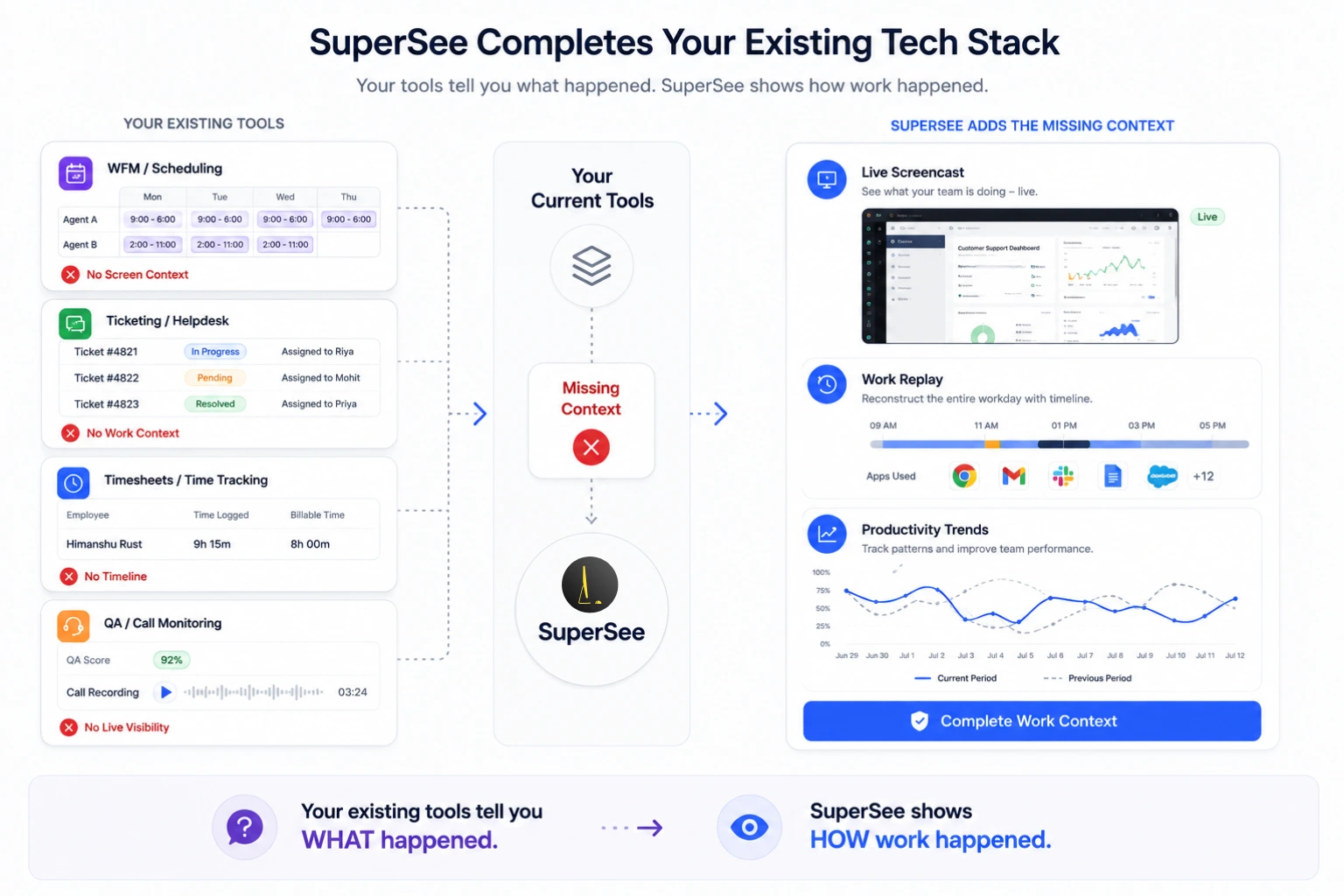
You don’t replace your stack. You add the visual layer that makes every other tool’s data interpretable.
The ROI of Complete Visibility
What You Save
Time Saved from Fewer “What Happened?” Meetings:
- 20 knowledge workers
- 15 minutes spent each day explaining/reconstructing work
- 220 working days per year
- = 1,100+ management hours wasted annually
Time Saved from Fewer Status Pings:
| Metric | Value |
|---|---|
| Team Size | 50 agents |
| Interruptions per Agent per Day | 5 (conservative estimate) |
| Time to Refocus per Interruption | 10 minutes (research suggests up to 23 minutes) |
| Lost Time per Agent per Day | 50 minutes |
| Lost Time for 50 Agents per Month | 1,000+ hours |
| Annual Cost of the Ping Loop | Over $240,000 |
The ROI of eliminating just 50% of those pings: $10,000+ per month in recovered productivity.
What You Protect
Employee trust — Building trust can cut employee turnover by half
Client relationships — Fewer missed SLAs = fewer client escalations
High performers — They leave first when surveillance destroys trust
Team culture — A culture of support, not fear
Implementation Guide: How to Roll Out Complete Visibility Without Destroying Trust
Rolling out visibility tools is 80% communication and 20% technology.
Step 1: Define “Critical Moments”
Before you even activate Live Screencast, define when it will be used:
- SLA at risk (< 10 minutes remaining)
- System-wide outage or technical issue
- New agent onboarding and training
- Agent request for live assistance
Step 2: Communicate Transparently
Template Email to Agents:
We are introducing SuperSee’s visibility features. This is not a surveillance tool—it is an assist tool.
We will use:
- Live Screencast during critical moments (SLA at risk, system outages, training, and when you request help)
- Work Replay to investigate delays and improve workflows (never to blame individuals)
- Productivity Trends to spot system-level issues (never to judge individuals)
We will never use these features to:
- Check if you are “working” (your output speaks for itself)
- Punish you for taking breaks
- Watch you without a clear operational reason
You can see when someone is viewing your screen. Every view is logged and accountable. Your privacy matters.
Step 3: Limit Access
Only authorized Team Leads, Shift Supervisors, and Ops Directors get access. Use Team filters to restrict visibility to relevant departments.
Step 4: Audit Usage
Review audit logs regularly. If a manager is abusing the feature, address it immediately. SuperSee logs every view, you have the data to enforce the policy.
Step 5: Gather Feedback
After 30 days, ask your agents:
- Do you feel more supported?
- Are you getting help faster when stuck?
- Do you trust how management is using these features?
If the answers are negative, adjust your approach. If the answers are positive, you have built a culture of visibility with trust.
FAQ for Serious Buyers
Q: Do I need all three features?
It depends on your team size and complexity. Small teams (5–10 people) may start with Live Screencast and Work Replay. Larger teams (15–50+) benefit most from Productivity Trends to spot patterns across departments.
Q: Isn’t Live Screencast just surveillance?
It depends on how you use it. If you watch constantly, keep it secret, and use it to catch mistakes—it’s surveillance. If you use it during critical moments, communicate transparently, and use it to help—it’s visibility. SuperSee is built for the second way.
Q: How is Work Replay different from screenshots?
Screenshots show isolated moments. Work Replay connects them into a structured timeline. It’s the difference between random photos and a documentary.
Q: Can Productivity Trends replace daily reports?
No. Daily reports show what happened today. Productivity Trends show what’s changing over time. Both are useful—but they answer different questions.
Q: What about employee trust?
Trust is the cornerstone of any successful employer-employee relationship. SuperSee is designed with transparency, limits, and audit logs to protect trust—not destroy it.
Q: How long does it take to set up?
You can see your Live Screencast Workspace in 5 minutes. Work Replay starts capturing data immediately. Productivity Trends become meaningful after 7–14 days of data.
Q: What stops a manager from watching one person all day?
Three layers of protection:
“Live now 0” default — No one is watched unless a session is started
1000-minute daily cap — Hard limit prevents all-day surveillance
Audit logging — Every view is tracked. If a manager abuses it, you see it in the logs.
Q: Is this GDPR and SOC2 compliant?
SuperSee is designed with compliance in mind. Key features include access controls, audit logging, data retention policies, and transparency requirements. We recommend consulting your legal team about your specific jurisdiction.
Q: Can agents see who is watching them?
Yes. The “Live now” counter in the UI footer shows exactly how many agents are being viewed. Combined with transparent communication, this builds trust and accountability.
Q: What about privacy—what if agents have personal content on screen?
SuperSee is designed for company-managed devices. It should be used on work applications during work hours. We recommend clear policies about personal use on work devices.
Final Thoughts: Visibility Without Surveillance
You’re a serious buyer. You’ve done the research. You know the risks of surveillance. You also know the cost of blindness.
SuperSee gives you a third option.
Live Screencast for real-time support when it matters most
Work Replay for investigating delays without guesswork
Productivity Trends for spotting leakage before deadlines slip
Three features. One platform. Zero surveillance.
The goal is not to catch people doing something wrong.
The goal is to understand the work system, to find the friction points, fix the broken processes, and support the people doing the work.
That is what complete visibility is for.
Stop surveilling. Start supporting.
Try SuperSee today.