
Key Takeaways
- The average “Status?” ping costs your team 10+ minutes of lost focus per interruption.
- Attendance, timesheets, and task tools cannot show frozen screens, auto-logouts, or wrong CRM views.
- SuperSee’s Grid, Video Wall, and Patrol modes give managers visual context without interrupting agents.
- Patrol Mode auto-rotates through active screens—you scan for system failures, not person slacking.
- Auto-logout and Idle statuses are usually system issues, not behavioral problems.
- Ethical visibility means: Diagnose the system, not the person.
The Hidden Cost of the Status Ping
Let’s start with math.
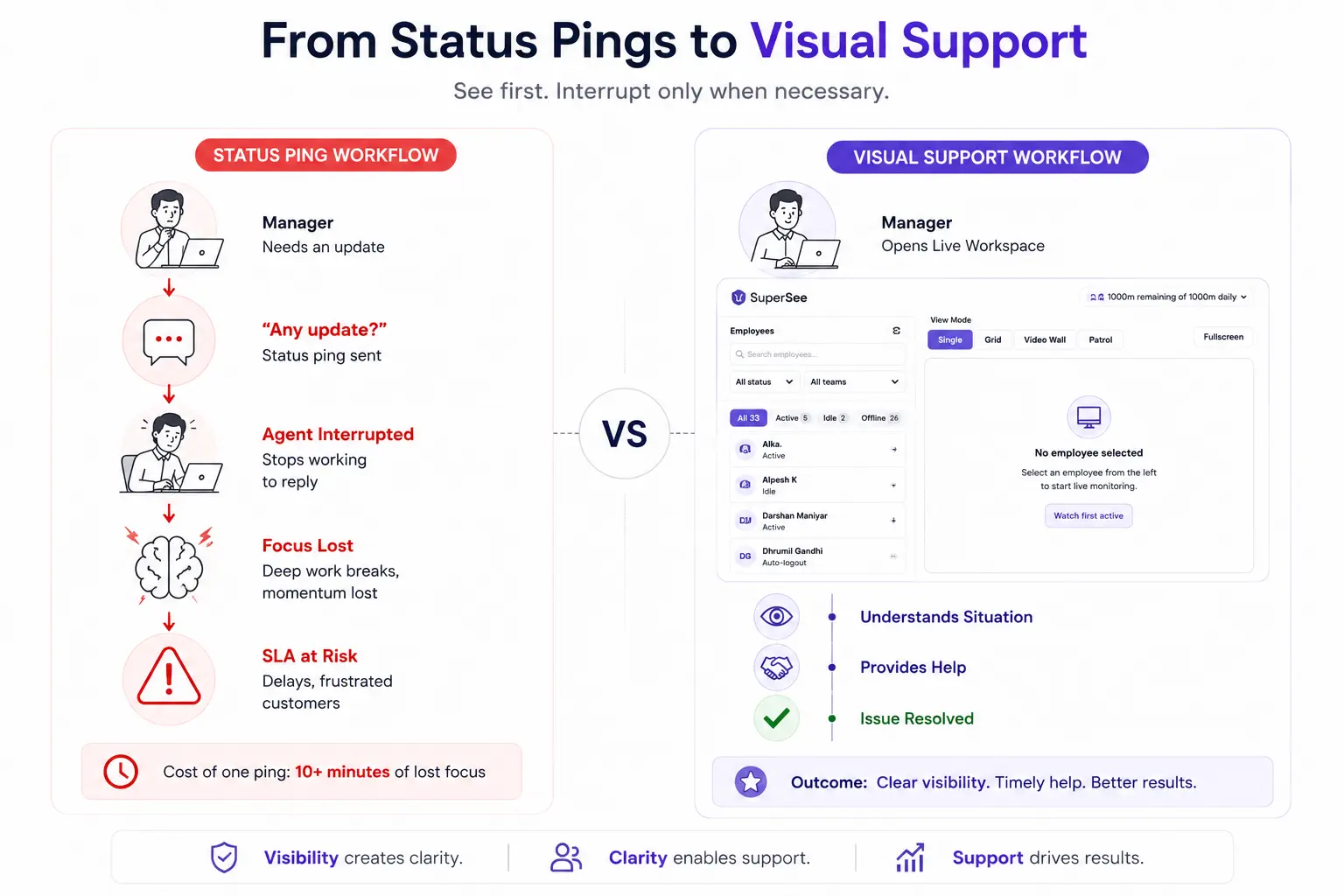
The average support agent or BPO executive takes 23 minutes to fully refocus after an interruption, according to research from the University of California, Irvine. Your standard “Status?” ping takes 2 seconds to send and 15 seconds for the agent to type a reply.
The visible cost is 17 seconds. The invisible cost is 10+ minutes of cognitive flow, the deep work state where complex problem-solving happens. You just destroyed it because you needed a visual update.
Now multiply that by the number of times you ping a day. Five times? Ten times? That is 50 to 100 minutes of lost productivity per agent, per day.
You send that ping because you are blind.
Attendance tells you they logged in. Timesheets tell you the clock is running. Task tools (Jira, Zendesk, ServiceNow) tell you the ticket is “In Progress.”
None of these tools tell you:
- The agent is staring at a frozen loading screen.
- The system has auto-logged them out due to a SAML token expiry.
- They are working in the wrong CRM view while a client waits on hold.
- They are stuck on a captcha loop because the site flagged their IP.
- They are waiting for permission to load that never comes.
You interrupt them to ask for clarity. They stop to reply. The SLA bleeds. The customer churns. The agent gets frustrated.
This is the hidden cost of management blindness and it is costing BPOs and Support teams millions in lost efficiency, SLA penalties, and agent attrition.
The Core Problem: Tools Track Activity, Not Context
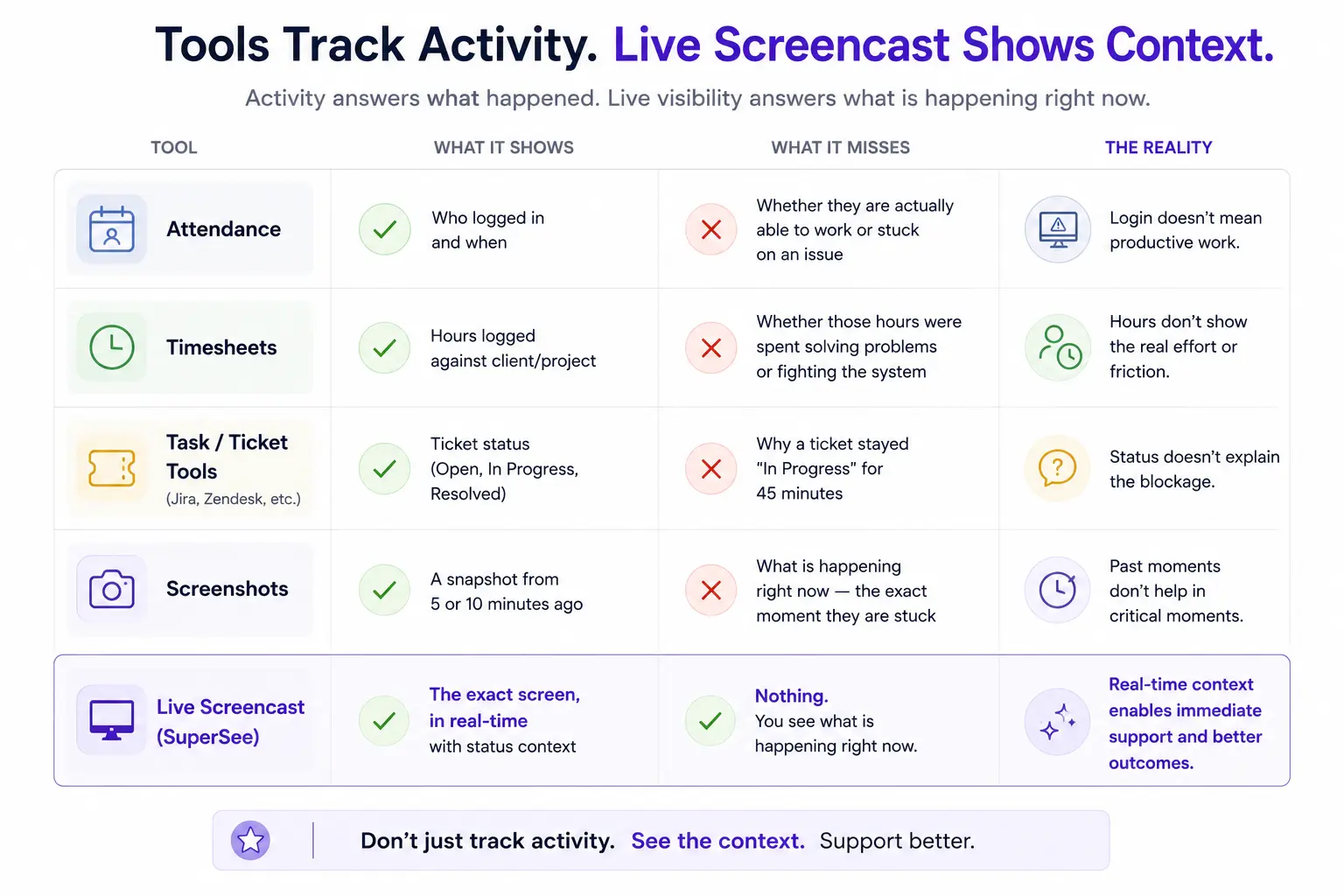
What Attendance Shows (And Misses)
Shows: Who logged in and when.
Misses: Whether they are actually able to work, stuck on a technical issue, or waiting on permissions.
What Timesheets Show (And Misses)
Shows: Hours logged against the client or project.
Misses: Whether those hours were spent solving problems or fighting the system.
What Task Tools Show (And Misses)
Shows: Ticket status (Open, In Progress, Resolved).
Misses: Why a ticket stayed “In Progress” for 45 minutes (frozen screen, wrong data, missing permissions).
What Screenshots Show (And Misses)
Shows: A snapshot from 5 or 10 minutes ago.
Misses: What is happening right now—the exact moment an agent is stuck.
What Live Screencast Shows
Shows: The exact screen, in real-time, with status context (Active, Idle, Auto-logout).
Enables: Silent assistance, immediate diagnosis, zero interruption.
The Gap: Every existing tool answers what happened? Live Screencast answers what is happening right now? and that distinction is the difference between saving an SLA and breaching one.
The SuperSee Status Panel: Instant Visual Context
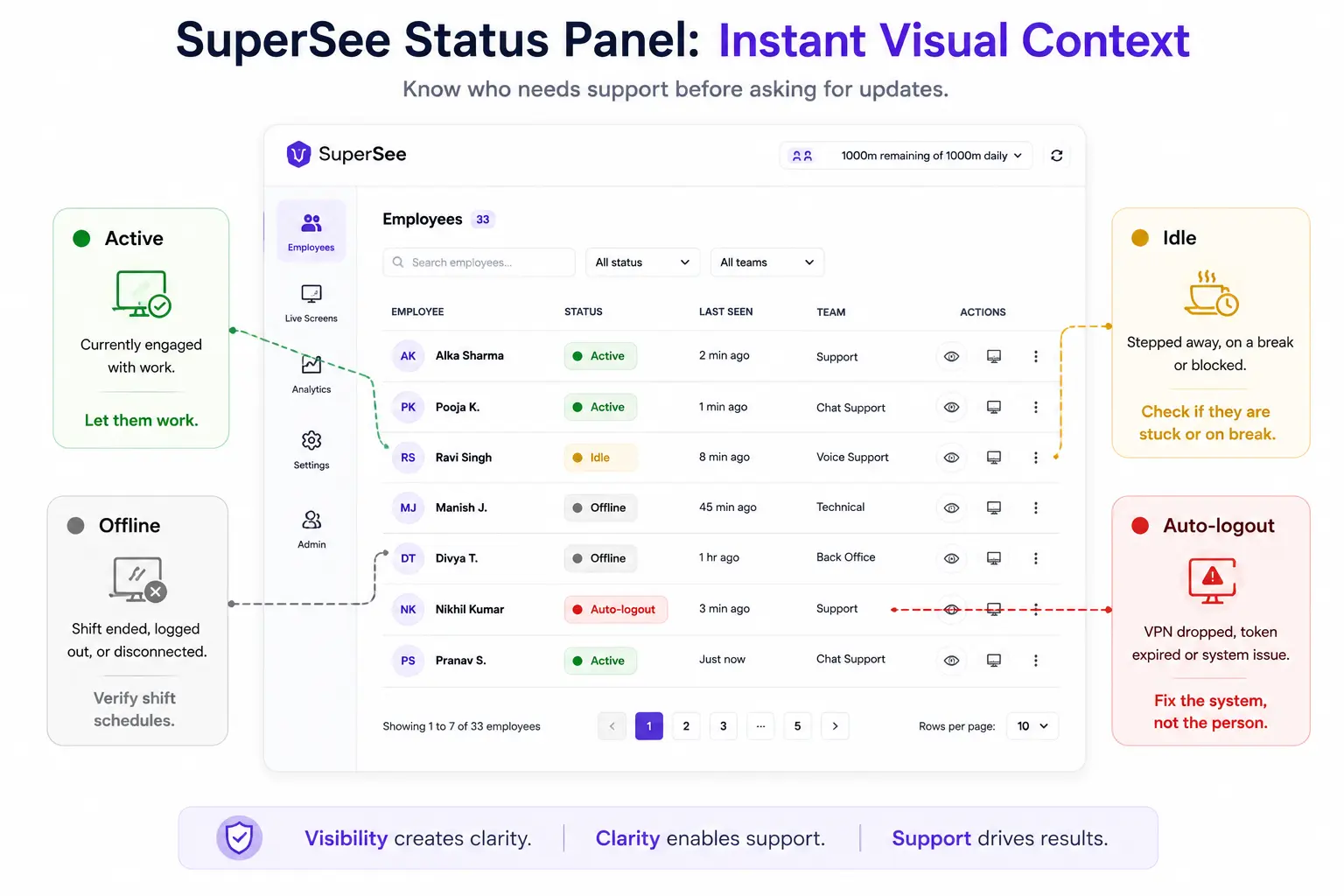
Before you even click a screen, the SuperSee employee list tells you the operational reality of your remote team at a glance.
Status
What It Means
Manager Action
Active (5)
Currently engaged with work typing, clicking, navigating.
Let them work. Do not interrupt.
Idle (2)
Stepped away, on a break, or blocked by a system issue.
Click to see if they are stuck or genuinely on a scheduled break.
Offline (26)
Shift ended, logged out, or disconnected.
Verify shift schedules with WFM.
Auto-logout
VPN dropped. SAML token expired. System crash.
Fix the system, not the person. Escalate to IT immediately.
Absent
Scheduled off or no-show.
Verify attendance records.
The “Auto-logout” Distinction
This is critical. In traditional monitoring tools, “Auto-logout” is often treated as “idle time”—something that counts against the agent.
In SuperSee, Auto-logout is explicitly a technical status. It signals:
- VPN disconnected.
- SSO session expired.
- Network reset.
- Application crash.
Manager response: Escalate to IT. Do not question the agent’s work ethic. This is a system failure, not a behavioral failure.
Team Filtering for Multi-Client BPOs
For BPOs managing multiple clients or departments, the Teams filter is essential.
- Accounts
- Humans
- Production
- Sales
- Sales AMD
- Testing
A Sales supervisor only sees Sales agents. A Testing supervisor only sees Testing. Zero cross-department visibility. No accidental peeking into other teams.
This is not just a privacy feature, it is an operational necessity for multi-tenant BPO environments.
The 4 View Modes: How BPO Leaders Actually Use This
This is where the tool stops being “creepy” and starts being “operationally essential.” Each mode serves a different management scenario.
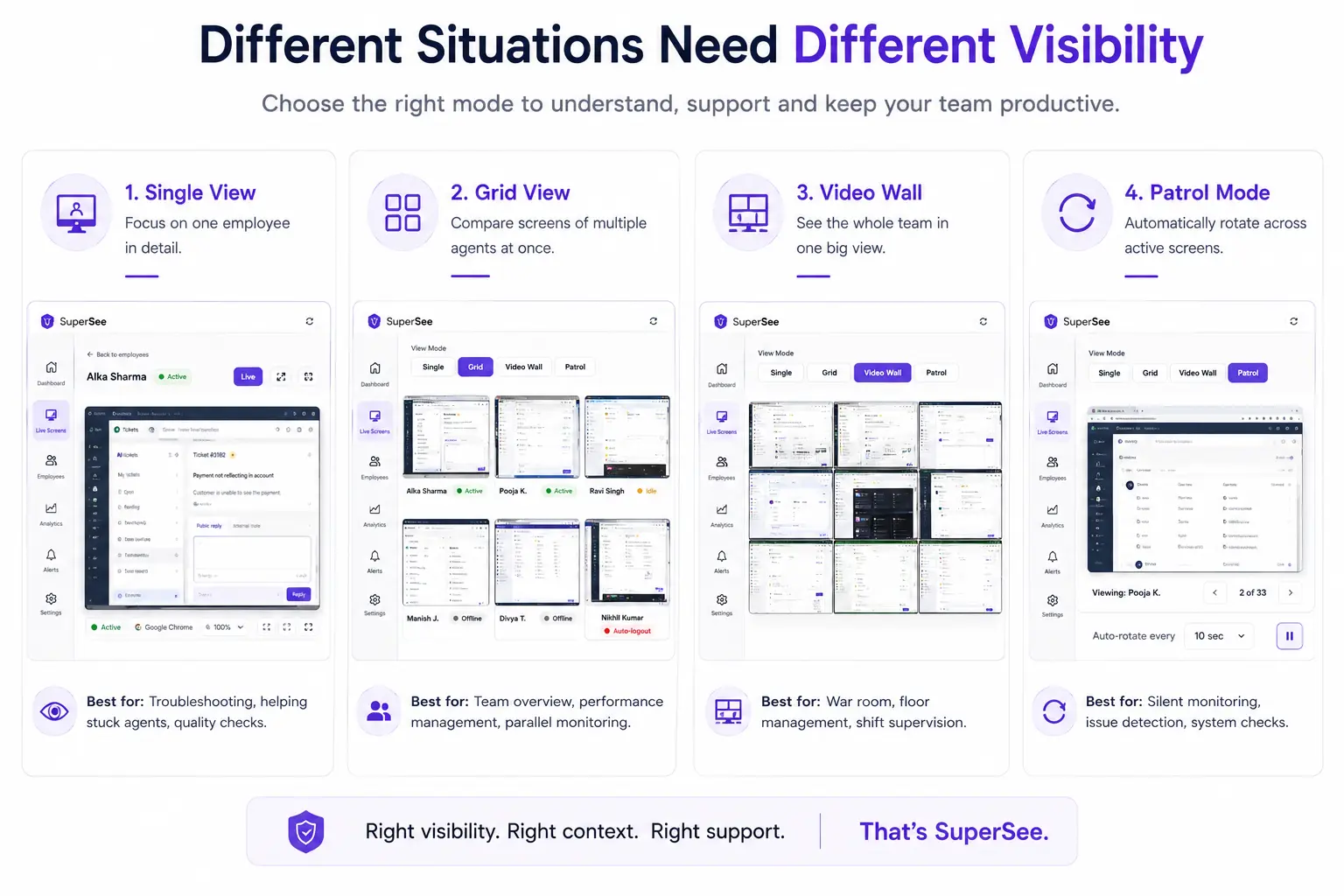
1. Single View: Silent, Targeted Assistance
You select a specific agent. You see their exact screen in real-time. No share-screen request. No Zoom lag. No interruption.
When to use:
- A priority-1 ticket is open and the SLA is at risk.
- A complex escalation is in progress.
- An agent has been idle for an unusual period.
How it works:
You silently watch the agent for 10 seconds. You see they are in the right system but clicking the wrong macro. You whisper the fix via chat. They fix it. You close your view. They never stopped typing.
Result: SLA saved. The agent never lost focus. Customers are satisfied.
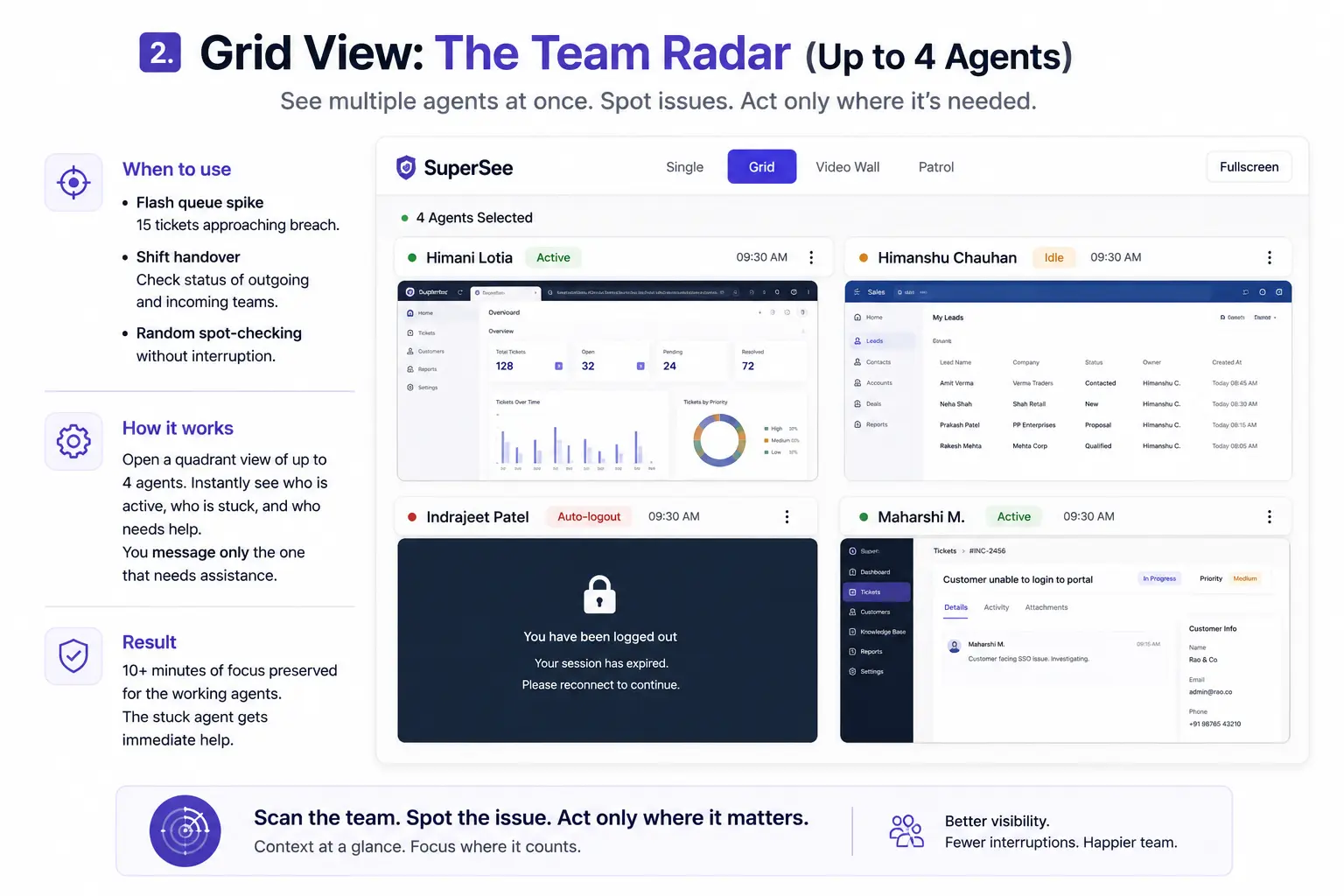
2. Grid View: The Team Radar (Up to 4 Agents)
You open a quadrant view of up to 4 agents simultaneously.
When to use:
- Flash queue spike 15 tickets approaching breach.
- Shift handover checking status of the outgoing and incoming teams.
- Random spot-checking without interruption.
How it works:
Instead of pinging all 15 agents, you open the Grid. You spot 3 agents actively processing, 1 stuck on a captcha screen. You only message the 1. The other 3 never get interrupted.
Result: 10+ minutes of focus preserved for the working agents. The stuck agent gets immediate help.
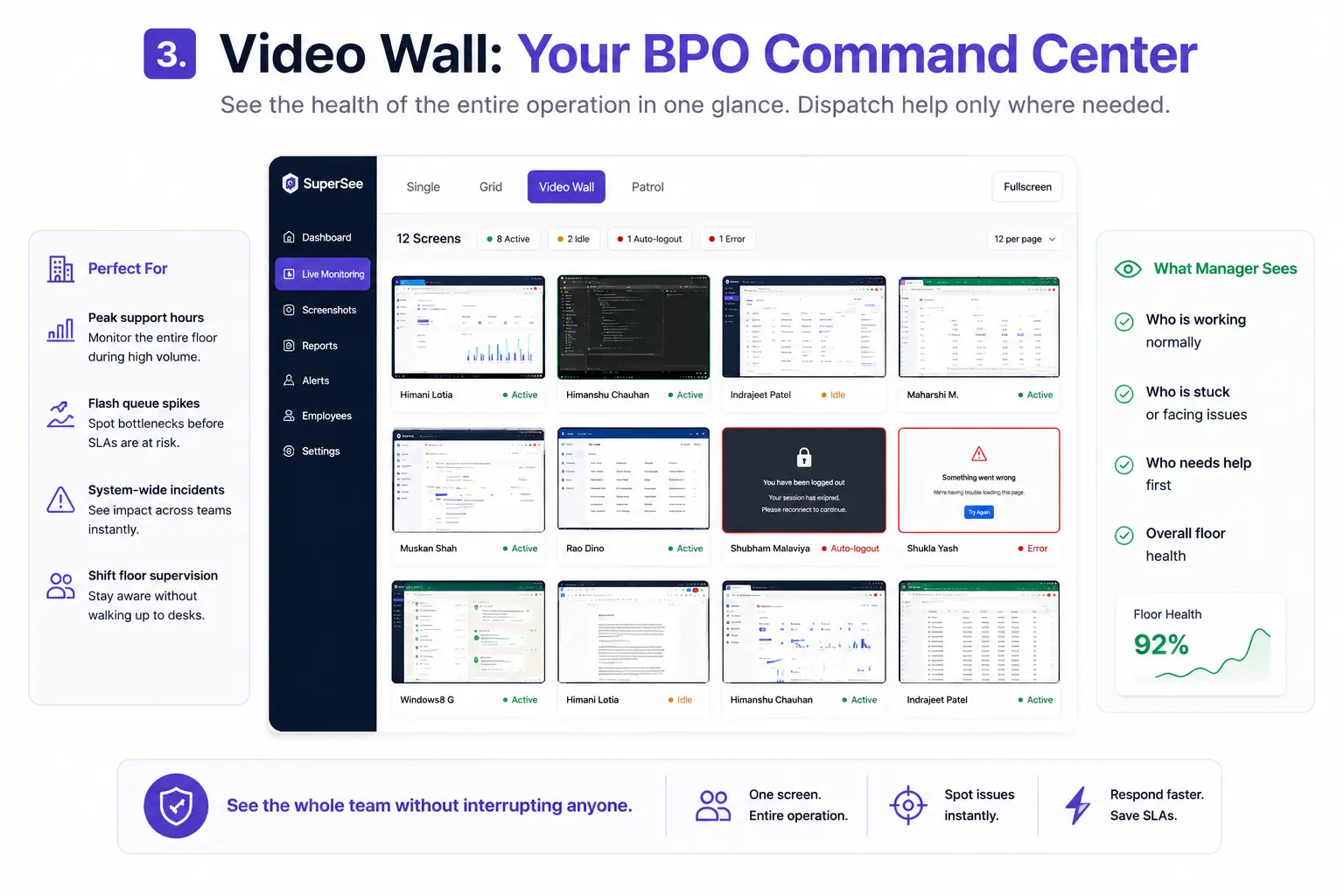
3. Video Wall: The BPO Command Center
This is the full-wall, multi-screen view designed for Ops Directors, Shift Leads, and Floor Managers. See 6, 8, or 12 agents at a glance.
When to use:
- System-wide outage, who is affected?
- Peak hours managing a high-volume queue.
- Real-time operational awareness at-a-glance health of the floor.
How it works:
You throw the Video Wall up on your second monitor. You see which agents are handling it manually, which are stuck on error screens, and which went offline. You dispatch help instantly.
Result: No meeting required. Instant triage. Minimal disruption.
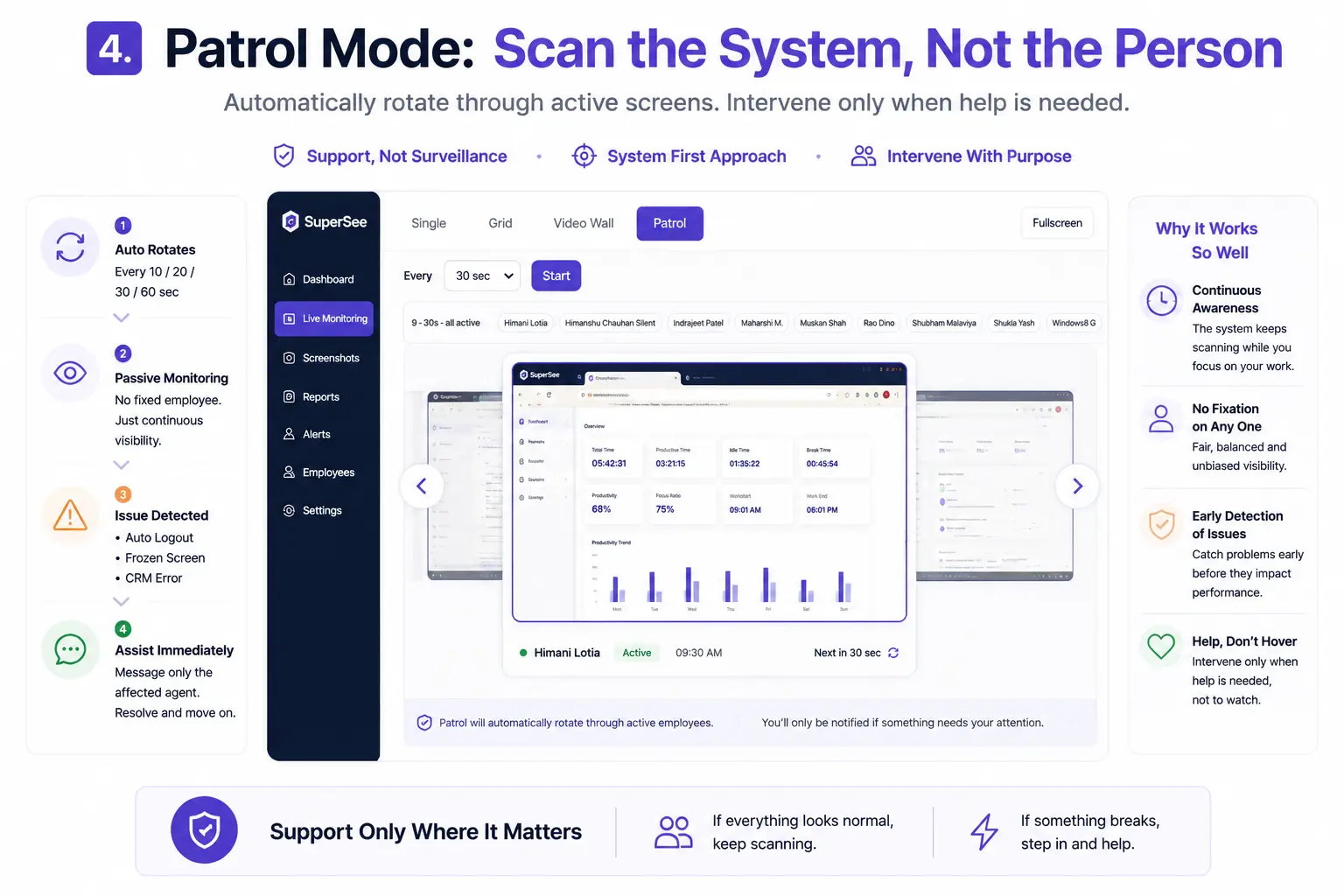
4. Patrol Mode: The “Set It and Forget It” Engine (Killer Feature)
This is the distinct differentiator from traditional surveillance tools. Patrol Mode auto-rotates through active screens at a set interval.
How it works:
You set Patrol to 10, 20, 30, or 60 seconds. Hit Start. The screen auto-rotates through all active employees. You never fixate on one person.
When to use:
- Back-to-back meetings, you cannot monitor actively.
- Shift supervision, passive scanning during quiet periods.
- Random sampling, checking system health without targeted focus.
Why this builds trust:
You are scanning the system for failures, not the person for slacking. If everything looks normal, you stay quiet. If you see a frozen screen, an “Auto-logout” flag, or an unfamiliar error popup, you jump in and help.
The Psychology:
Patrol Mode is the difference between “I am watching you” and “I am watching the work system.” Agents feel supported, not surveilled.
The Hard Ethical Guardrails: Built into the UI
SuperSee is designed with responsible visibility as a core principle. This is not marketing fluff—it is baked into the product architecture.
“Live now 0” The Default State
No one is being watched unless a specific session is initiated. The default state is zero live views. This is explicitly displayed in the UI footer: “Live now 0.”
Why this matters: It signals to managers and agents alike that visibility is the exception, not the rule.
“1000m remaining of 1000m daily” The Daily Limit
There is a hard daily limit of 1000 minutes (approximately 16.6 hours) for live screencast viewing.
Why this matters: This tool is designed for critical moments and shift scanning, not 8-hour surveillance marathons. It creates friction against abuse.
Audit Logging
Every view is logged. Who accessed which screen, when, and for how long. If a manager is fixated on one agent, you see it in the logs and can address it.
The Golden Rule for BPO Leaders
If you use the screen to diagnose the system (VPNs, CRMs, network lag), you win. If you use it to diagnose the person, you lose.
This rule should be part of your internal policy and communicated to every manager who uses the tool.
Implementation Guide: How to Roll Out Live Screencast Without Destroying Trust
Rolling out a visibility tool is 80% communication and 20% technology. Here is a step-by-step framework.
Step 1: Define “Critical Moments”
Before you even activate the tool, define when a live screencast will be used. Examples:
- SLA at risk (< 10 minutes remaining).
- System-wide outage or technical issue.
- New agent onboarding and training.
- Agent request for live assistance.
Step 2: Communicate Transparently
Template Email to Agents:
We are introducing SuperSee Live Screencast. This is not a surveillance tool—it is an assist tool.
- We will only use live viewing during:
- SLA-critical tickets (when time is running out).
- System outages (to see who is affected).
- Training and coaching sessions (to help you learn faster).
- When you specifically request help and don’t want to explain via chat.
We will never use it to:
- Check if you are “working” (your output speaks for itself).
- Punish you for taking breaks.
- Watch you without a clear operational reason.
You can see when someone is viewing your screen—the “Live now” counter shows exactly who is being viewed.
Step 3: Limit Access
Only authorized Team Leads, Shift Supervisors, and Ops Directors get access. Use the Teams filter to restrict visibility to relevant departments.
Step 4: Audit Usage
Review the audit logs regularly. If a manager is abusing the feature, address it immediately. SuperSee logs every view—you have the data to enforce the policy.
Step 5: Gather Feedback
After 30 days, ask your agents:
- Do you feel more supported?
- Are you getting help faster when stuck?
- Do you trust how management is using this?
If the answers are negative, adjust your approach. If the answers are positive, you have built a culture of visibility with trust.
The ROI of Live Screencast: Calculating the Cost of the Ping Loop
Let’s put numbers on this.
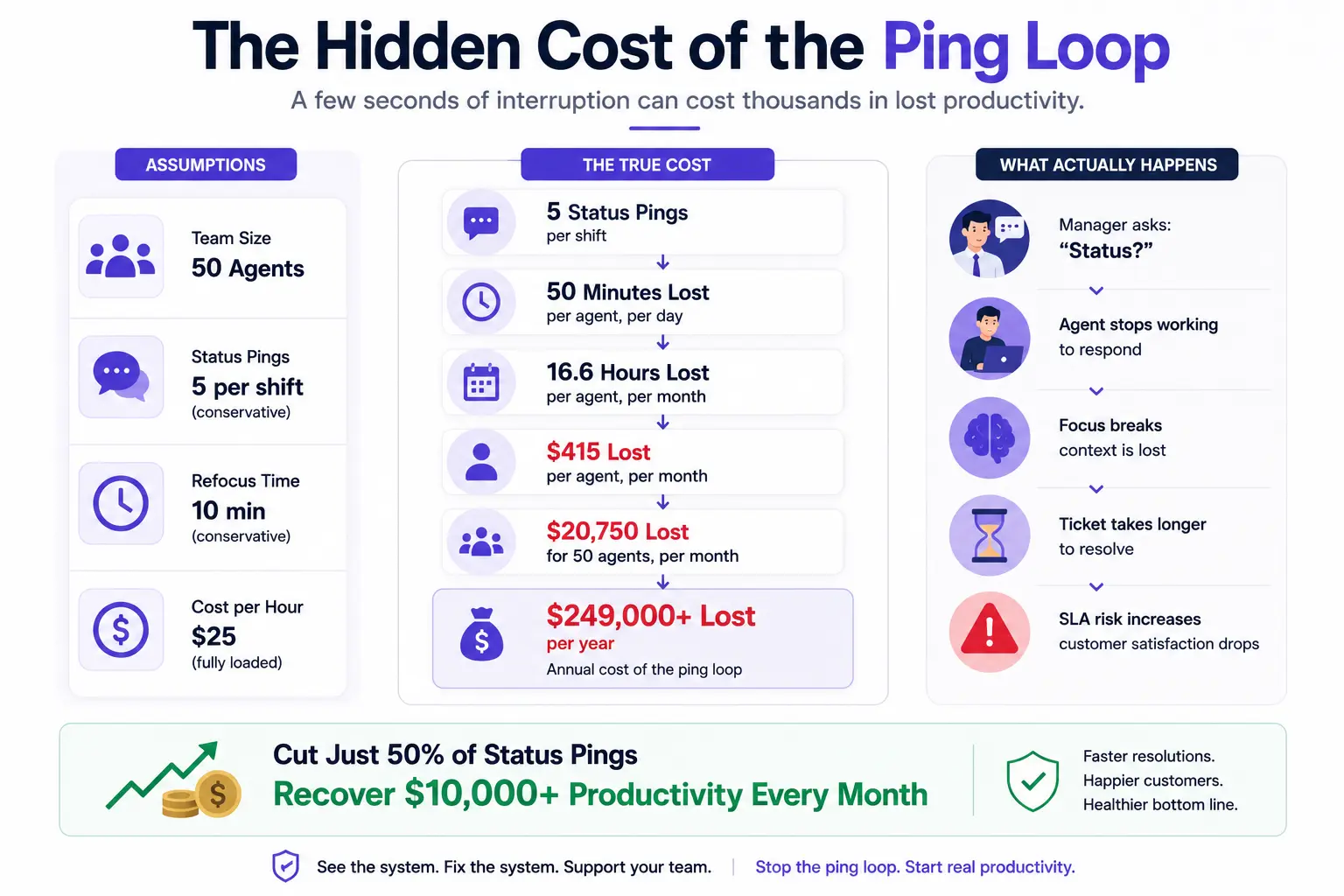
Assumptions
- Team size: 50 agents.
- Agents interrupted: 5 times per shift (conservative).
- Time to refocus: 10 minutes per interruption (conservative—research says 23 minutes).
- Fully loaded cost per agent: $25/hour (including benefits, overhead).
Calculation
- Lost time per agent per day: 5 interruptions × 10 minutes = 50 minutes.
- Lost time per agent per month: 50 minutes × 20 working days = 1,000 minutes = 16.6 hours.
- Lost cost per agent per month: 16.6 hours × $25 = $415.
- Lost cost for 50 agents per month: 50 × $415 = $20,750.
Annual cost of the ping loop: Over $240,000.
Now consider:
- Each minute of interruption increases ticket handling time.
- Longer handling time means fewer tickets closed per agent.
- Fewer tickets closed means more agents needed, or more SLAs missed.
- SLAs missed often mean contractual penalties or churn.
The ROI of eliminating just 50% of those pings: $10,000+ per month in recovered productivity.
Practical BPO Example: The 50-Agent Queue Spike
Let’s walk through a real-world scenario.
Scenario: A 50-agent eCommerce support desk hits a flash sale. Queue spikes from 200 to 600 open tickets. 20 tickets are about to breach SLA (within 10 minutes).
Without Live Screencast:
Time
Manager Action
Outcome
0:00
Manager sends a mass ping: “Status on tickets approaching SLA?”
15 agents reply: “Working.”
0:30
5 agents do not reply.
The manager starts chasing each agent individually.
2:00
The manager finally gets responses.
3 agents were stuck and had to explain their issues through chat.
5:00
Tickets continue waiting.
3 tickets breach SLA and customer escalations begin.
8:00
The manager finally provides help to the stuck agents.
Agents lose around 8 minutes of focus replying to status pings instead of solving tickets.
Result: The manager gains visibility late, interrupts everyone, and loses valuable focus time while SLAs continue to slip.
With SuperSee Live Screencast (Grid + Patrol)
Time
Manager Action
Outcome
0:00
Manager opens Grid View (4 agents).
Sees 3 agents actively processing requests and 1 staring at a login screen.
0:20
Manager switches to Patrol Mode (30-second interval).
Cycles through the next screens and spots another agent stuck on Auto-logout.
0:40
Manager messages only the 2 stuck agents.
Instructs them: “Refresh the SSO and use the backup portal.”
1:00
Stuck agents follow instructions.
Both agents resume work immediately while other agents remain uninterrupted.
5:00
The manager continues monitoring through Patrol Mode.
SLAs hold, the queue clears, and approximately 15 minutes of collective focus time is preserved.
Result:
- 3 SLAs saved.
- 15 minutes of focus preserved across the team.
- Zero interruption for working agents.
- The manager spent < 1 minute diagnosing.
Where This Fits in Your BPO/Support Stack
Your existing tools are good at specific jobs. SuperSee fills the missing visual layer.
- WFM (Workforce Management): Tells you who is scheduled.
- Tickets (Zendesk, ServiceNow, Freshdesk): Tell you what is assigned.
- Timesheets (Hubstaff, TimeDoctor, Clockify): Tells you hours logged.
- QA Tools (Scorecards, Call Recording): Tells you quality after the fact.
- SuperSee Live Screencast: Tells you what is actually happening on the screen right now.
You don’t replace your stack. You add the visual layer that makes every other tool’s data interpretable.
15 Real-World Use Cases for Live Screencast in BPO/Support
- SLA at risk: Agent is stuck, see why and fix it.
- Live escalation: Agent is on a call and needs immediate backup.
- New hire onboarding: Trainer watches the agent’s screen and corrects in real-time.
- System outage: Spot which agents are affected and escalate to IT.
- Auto-logout detection: Token expired, refresh and recover.
- Queue spike management: Grid view to monitor the whole floor.
- Shift handover: Check status of outgoing and incoming teams.
- Agent request for help: No need to share screen, you already see it.
- Training QA: Review workflows in real-time during mock sessions.
- Technical debugging: Developer watches the agent’s error screen.
- Fraud detection: Spot unusual workflows in real-time.
- Coaching moments: Record a session (with consent) for later review.
- Process improvement: Identify friction points in the workflow.
- Remote team visibility: No physical floor, digital command center.
- Management trust building: Show agents you support, not surveil.
Try Patrol, Grid & Video Wall Free for 14 Days
You have read the complete guide. Now see the workspace.
Grid, Patrol, and Video Wall aren’t just concepts, they are active, clickable features in SuperSee. Load your team, toggle Patrol Mode, and see exactly who is stuck, who is active, and who needs help, without sending a single status ping.
Start your 14-day trial. See your Live Screencast Workspace in 5 minutes.
[See live work visibility in SuperSee]
FAQ :
Q1: Is Patrol mode just automated spying?
No. Patrol is automated scanning. You set it to 30 seconds. It cycles through active screens. If you see a problem, you assist. If you see a normal workflow, you move on. You are scanning for system friction, not analyzing keystrokes or tracking time.
Difference: Spying is passive observation without purpose. Patrol is active scanning with the goal of identifying system failures and offering help.
Q2: What stops a manager from watching one person all day?
Three layers of protection:
“Live now 0” default state—no one is watched unless a session is started.
1000-minute daily cap—hard limit prevents all-day surveillance.
Audit logging—every view is tracked. If a manager fixes it, you see it in the logs and can address it.
Q3: Can we filter by specific BPO teams (Sales vs. Testing)?
Yes. The Teams filter (Accounts, Humans, Production, Sales, Sales AMD, Testing) restricts visibility. A Testing supervisor only sees Testing. A Sales supervisor only sees Sales. No cross-pollination. This is critical for multi-client BPOs.
Q4: We use Hubstaff/TimeDoctor. Is this the same?
No. Hubstaff and TimeDoctor track activity (clicks, keys, screenshots). They answer “were they active?” SuperSee gives you a curated Live Workspace with Grid, Patrol, and Video Wall modes designed for real-time assistance. They answer “are they stuck right now?”.
Complement, not replace: You can keep Hubstaff for payroll and timesheets. Use SuperSee for real-time support.
Q5: What does “Auto-logout” mean for my agents?
90% of the time, it means a technical glitch:
VPN dropped.
SAML token expired.
Network reset.
Application crashed.
The manager’s job is to see that red flag and escalate to IT—not to question the agent’s work ethic. This is a system failure, not a behavioral failure.
Q6: Can agents see who is watching them?
Yes. The “Live now” counter in the UI footer shows exactly how many agents are being viewed. Combined with transparent communication, this builds trust and accountability.
Q7: What about privacy, what if agents have personal content on screen?
SuperSee is designed for company-managed devices. It should be used on work applications during work hours. We recommend clear policies about personal use on work devices.
Q8: Is this GDPR and SOC2 compliant?
SuperSee is designed with compliance in mind. We recommend consulting your legal team about your specific jurisdiction. Key features include:
Access controls.
Audit logging.
Data retention policies.
Transparency requirements.
Q9: How long does it take to set up?
You can see your Live Screencast Workspace in 5 minutes after starting the trial. Add your team, install the desktop app, and start viewing.
Q10: What if my team is fully remote?
This is where Live Screencast shines. Remote managers lack the physical visibility of an office floor. SuperSee provides a digital command center that brings the floor to your screen.
Q11: Does this work for enterprise BPOs?
Yes. SuperSee scales to enterprise BPOs with hundreds of agents. The Teams filter, access controls, and audit logging are built for multi-tenant, multi-client environments.
Q12: What if an agent is genuinely on a break?
The Idle status shows they have stepped away. You can verify with WFM schedules or break policies. The goal is not to police breaks it’s to identify system failures.
Final Thoughts: Visibility Without Surveillance
The BPO and Support industry is transforming. Remote work is permanent. Hybrid floors are the new norm. Managers can no longer walk the floor to see what is happening.
But that doesn’t mean you need to turn into a surveillance state.
Surveillance says: “I need to watch you to catch you being slow.”
Visibility says: “I need to see your screen so I can unblock you faster.”
SuperSee is built on the second philosophy.
Patrol Mode scans for system failures, not person failures.
Auto-logout statuses are treated as technical issues, not behavioral problems.
Daily limits prevent abuse.
Audit logs enforce accountability.
Team filters respect privacy.
The goal is not to catch people doing something wrong. The goal is to understand the work system to find the friction points, fix the broken processes, and support the people doing the work.
That is what Live Screencast is for.