
Key Takeaways
- 14 days is enough time to test, validate, and see measurable ROI—if you follow a structured plan.
- Start with one team or project instead of rolling out to everyone at once.
- Work Replay is your secret weapon for investigating delays and understanding work context.
- Involve your team early to build trust and get honest feedback.
- Track your time savings, quantify the ROI before the trial ends.
You Started Your SuperSee Trial. Now what?
You’ve signed up for SuperSee’s 14-day free trial.
You’ve heard about Work Replay, the feature that reconstructs an entire workday instead of making you scroll through hundreds of disconnected screenshots.
But now you’re looking at the dashboard and thinking:
“Okay… where do I start?”
That’s exactly why we created this guide.
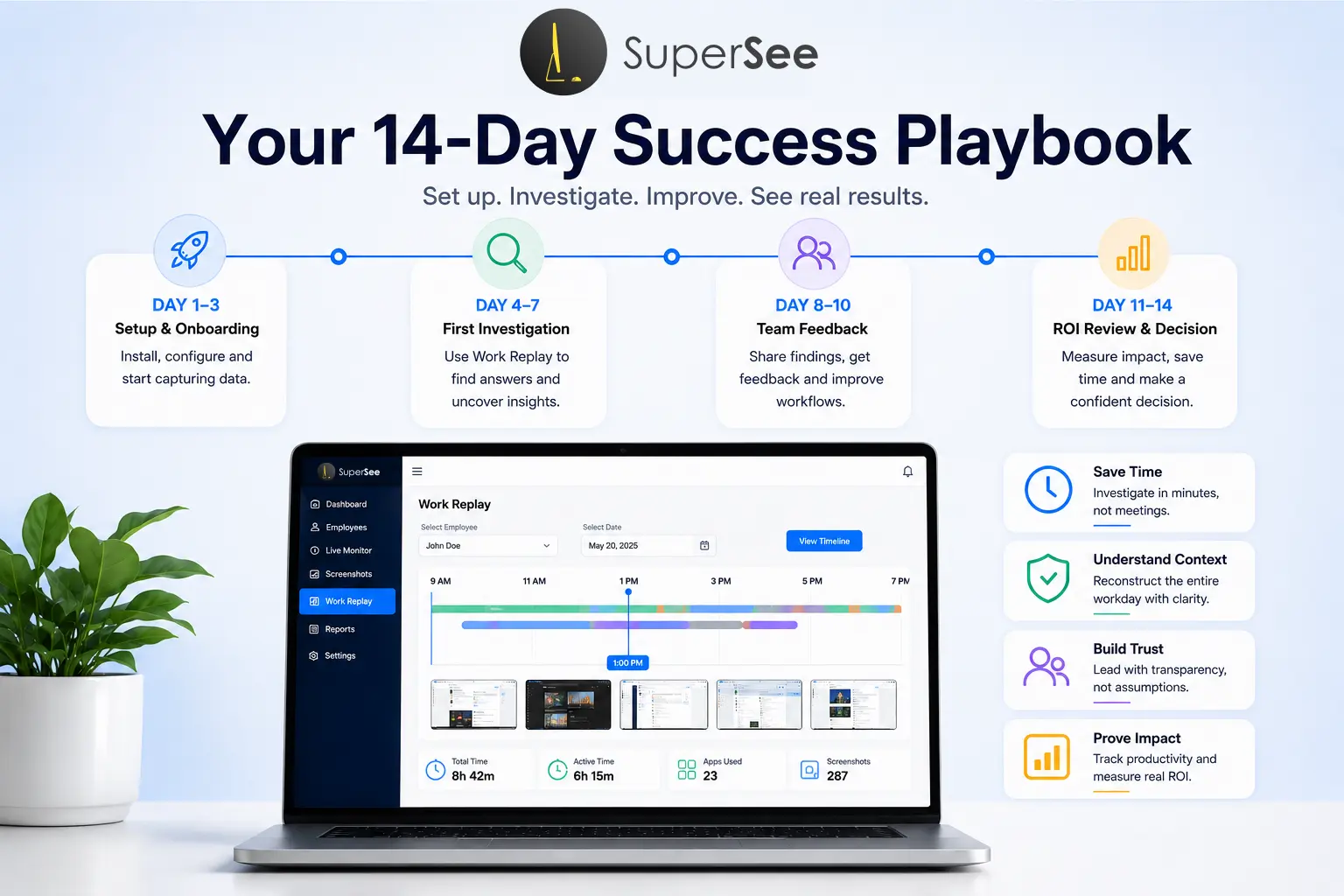
SuperSee gives you 14 days to explore, test, and validate. That’s enough time to:
- Set up your team
- Run your first investigation
- Identify at least one workflow bottleneck
- Quantify the time you’ve saved
- Make a confident decision
But only if you follow a plan.
This guide is your 14-day success playbook. Follow it day by day, and you’ll walk away knowing exactly whether SuperSee is right for your team, and exactly how much value it delivers.
Why 14 Days Is the Perfect Trial Window
Most software trials are too short (7 days) or too long (30 days).
7 days isn’t enough to see real patterns. You might set up, test, and then panic because you haven’t seen enough data.
30 days can feel aimless. Without structure, teams forget they’re on a trial and never properly evaluate.
14 days is the sweet spot.
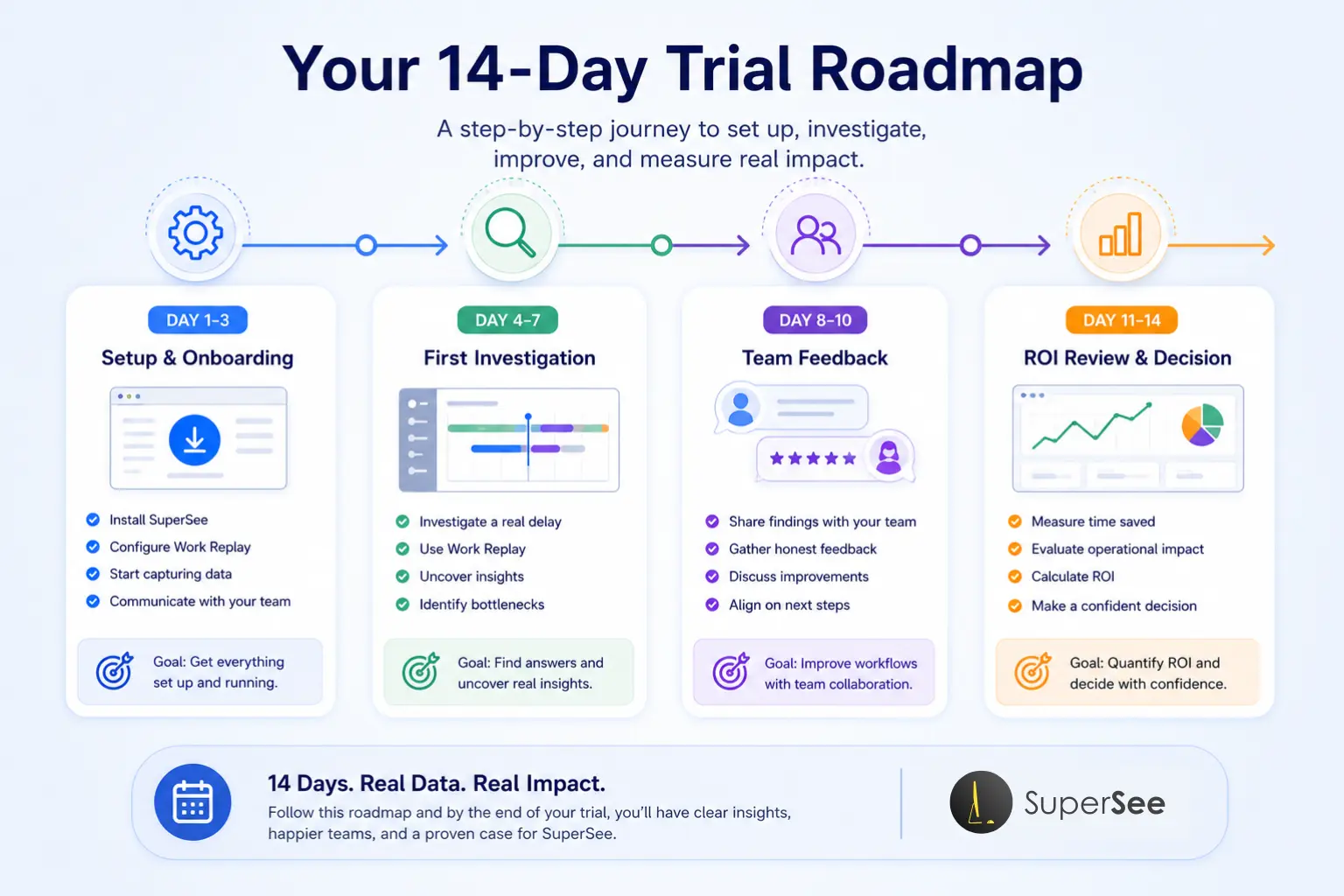
SuperSee’s 14-day trial is designed to give you enough time to go through this entire cycle—from setup to decision.
Before You Start: The Mindset Shift
SuperSee is not a surveillance tool.
It’s a productivity intelligence platform that helps you understand how work actually happens.
The goal isn’t to watch people. The goal is to understand work.
Here’s what SuperSee does not do:
❌ Keystroke logging
❌ Audio recording
❌ Webcam video recording
Here’s what SuperSee does do:
✅ Track application and website usage
✅ Capture work activity across Windows, Mac, and Linux
✅ Reconstruct workdays through Work Replay
✅ Provide productivity analytics and reports
✅ Respect employee privacy with start/stop monitoring controls
Frame this trial as a collaboration, not surveillance.
Tell your team:
“We’re testing a tool to help us understand where work gets stuck—so we can remove blockers, not blame people.”
That changes everything.
Day 1-2: Setup and First Data Capture
What to Do
1. Install SuperSee on your device
SuperSee works across Windows, Mac, and Ubuntu/Linux devices. Download and install the app on your own machine first.
2. Configure your monitoring settings
Decide what you want to track:
Application usage
Website activity
Window titles
Active time and idle time
3. Set up your team (start small)
Don’t roll out to everyone at once. Start with:
One team (e.g., your design team)
One project (e.g., a client deliverable)
Or just yourself (to test the experience first)
4. Communicate with your team
Before anyone else is added, send a simple message:
“We’re starting a 14-day trial of SuperSee to understand where work gets stuck and how we can remove blockers. The tool tracks application usage and activity—not keystrokes, audio, or video. Your privacy matters. You can stop monitoring anytime. We’ll share what we learn and get your feedback along the way.”
5. Start capturing data
Turn on monitoring and let the system run. SuperSee silently tracks activity in the background.
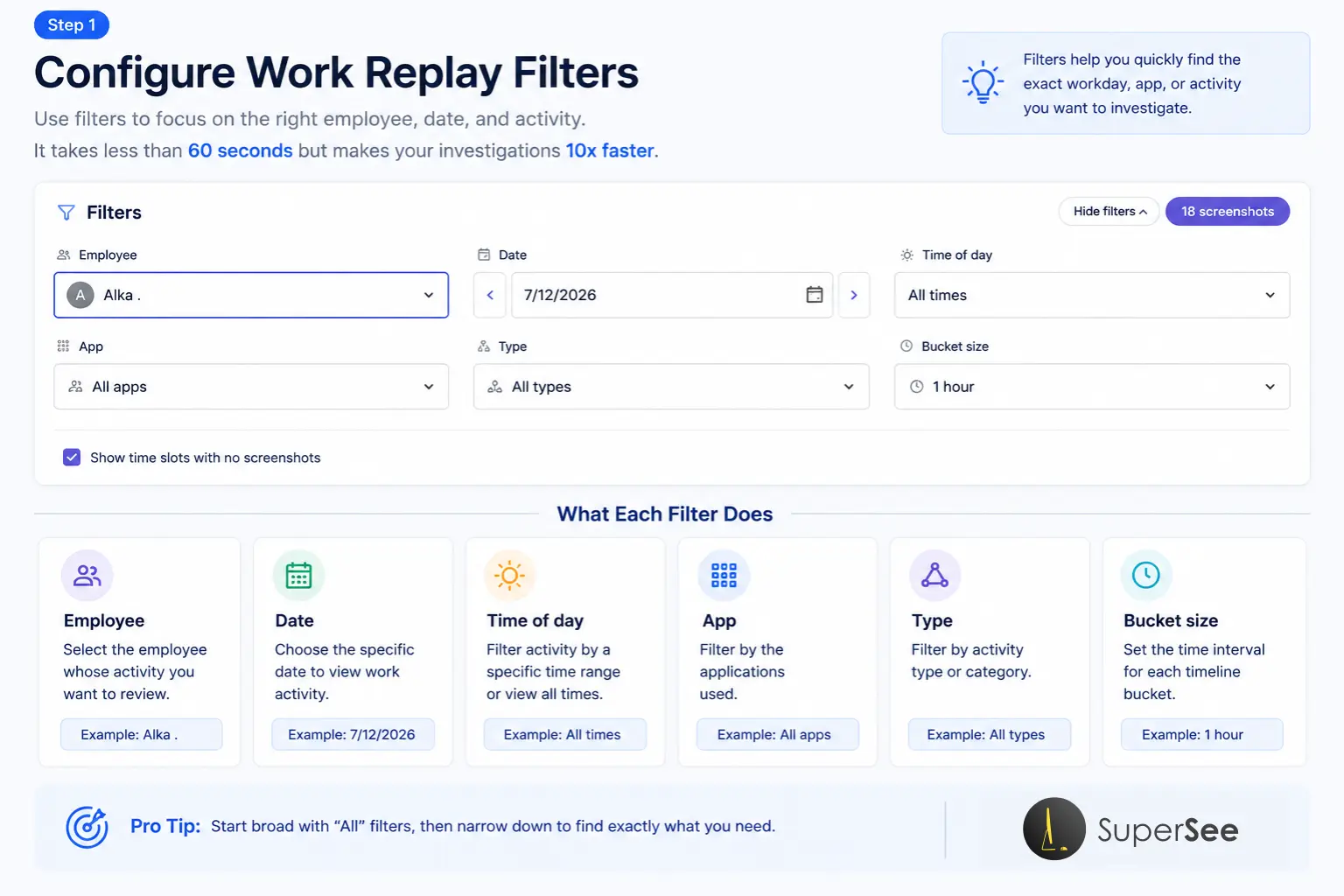
Work Replay Configuration (Setup Step)
Before you start investigating, take 2 minutes to configure Work Replayer settings. This ensures your trial is optimized from Day 1.
Pro Tip: Start with 10-minute screenshot intervals and a 30-minute bucket size. You can always change these settings during the trial as you discover what works best for your team.
What to Expect
Day 1: Data starts flowing. You’ll see application usage, active time, and idle time.
Day 2: You have enough data to start exploring the dashboard.
Pro Tip
Start broad with “All” filters, then narrow down to find exactly what you need.
Day 3-4: Explore the Dashboard
What to Do
1. Review the Daily Summary
Before diving into details, look at the big picture:
- Total active time
- Idle time
- Top applications
- Productivity trends
2. Identify your team’s “primary environment”
Which application does your team use most?
- Google Chrome?
- Figma?
- Visual Studio Code?
- Excel?
This immediately tells you where most of the work happens.
3. Look for patterns, not outliers
Don’t judge individual employees. Look for team-wide patterns:
- Does everyone have high idle time between 2-3 PM? (Maybe that’s when meetings happen.)
- Is everyone spending 2+ hours in email? (Maybe communication is fragmented.)
- Is a specific application consuming disproportionate time? (Maybe it’s slow or complex.)
4. Share high-level insights with your team
“Here’s what we’re seeing so far—our team spends about X hours in Chrome and Y hours in design tools. Any surprises?”
What to Expect
- You’ll start seeing where time actually goes, which is often different from where you think it goes.
- You might notice patterns you never saw before.
Pro Tip
Don’t jump to conclusions. Data without context is just numbers. The real value comes when you combine data with Work Replay to understand the sequence of work.
Day 5-7: Your First Work Replay Investigation
This is where SuperSee transforms from “monitoring tool” to operational intelligence.
Work Replay is the feature that reconstructs an entire workday, instead of making you scroll through hundreds of disconnected screenshots.
Think of it like this:
- Traditional screenshots = random photos from a vacation
- Work Replay = a chronological video of the entire trip
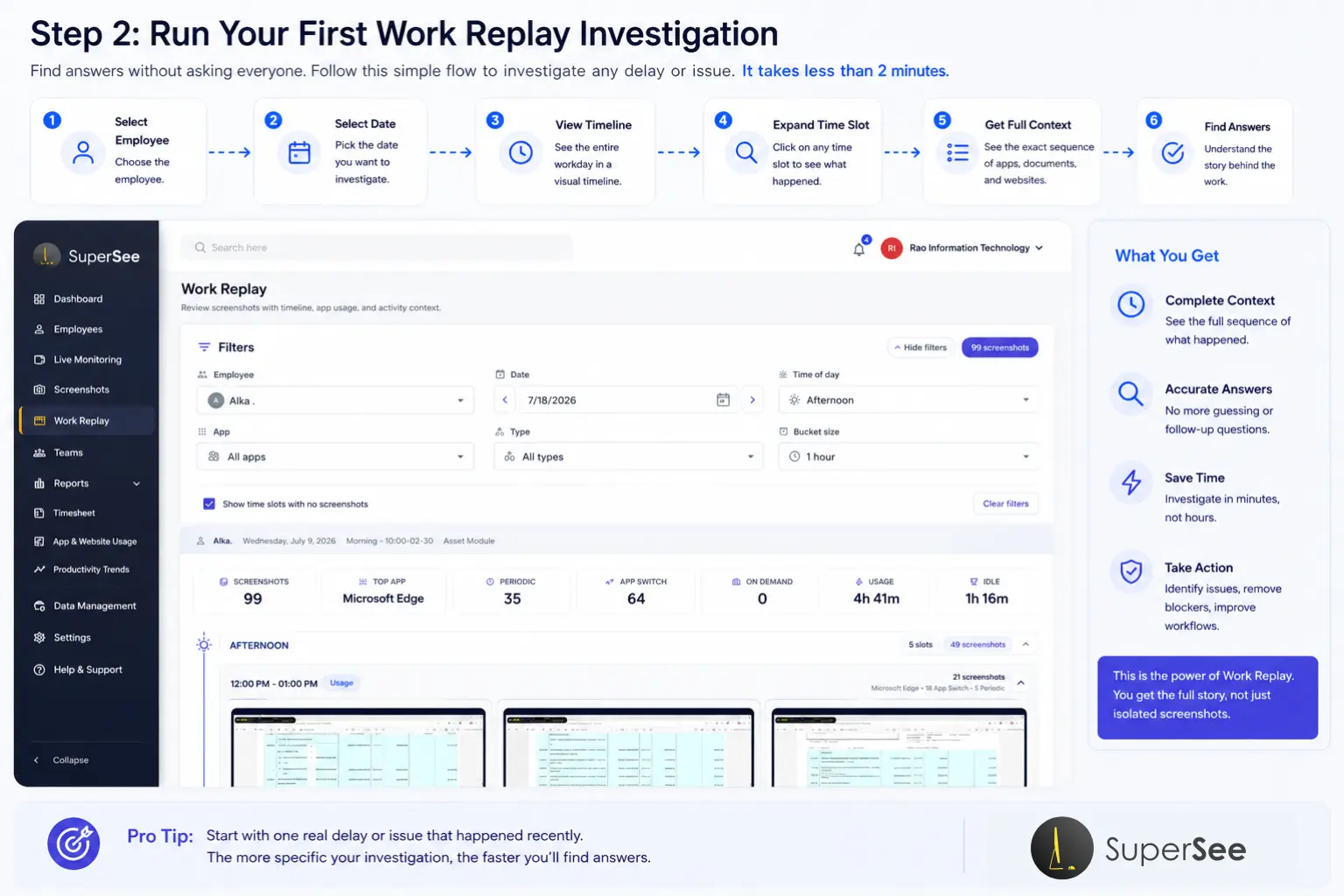
What to Do
1. Pick a recent project delay or client escalation
Choose something specific:
- “The homepage design took 6 hours instead of 3.”
- “The bug fix was estimated at 2 hours but took 7.”
- “The client asked, ‘What happened yesterday?'”
2. Open Work Replay
Select:
- Employee
- Date
- Time of day (Morning, Afternoon, Evening, Night, Late Night)
- Application (if you want to focus on one)
3. Reconstruct the timeline
Work Replay organizes the day chronologically:
- Morning: Research
- Late Morning: Active work (Figma/Photoshop/VS Code)
- Afternoon: Client revision request arrives
- Evening: Final delivery
4. Identify the “why”
Ask yourself:
- When did work slow down?
- Was there a context switch?
- Was the employee waiting for something?
- Did an application crash or fail?
Real-World Scenarios
Scenario A: Digital Agency
A client calls: “The homepage still isn’t ready.”
Instead of asking the designer to explain, you open Work Replay:
- Morning: Research and competitor analysis
- Late Morning: Figma wireframes
- Afternoon: Client revision request arrives
- Evening: Final export
The delay wasn’t inactivity. It was additional client feedback.
Now your conversation changes from “Why are you late?” to “How do we manage revisions better next time?”
Scenario B: IT Services
A bug fix estimated at 2 hours took 7 hours.
Work Replay reveals:
- Research documentation
- IDE debugging
- Database testing
- Browser validation
- Multiple application switches
The issue wasn’t poor productivity. It was technical complexity.
Without Work Replay, that distinction would be impossible to prove.
Scenario C: Back Office Operations
Invoice processing suddenly slows.
Work Replay reveals:
- Morning: ERP system functioning normally
- Afternoon: Repeated login failures
- Application reloads
- Idle periods between retries
The bottleneck wasn’t employee performance. It was software reliability.
What to Expect
- You’ll understand exactly why work slowed down—without asking anyone.
- You’ll see the sequence of events, not just isolated moments.
- You’ll have evidence for coaching conversations, not assumptions.
Pro Tip
Use filters to focus your investigation.
Work Replay lets you filter by:
- Time of Day: Morning, Afternoon, Evening, Night, Late Night
- Application: Chrome, Figma, Photoshop, VS Code, Excel, etc.
- Activity Type: Periodic screenshots, App Switches, On-Demand captures
- Bucket Size: 15 minutes, 30 minutes, 1 hour, 2 hours, 4 hours
This means you can zoom in to minute-level detail or zoom out for the big picture.
Day 8-10: Share Insights and Gather Team Feedback
What to Do
1. Share what you’ve learned
Present your findings to the team:
- “We investigated the homepage delay. Here’s what actually happened…”
- “We found that the ERP system was causing delays—not the team.”
- “We noticed high context switching between Slack and design tools.”
2. Ask for feedback
- “How does this match your experience?”
- “What surprised you?”
- “What would make this more useful?”
3. Address concerns
Some employees may worry about privacy. Remind them:
- SuperSee doesn’t track keystrokes, audio, or video
- Employees can start and stop monitoring themselves
- The goal is to understand work, not watch people
4. Adjust settings based on feedback
Maybe your team prefers:
- Different monitoring hours
- Fewer screenshots
- More focus on specific applications
- SuperSee is flexible. Adjust as needed.
What to Expect
Honest feedback (some positive, some critical)
Buy-in from team members who see the value
Refined understanding of what matters most to your team
Pro Tip
Don’t defend the tool. Listen.
If someone says, “This feels like surveillance,” acknowledge it:
“I understand. That’s why we’re doing a trial. to see if this helps us remove blockers or if it feels intrusive. Your feedback matters.”
Day 11-13: Quantify the ROI
What to Do
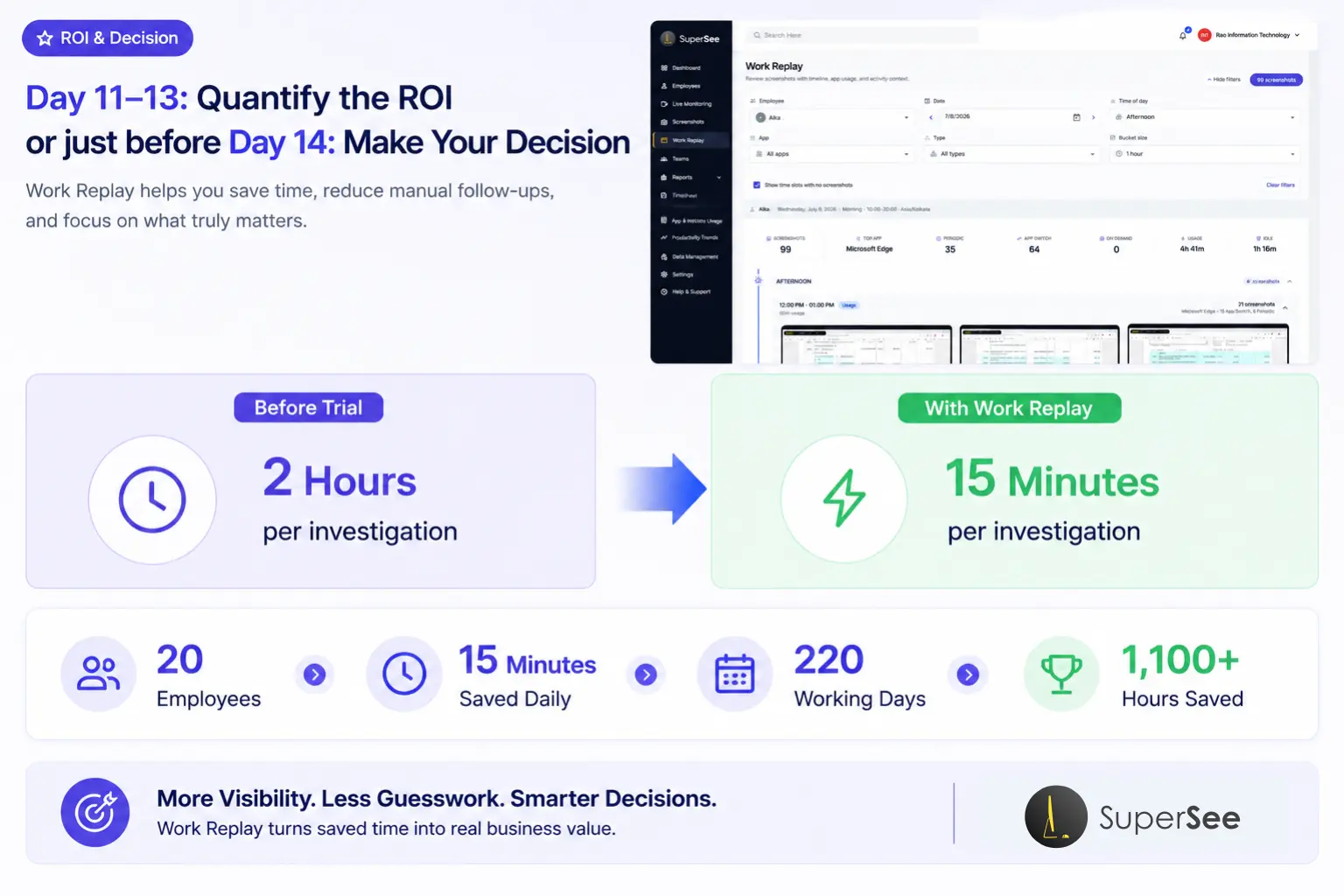
1. Calculate time saved
Ask yourself:
- How much time did I spend before SuperSee investigating delays?
- How much time did I spend during the trial?
Example:
- Before: 2 hours per week investigating “what happened”
- During trial: 15 minutes per investigation
- Time saved: 1 hour 45 minutes per week
2. Identify systemic bottlenecks
What did you discover that you wouldn’t have seen otherwise?
- A specific application that’s slow?
- A recurring client feedback pattern?
- A context-switching problem?
- A software reliability issue?
3. Calculate the team-level impact
Multiply your time savings across the team.
Example:
- 20 knowledge workers
- 15 minutes saved per day
- 220 working days per year
- = 1,100+ management hours saved annually
4. Document your findings
Create a simple one-pager:
- What we tested
- What we found
- Time saved
- Team feedback
- Recommendation
What to Expect
- You’ll have hard numbers to justify the investment
- You’ll see systemic issues you never knew existed
- You’ll feel confident in your decision
Pro Tip
Focus on outcomes, not activity.
SuperSee isn’t about tracking hours, it’s about understanding how work happens. Frame your ROI around:
- Faster investigations
- Fewer “what happened?” meetings
- Fairer coaching conversations
- Better client communication
Day 14: Make Your Decision
What to Do
1. Review your findings
Look back at your one-pager:
- Did SuperSee help you understand work better?
- Did Work Replay save you time?
- Did your team provide positive or negative feedback?
- What’s the ROI?
2. Make a decision
3. If upgrading: Plan your rollout
- Which teams will use SuperSee first?
- How will you communicate the rollout?
- What’s your ongoing review cadence?
4. If not upgrading: Provide feedback
Tell us why. We use every piece of feedback to improve.
What to Expect
Clarity. You’ll know exactly whether SuperSee is right for your team.
Confidence. You’ll have data to back your decision.
A clear path forward. Either way, you’ll know your next step.
Frequently Asked Questions
How long is the SuperSee free trial?
SuperSee offers a 14-day free trial. That’s enough time to set up, investigate, gather feedback, and quantify ROI.
What happens after the trial ends?
If you upgrade, you keep all your data and continue monitoring. If you don’t, your account is paused—but your data remains available if you return.
Can I extend the trial?
In some cases, yes. Contact our support team if you need more time.
Is SuperSee difficult to set up?
No. SuperSee works across Windows, Mac, and Ubuntu/Linux devices. Installation takes minutes.
Does SuperSee record keystrokes or video?
No. SuperSee does not track keystrokes, audio, or video. It tracks application usage, website activity, window titles, active time, and idle time.
Can employees stop monitoring?
Yes. Employees can start and stop their own monitoring sessions. When stopped, no data is recorded.
What is Work Replay?
Work Replay is SuperSee’s feature that reconstructs an entire workday chronologically—instead of making you scroll through hundreds of disconnected screenshots.
Is SuperSee legal?
Yes. SuperSee is designed to be ethical and privacy-first. It helps you stay compliant by allowing you to toggle tracking on/off based on work schedules.
Can I try SuperSee on just one team?
Absolutely. In fact, we recommend starting with one team or project.
What if my team doesn’t like it?
That’s why we offer a trial. Gather feedback, adjust settings, and make a decision based on real data—not assumptions.
Final Thoughts
14 days is enough time to change how you understand work.
You started this trial because you wanted:
- Fewer “what happened?” meetings
- Faster investigations
- Fairer coaching conversations
- Better client communication
SuperSee and Work Replay deliver all of that, if you follow a structured plan.
This guide gave you that plan.
Now it’s time to execute.
Day 1-2: Setup
Day 3-4: Explore the dashboard
Day 5-7: First Work Replay investigation
Day 8-10: Share insights and gather feedback
Day 11-13: Quantify the ROI
Day 14: Make your decision
You have 14 days. Make every one count.
Ready to Get Started?
Start your 14-day free trial today and experience the SuperSee difference.
✅ Real-time activity monitoring
✅ Work Replay for workday reconstruction
✅ Privacy-first, ethical design
✅ 14 days to prove value
Your team’s work tells a story. SuperSee helps you read it.
About SuperSee
SuperSee is an employee monitoring and time-tracking software that helps organizations understand work, not watch workers. It tracks application usage, website activity, active time, and idle time across Windows, Mac, and Ubuntu/Linux devices.
Key features include:
Work Replay (workday reconstruction)
Real-time activity monitoring
Productivity analytics and reporting
Privacy-first design (no keystroke logging, audio, or video)
Employee-controlled start/stop monitoring
SuperSee is trusted by agencies, IT services, back office teams, and knowledge work organizations worldwide.