
Time Tracking with Screenshots for Remote and Office Teams
SuperSee helps businesses track work hours with screenshots, activity data, app usage, website usage, and automated timesheets. Instead of relying only on manual updates or basic time logs, managers can review what happened during work hours with clear visual context.
Why Time Tracking Alone Is Not Enough
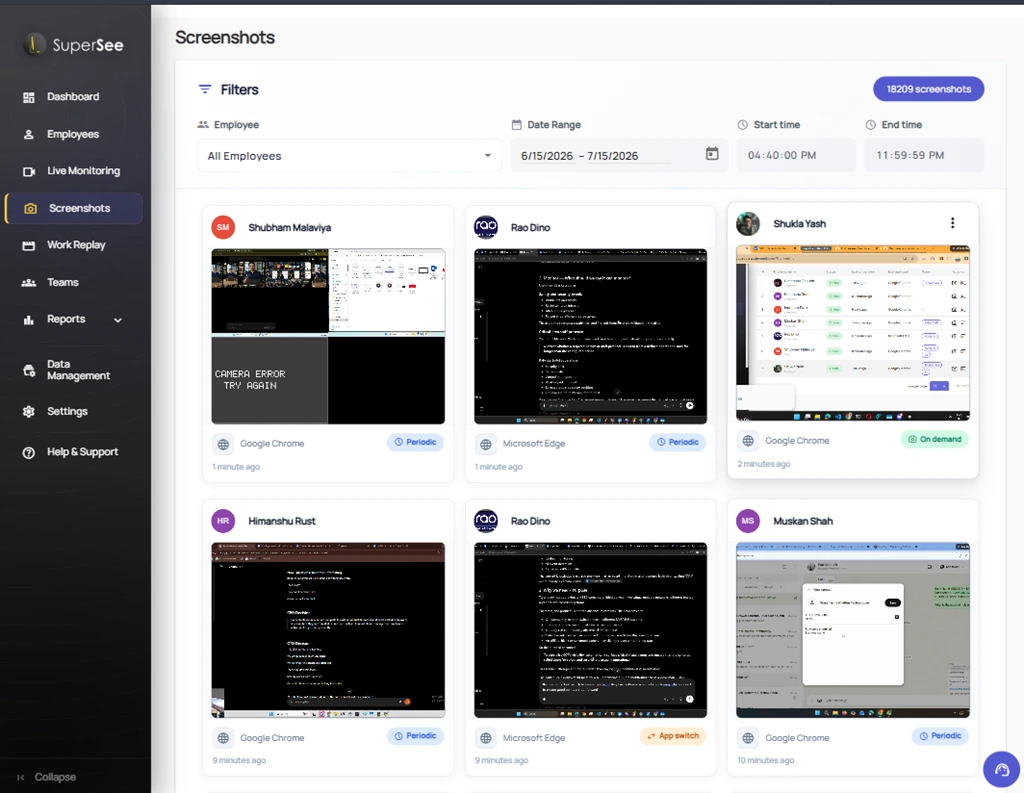
Basic time tracking shows when employees were active, idle, or offline, but it does not always explain what work was happening. This creates a gap between tracked hours and actual work context.
SuperSee adds screenshots and activity visibility to time tracking so managers can understand the story behind each work session. Use SuperSee to capture periodic screenshots, app-switch screenshots, and on-demand screenshots while tracking active time, idle time, and work patterns across remote, hybrid, and office teams.
Capture Screenshots Automatically During Work Hours
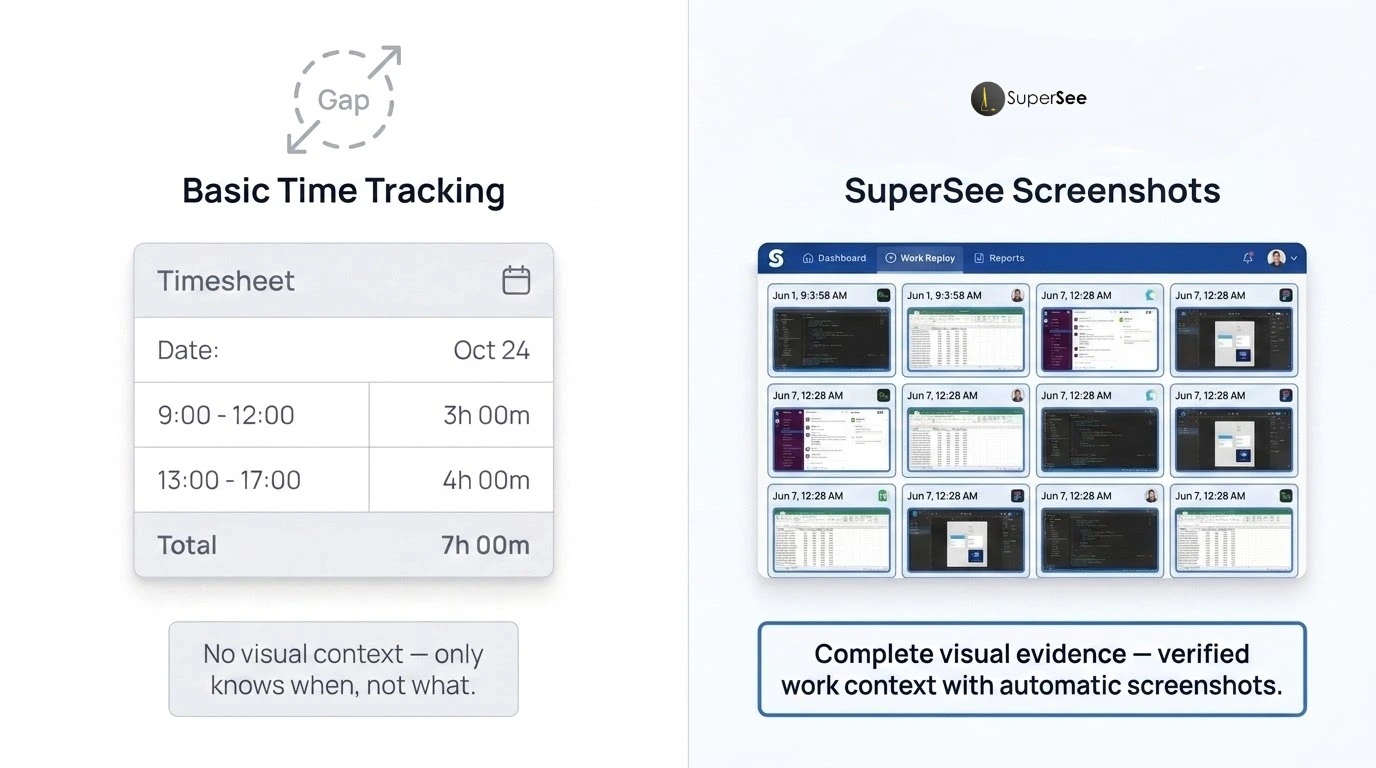
SuperSee captures screenshots automatically based on your company's screenshot settings. This gives managers a visual record of employee activity without asking employees to upload screenshots manually.
Screenshots are shown with useful details such as employee name, application name, capture time, and screenshot type.
Automatic Capture
Capture screenshots automatically at selected intervals during tracked work hours without manual steps.
Activity Context
Each capture lists key context including employee name, active application, window title, capture time, and screenshot type.
Screenshot Gallery
Review history inside a clean, grid-based visual screenshot gallery optimized for fast scanability.
Inspection Filters
Quickly filter captures by team member, specific date range, app type, or hour window to inspect targets instantly.
Secure AES Storage
All captured screenshots are stored using secure AES encryption to protect business data privacy.
Export Screenshots
Export screenshots and visual timelines for client billing audits or HR reviews.
Three Screenshot Capture Modes
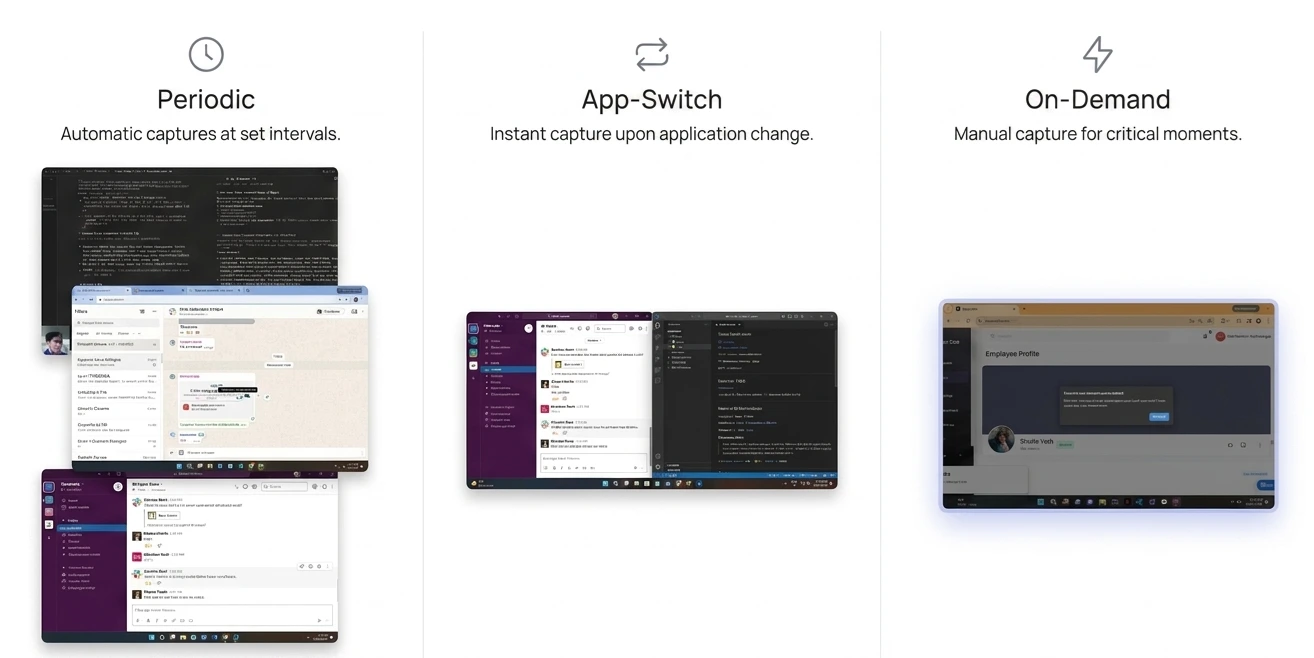
SuperSee supports three screenshot capture modes so businesses can review work activity in different situations. These modes help managers get regular work proof, workflow context, and immediate activity verification when required.
Periodic Screenshots
For regular visual proof at fixed intervals across the workday.
App-Switch Screenshots
Capture context whenever an employee changes applications or windows.
On-Demand Screenshots
Request an instant screenshot when immediate activity context is needed.
Periodic Screenshots
Periodic screenshots are captured at fixed intervals during tracked work time. This creates a consistent visual history of the employee's workday.
This is useful for teams that need regular proof of work without continuously watching employees live.
App-Switch Screenshots
App-switch screenshots are captured when an employee changes applications or windows. This helps managers understand how employees move between tools, browsers, communication apps, and work software.
This makes screenshot-based time tracking more meaningful because it connects visual proof with workflow changes.
On-Demand Screenshots
On-demand screenshots allow permitted admins, managers, or team leads to request a screenshot when they need immediate activity context.
This helps managers verify current work without waiting for the next scheduled screenshot or starting a live monitoring session.
-
RSRiya SharmaOnline · Figma
-
JKJordan KimOnline · Chrome
-
AMAna MercadoOnline · Slack
Configure Screenshot Intervals Based on Your Policy
Every business has a different monitoring policy. Some teams need frequent visual proof, while others need lighter screenshot capture.
SuperSee allows companies to configure screenshot intervals based on internal policy and plan limits.
Choose how often SuperSee captures during tracked work.
Understand What Happened During a Specific Time Window
When a manager needs to review a specific period, SuperSee makes it easy to narrow the screenshot history by employee, date, and time range.
For example, if there is a concern between 2 PM and 4 PM, managers can review only that work window instead of checking the full day manually.
Turn Screenshots into a Timeline
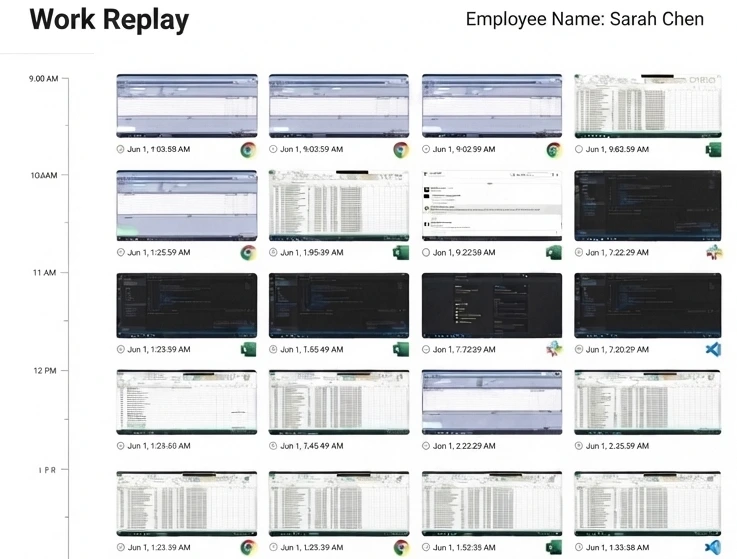
Work Replay helps managers review screenshot history in a timeline format. Instead of checking isolated screenshots one by one, managers can see how an employee's workday progressed.
This is useful when teams need to understand what happened before, during, and after a specific activity concern.
Combine Screenshots with App and Website Usage
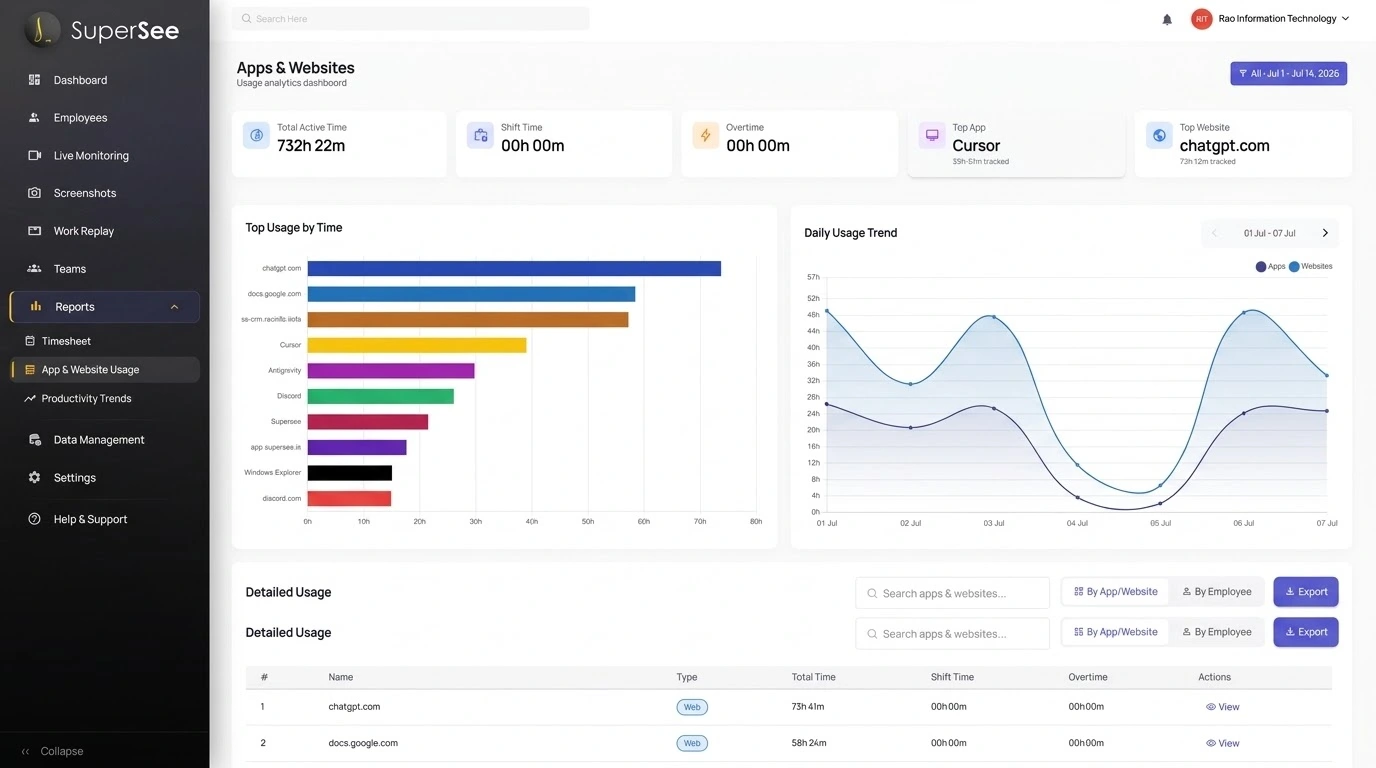
Screenshots become more useful when they are connected with application and website usage. SuperSee helps managers understand which apps and websites employees used during work hours.
This gives a clearer view of whether tracked time was spent on work tools, communication platforms, browsers, or non-work activity.
Automated Timesheets with Screenshot Context
SuperSee combines time tracking, screenshots, idle time, offline time, and activity records into structured timesheet reports.
This helps HR, operations, managers, and business owners review work hours with more context than a basic manual timesheet.
| Employee | Day | Active | Idle | Offline | Total | Screens |
|---|---|---|---|---|---|---|
| Riya Sharma | Mon | 6h 42m | 18m | 1h 00m | 8h 00m | 128 |
| Jordan Kim | Mon | 7h 12m | 22m | 26m | 8h 00m | 142 |
| Ana Mercado | Mon | 6h 58m | 14m | 48m | 8h 00m | 133 |
| Marco Silva | Mon | 5h 47m | 31m | 1h 42m | 8h 00m | 118 |
| Lina Park | Mon | 7h 02m | 12m | 46m | 8h 00m | 139 |
- ✓ Track active, idle, offline, and total tracked time
- ✓ Review day-wise, user-wise, and period-wise reports
- ✓ Use timesheets for attendance and productivity review
- ✓ Export reports when required
- ✓ Add screenshot context to tracked hours
Proof of Work for Remote, Hybrid, and Office Teams
SuperSee helps teams verify work activity with screenshots, time logs, app usage, website usage, and Work Replay. This is especially useful when employees work remotely, across shifts, or on client-billed tasks.
Managers can review work context without constantly asking for updates.
- ✓ Improve visibility for remote and hybrid teams
- ✓ Support proof of work for client-billed employees
- ✓ Review office team activity with better context
- ✓ Reduce guesswork in productivity discussions
- ✓ Help managers make evidence-based decisions
Built for Responsible Screenshot Monitoring
SuperSee is designed for work activity visibility and productivity review. Screenshot monitoring should be used with clear company policies, role-based access, and responsible internal communication.
SuperSee is positioned around work visibility, not invasive surveillance.
No Keylogging
No Audio
No Webcam ( Only available as an Addon )
Role Access
Policy Alignment
Who Should Use SuperSee Screenshot Monitoring?
SuperSee is useful for businesses that manage computer-based employees and need screenshot-backed activity review.
It works well for remote teams, office teams, support teams, agencies, IT service companies, back-office teams, and client-billed operations.
IT Services & Software
BPO & Support
Digital Agencies
Accounting & Back-Office
Staffing & Outsourcing
Why Choose SuperSee for Time Tracking with Screenshots?
SuperSee goes beyond basic screenshot capture. It combines time tracking with screenshots, app usage, website usage, idle time, Work Replay, timesheets, and productivity visibility.
This helps managers understand not only how much time was tracked, but what happened during that time.
Basic Time Tracking
Legacy- ✕ Time logs without visual context
- ✕ No screenshot evidence
- ✕ Limited app/website insight
- ✕ Manual timesheet effort
- ✕ No workday replay
SuperSee Visibility
Recommended- ✓ Screenshot-based time tracking
- ✓ Periodic, app-switch, and on-demand screenshots
- ✓ Work Replay timeline
- ✓ App and website usage reports
- ✓ Automated timesheets and activity reports
- ✓ Built for remote, hybrid, and office teams
Frequently Asked Questions
What is time tracking with screenshots?
Time tracking with screenshots means tracking employee work time while also capturing screenshots during work activity. It helps managers understand how much time was tracked and what was visible on the employee's screen during selected work periods.
How does SuperSee capture screenshots?
SuperSee supports periodic screenshots, app-switch screenshots, and on-demand screenshots. These modes help businesses capture regular work proof, workflow changes, and immediate activity context.
Can screenshot intervals be configured?
Yes. SuperSee allows companies to configure screenshot intervals based on their monitoring policy and plan limits.
Can managers filter screenshots by employee and time?
Yes. SuperSee allows screenshot review using employee, date range, start time, and end time filters.
What is the difference between Screenshots and Work Replay?
The Screenshots page is a searchable screenshot gallery. Work Replay is a timeline-based view that helps managers reconstruct one employee's selected workday using screenshot-backed time buckets.
Is SuperSee only for remote teams?
No. SuperSee can be used by remote, hybrid, and office teams. Any business that manages computer-based employees can use screenshot-backed time tracking to review work activity.
Does SuperSee record keystrokes or audio?
No. SuperSee does not use keylogging, audio recording, or webcam video recording.
Can SuperSee help with proof of work?
Yes. SuperSee helps managers review screenshots, tracked time, app usage, website usage, and Work Replay to support proof-of-work discussions.
Explore More SuperSee Features
Productivity Trends
See what is changing across your workforce over time.
Learn more →Live Monitoring
See real-time workforce activity as it happens.
Learn more →Work Replay
Replay workday sessions to investigate behavior in context.
Learn more →Apps & Websites Utilization
Track how teams spend time across tools and websites.
Learn more →Start Time Tracking with Screenshots
Use SuperSee to track work hours, capture screenshots, review app and website usage, and understand employee activity from one dashboard.